Canvas fingerprinting is a technique websites use to identify and track users by analyzing tiny variations in how their devices render graphics. It can recognize your device even without logging in, but by using tools like anti-detect browsers, browser plugins, or randomized Canvas data, you can reduce tracking and protect your online privacy.
Quick Answer
- Canvas fingerprinting is a tracking method that identifies devices by analyzing subtle differences in how their hardware and software render graphics.
- Websites use the HTML5 Canvas element to draw hidden images, capture pixel data, analyze variations, and generate a unique hash for each device.
- Canvas fingerprints are highly distinctive due to device and browser differences, making them useful for security, fraud prevention, personalized ads, and fair gaming.
- Turning off Canvas or JavaScript may break websites and make your browser behavior stand out, increasing detection risk.
- While browser extensions like Canvas Defender or Privacy Badger can obscure Canvas data, the most reliable solution is using anti-detect browsers such as FlashID, which create virtual browser environments and add randomized Canvas noise to replace your real fingerprint, greatly reducing the risk of being tracked.
What is Canvas Fingerprinting?
Canvas fingerprinting is a tracking technique that uses the HTML5 element to collect subtle differences in a device’s graphics rendering. These differences arise from the combination of your operating system, GPU, browser version, fonts, and other hardware and software factors.
Every device renders the same image slightly differently. Canvas fingerprinting captures these differences to generate a unique digital fingerprint for each user. Unlike traditional tracking methods such as cookies, Canvas fingerprints do not require logging in or storing local files—they rely entirely on your device’s hardware and software characteristics.
How Canvas Fingerprinting Works
The Canvas API allows websites to draw graphics dynamically on a web page. When combined with JavaScript, websites can use Canvas to generate a unique fingerprint for each device. The process involves several steps:
1.Request Canvas to Draw an Image
Websites ask your browser to render a hidden Canvas element containing shapes, text, or patterns. Even simple drawings like rectangles or letters produce subtle variations in rendering. It’s like asking everyone to draw the same picture on their own paper, but each hand and pen is slightly different.
2.Capture Rendering Data
Once the image is drawn, your browser returns the pixel data, usually as a Base64-encoded string.
Just like taking a photo of the painting, after painting, the painter hands the canvas to a scanner that records every tiny color and brush stroke into a detailed map. This map is like a fingerprint of the painter’s style
3.Analyze Differences
Rendering differences stem from device-specific factors: operating system, graphics card, fonts, GPU drivers, and anti-aliasing methods. These differences persist even across identical browsers or OS versions on different machines.
Building on the previous scene, tiny differences in paper, pen, and technique make each drawing unique.
4.Generate a Unique Fingerprint
The pixel data is converted into a hash value that acts as a unique device identifier. This allows websites to recognize you on subsequent visits without cookies or login credentials.
Applications of Canvas Fingerprinting
Canvas fingerprinting is widely adopted because of its unique ability to capture subtle differences in a device’s hardware and software environment. Every device has a combination of operating system, graphics card, browser version, and installed fonts, which causes tiny variations when rendering images on a Canvas element. These variations are almost impossible to perfectly replicate, making Canvas fingerprints highly distinctive.
Additionally, the rendering process itself introduces a degree of randomness. Even identical commands may produce slightly different outputs across devices or browser versions. This combination of uniqueness and unpredictability makes Canvas an extremely reliable tool for user identification.
Thanks to these advantages, Canvas fingerprints are applied in various areas:
- Enhancing Account Security: By tracking device-specific behavior, websites can detect suspicious activity and protect accounts from unauthorized access.
- Personalized Advertising: Advertisers use the uniqueness of Canvas fingerprints to deliver targeted content, increasing engagement and conversion rates.
- Ensuring Fair Play in Gaming: Online platforms can identify duplicate or suspicious devices to prevent cheating and maintain a fair environment.
- Fraud Prevention: Detect bots or automated interactions on websites.
How to Prevent Canvas Fingerprinting
1.Why doesn’t disabling Canvas fingerprinting work?
We all know that disabling cookies can prevent cookie-based tracking, but stopping Canvas tracking is not that simple. You can disable JavaScript in your browser settings or use plugins like NoScript to block Canvas drawing, but this approach has drawbacks. Many modern websites rely on JavaScript to render essential content, so disabling it may cause pages to malfunction.
At the same time, completely disabling Canvas can make your browser behavior stand out, since most users’browsers support Canvas, which may draw attention and make you easier to detect and track.
2.Using Browser Extensions
Many users look for ways to hide their Canvas data, and browser extensions are one of the most common methods. For example:
- Canvas Defender: Generates a fake Canvas fingerprint by altering pixel data.
- Privacy Badger: Blocks certain scripts that may collect Canvas fingerprints.
- CanvasFingerprintBlock: Adds invisible noise to Canvas, affecting the pixel hash.
These methods reduce tracking but are not foolproof, as sophisticated trackers can still detect anomalies.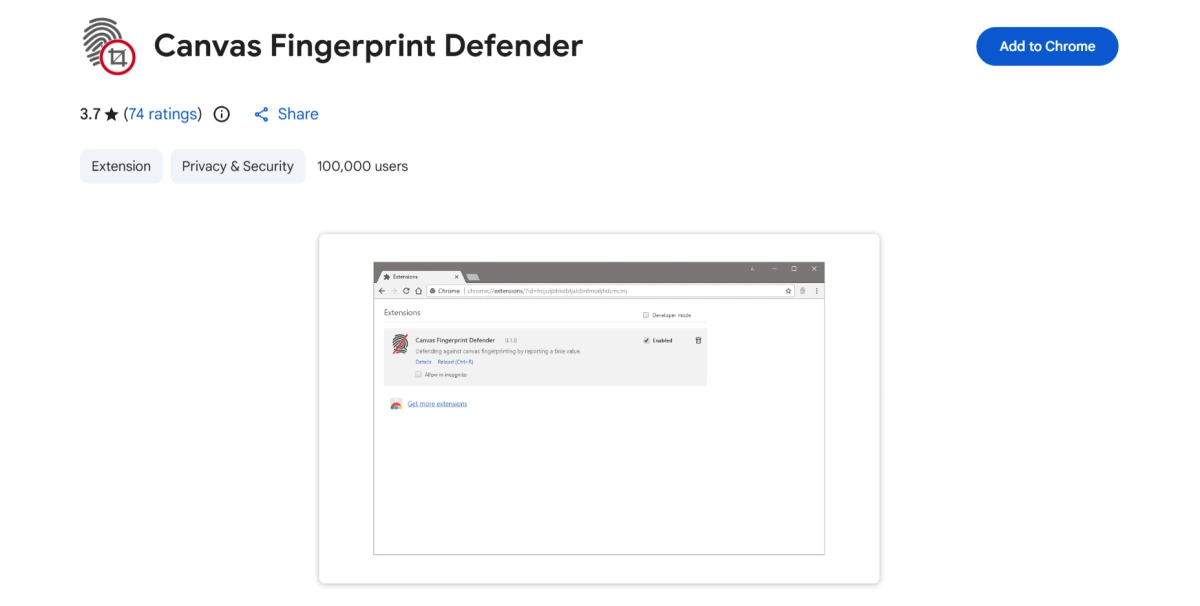
3.Masking Canvas Fingerprints with a Antidetect Browser
In most cases, a “replacement” approach is more effective than a “blocking” approach. Since websites need to collect user data, users can replace their real Canvas fingerprint with a randomly generated one, allowing the website to gather data while still protecting their privacy.
As we mentioned earlier, the effectiveness and security of browser extensions specifically designed to manipulate Canvas fingerprints remain uncertain. This is why anti-detect browsers like **FlashID **have become a popular choice. These tools can create multiple virtual identities that differ from the real device fingerprint. Each time you use a new or modified browser environment, the website sees a different Canvas fingerprint, reducing the risk of being tracked while minimizing any abnormal behavior that might draw attention.
Among all the tools, FlashID anti-detect browser is worth trying for everyone. It allows you to create and manage different virtual browser environments by customizing every parameter of your fingerprint, including techniques to interfere with Canvas fingerprints. Specifically, FlashID can randomize the Canvas fingerprint for each browser session, ensuring that every generated fingerprint is completely unique.

How FlashID Masks Canvas Fingerprints:
In flashid, when you create a new virtual browser environment or configuration file, you can customize various browser fingerprint information.
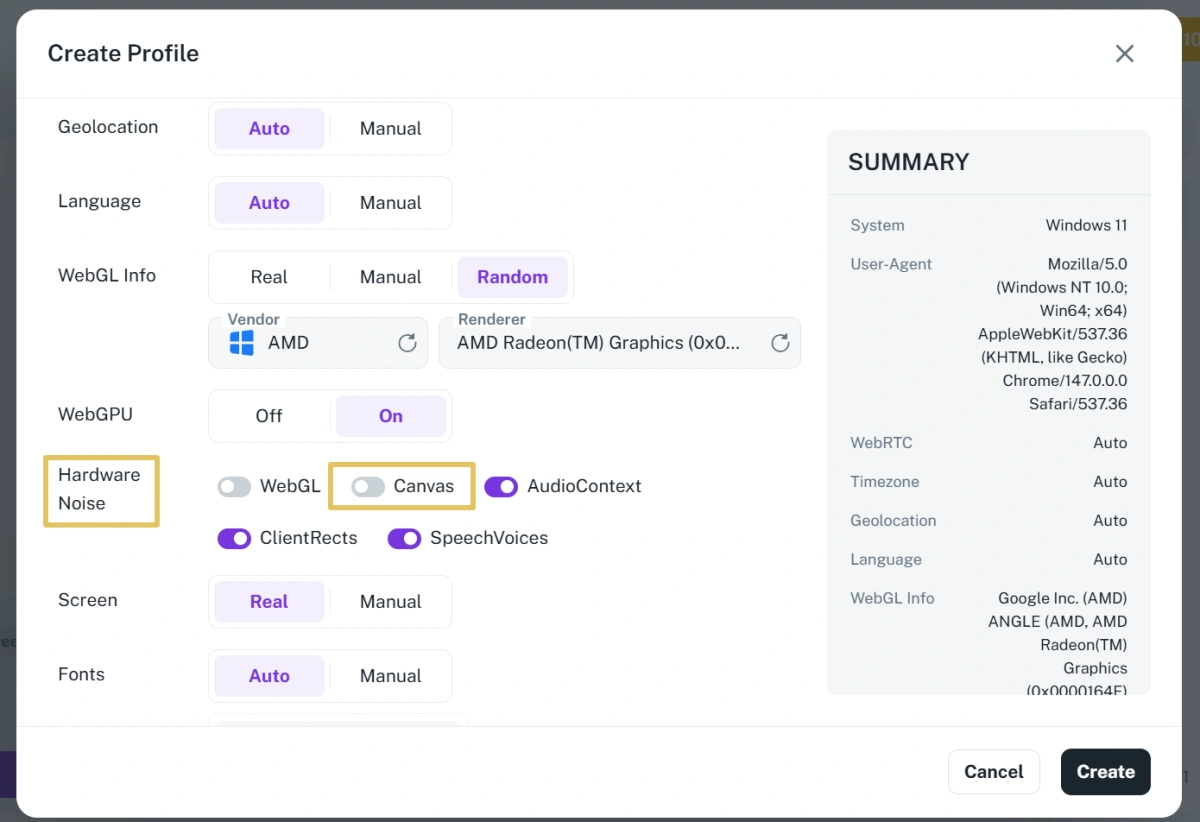
In the profile or environment settings, find the section labeled “Hardware Noise”. This section controls how Canvas fingerprint data is handled.
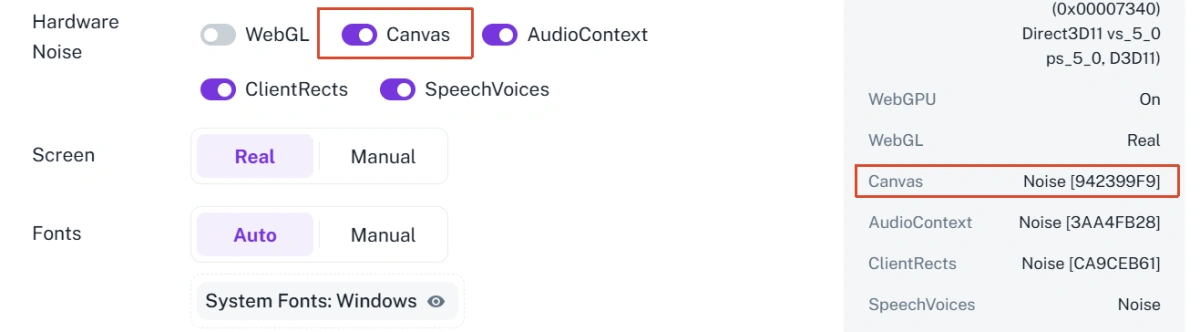
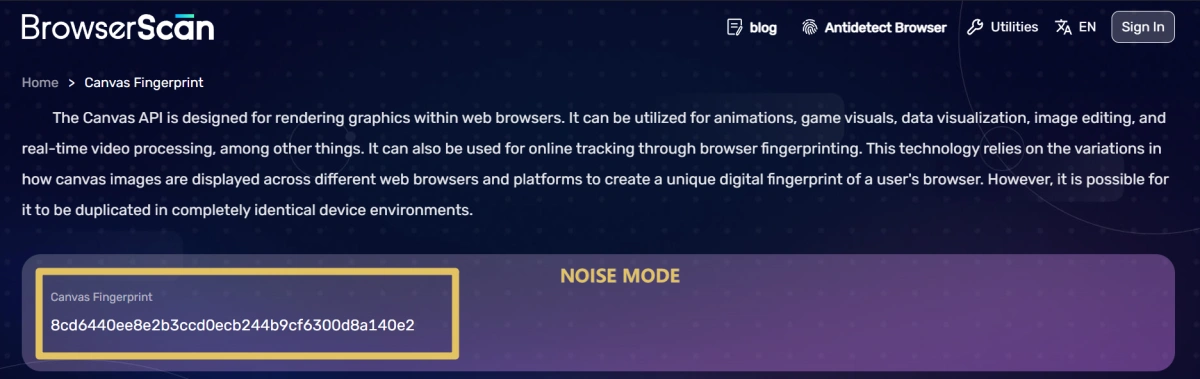
Turn on the Canvas Noise Mode option. This tells FlashID to add random information to the Canvas fingerprint or modify the rendering data in some way. The purpose is to mask your real Canvas fingerprint and make it appear unique to websites.
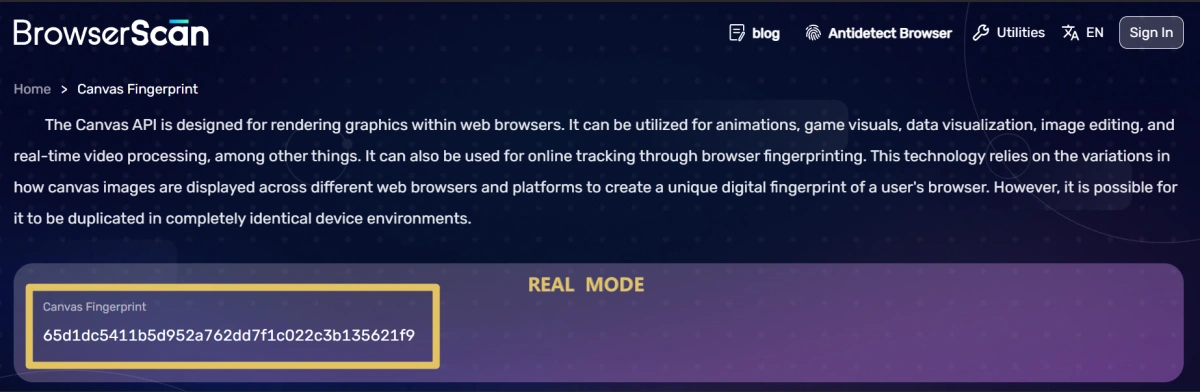
If you do not enable Canvas Noise Mode, FlashID will use your system’s real Canvas rendering output. The website will then see your true Canvas fingerprint, which is highly unique and can be used to track you across sessions if compared to historical data.
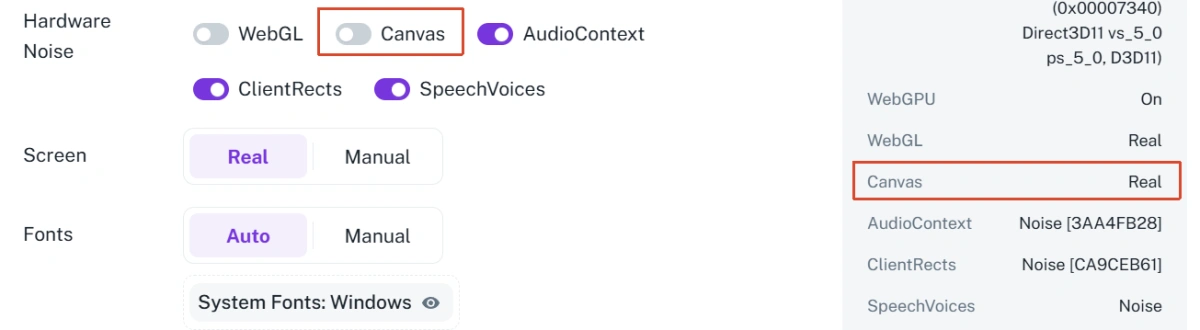
When creating a Canvas fingerprint profile in FlashID, you can visit browser fingerprint testing sites like BrowserScan to check whether each environment produces a unique Canvas fingerprint in both “real” and “noise” modes.
Conclusion
Canvas fingerprinting is a powerful tracking method that can identify devices with high accuracy. While disabling Canvas or using extensions can help, the most reliable solution is a fingerprint browser like FlashID. By masking your Canvas fingerprint, you protect your privacy, prevent account linking, and maintain normal website functionality.
If you’d like to stay updated with practical insights and industry trends, feel free to join our community.
FAQ
1.What exactly is Canvas fingerprinting?
Canvas fingerprinting uses the HTML5 Canvas element to collect subtle differences in device graphics rendering, generating a unique identifier that websites can use to track users.
2.Can Canvas fingerprinting identify me even if I clear cookies?
Yes. Unlike cookies, Canvas fingerprints rely on your device’s hardware and software characteristics, which persist across sessions.
3.Will disabling Canvas or JavaScript stop tracking?
Partially. Disabling Canvas may prevent fingerprint collection but can break website functionality and make your browsing behavior stand out.
4.How effective are browser extensions in blocking Canvas fingerprints?
Extensions like Canvas Defender and Privacy Badger can reduce tracking, but sophisticated websites may still detect users by analyzing patterns or inconsistencies in the data.
5.How does Antidetect Browser protect against Canvas fingerprinting?
Antidetect Browser creates isolated browser environments and allows users to add random noise to Canvas data. This masks the real fingerprint, making it harder for websites to link sessions to the same device.
6.Is using a fingerprint browser compatible with normal web browsing?
Yes. Fingerprint browsers like FlashID balance privacy with usability, enabling normal website interaction while reducing the risk of device recognition
You May Also Like