In one discussion shared on Reddit, a Facebook user described an issue that many teams have encountered. The user received a Facebook page access invitation but was unable to accept it. Each attempt resulted in the message:
“Something went wrong while saving your changes. Please try again later.”
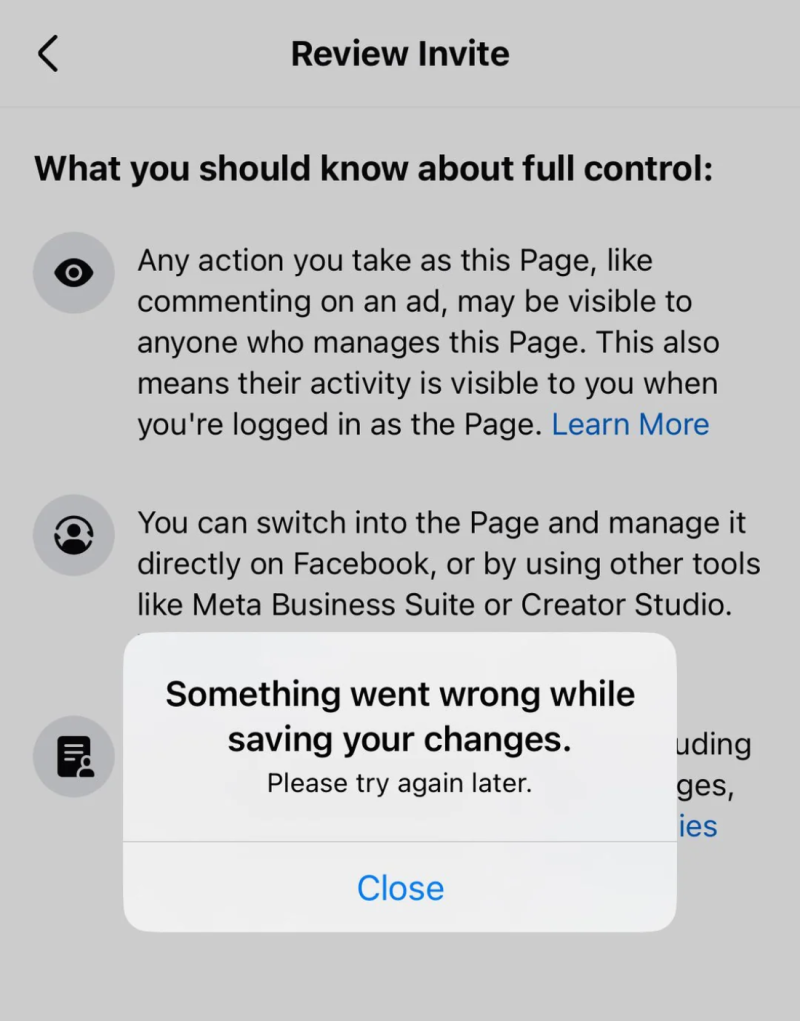
Other users in the discussion suggested several possible solutions. One person reported that waiting about 24 hours resolved the problem without any additional steps. Another suggested canceling the existing invitation and sending a new one, then accepting it immediately.
Although this example involved a single user, similar reports are common among agencies, marketing teams, and businesses managing Facebook pages or Business Manager accounts.
Understanding why invitations fail is the first step toward resolving the issue and preventing it from happening again.
Why Facebook Team Invitations Fail
A Facebook team invitation can fail in several ways, depending on where the process breaks down. Sometimes, the invitation cannot be sent at all. In other cases, it is delivered successfully, but the recipient is unable to accept it or encounters an error when saving changes. There are also situations where the invitation remains stuck in a pending state, or even after being accepted, the user still cannot access the assigned asset.
In most cases, the issue is linked to a few common factors:
- an expired or invalid invitation
- incorrect permission settings
- account restrictions
- browser session conflicts
- unstable login environments.
These problems are especially common when multiple Facebook accounts are managed in the same browser or when login conditions change too often.
In profile where multiple accounts need to be managed, using a **anti-detect browser **together with stable network proxies can help maintain consistent login conditions. This approach reduces session conflicts and helps separate account profile, especially when different users or client accounts are handled on the same device.
Understanding these common patterns helps make troubleshooting more efficient. Instead of checking every possible cause, it is usually better to start with the invitation itself, the assigned permissions, and the login profile.

How to Fix Facebook Team Invitation Errors Step by Step
The following steps provide a structured approach to resolving most invitation-related issues.
Step 1. Confirm the Correct Invitation Type
Before troubleshooting technical problems, verify that the invitation was created correctly.
Check:
- Whether the invite targets the correct asset
- Whether the inviter has administrative rights
- Whether the correct role is assigned
Incorrect invitation types often lead to silent failures.
Step 2. Cancel and Resend the Invitation
If an invitation fails to load or remains pending, canceling the existing invite and sending a new one is recommended.
Best practices include:
- Deleting the previous invitation
- Creating a new invitation immediately
- Asking the recipient to accept it without delay
This step resolves many cases involving expired or corrupted invitations.
Step 3. Log Out and Log Back In
Refreshing the login session helps synchronize account status.
Suggested actions:
- Log out of Facebook
- Close all browser tabs
- Log in again using a fresh session
This reduces the chance of session mismatches.
Step 4. Clear Cache or Use a Clean Browser Profile
Stored cookies and cached data may conflict with new invitations.
Possible solutions:
- Clear browser cache and cookies
- Use an incognito session
- Use a clean browser profile
Clean profiles help reduce session-related conflicts.
Step 5. Avoid Logging Into Multiple Accounts in One Session
Simultaneous access to multiple Facebook accounts increases the chance of unexpected behavior.
If managing multiple accounts:
- Assign separate working sessions
- Avoid switching accounts repeatedly
- Keep each account associated with a consistent profile
Structured separation reduces operational errors.
Step 6. Check Account Status
If an account has pending security checks, invitations may fail.
Verify:
- Whether identity confirmation is required
- Whether login alerts are active
- Whether unusual activity notifications exist
Completing these steps may restore normal access.
Step 7. Wait and Retry Later
In some situations, Facebook system delays affect invitation processing.
If all other steps fail:
- Wait 12–24 hours
- Attempt the process again
- Avoid repeated retries within short intervals
Temporary system conditions often resolve without manual changes.

How to Invite Team Members to Facebook the Right Way
Preventing errors is often easier than troubleshooting them.
Use Verified Administrator Accounts
Only authorized administrators should send invitations.
Using verified accounts reduces the chance of permission conflicts.
Select the Correct Role Carefully
Different roles carry different levels of access.
Before sending an invitation: confirm required permissions and match the role with the user’s responsibilities.
Incorrect role selection may delay acceptance.
Send Only One Active Invitation
Multiple simultaneous invitations can cause confusion.
Best practice: send a single invitation, wait for acceptance and resend only if necessary.
Accept Invitations Promptly
Delays increase the risk of expiration.
Recipients should: check notifications promptly; accept invitations as soon as possible; avoid repeated login changes before acceptance.
Maintain a Stable Login Profile
Consistency reduces risk signals.
Recommended habits: use the same device when possible; avoid unnecessary location switching; keep browser sessions stable.
These practices support reliable account activity.

When the Problem Is the Profile, Not the Invitation
Not all invitation failures originate from the invitation itself. In many cases, the underlying issue relates to the login profile rather than the invitation settings.
Common contributing factors include shared browser usage, frequent account switching, inconsistent device behavior, and unstable login patterns. These situations are more likely to occur when multiple accounts are managed within the same browser.
To reduce these risks, many teams assign each account its own independent profile instead of switching between accounts in a single session. In practice, this is often done using anti-detect browsers together with dedicated proxies, allowing each account to maintain separate cookies, device settings, and login data.
Some tools, such as the FlashID anti-detect browser, support this structured profile approach by allowing teams to create and manage separate profiles for different accounts. Keeping profiles isolated and consistent helps reduce session conflicts and improve daily account stability.
Conclusion
Facebook team invitation failures can result from expired invitations, permission mismatches, account restrictions, or inconsistent login environments. Most issues can be resolved through basic troubleshooting, such as resending invitations, checking permissions, and maintaining stable sessions.
For teams managing multiple accounts, using separate profiles helps keep login environments consistent. Tools like the FlashID can support structured profile management and improve operational stability.
👀️ If you’d like to learn more about facebook and stay updated with practical insights, feel free to join our community.
FAQ
- Q: Why can’t I accept a Facebook team invitation? A: This usually happens due to expired invitations, permission issues, or account restrictions. In many cases, canceling the old invitation and sending a new one resolves the problem. Using a clean browser session may also help.
- Q: How long does a Facebook team invitation stay valid? A: Facebook invitations remain valid for a limited time, depending on the type of access. If an invitation has been pending for too long, it is recommended to cancel it and send a new one.
- Q: Can using multiple Facebook accounts in one browser cause invitation errors? A: Yes, switching between multiple Facebook accounts in the same browser can create session conflicts. These conflicts may lead to failed invitations or repeated login requests.
- Q: How can separate browser profiles help reduce Facebook invitation problems? A: Separate browser profiles keep login data isolated for each account. This helps reduce session conflicts and supports more stable account operations.
- Q: How can a anti-detect browser help manage multiple Facebook accounts? A: A anti-detect browser lets each Facebook account run in its own profile, keeping login data separated and reducing session conflicts. Some tools(such as the FlashID anti-detect browser), support structured profile management for teams handling multiple accounts.
- Q: What should I check before sending a Facebook team invitation? A: Before sending an invitation, confirm that you have the correct permissions, select the appropriate role, and ensure the recipient account is active. Using a stable login environment and avoiding multiple simultaneous sessions can also reduce the risk of errors.
You May Also Like