When running multiple accounts, managing your network environment is a key factor in ensuring account security.
An antidetect browser like FlashID allows you to create isolated environments and unique browser fingerprints for each account, while proxies provide the network layer needed to hide your real IP and simulate different geolocations.
Among many proxy providers, iProxy stands out for its innovative approach: it allows you to turn ordinary Android devices into real mobile proxies using actual cellular networks. This means you get access to highly trusted mobile IPs without relying on traditional proxy servers. iProxy supports flexible IP rotation, multiple protocols (including SOCKS5 and HTTP), and offers full control via a simple dashboard or Telegram bot—making it a scalable and private solution for users who need genuine mobile IPs.
In this guide, we’ll walk you through how to configure iProxy mobile proxies in FlashID step by step, and share practical tips to optimize your setup for secure and stable multi-account operations.
1.Why Use iProxy with FlashID?
For multi-account users, the challenge goes far beyond IP duplication:
- High Trust & Authenticity: iProxy provides real mobile IPs directly from cellular networks, offering the highest level of platform trust and mimicking genuine user behavior.
- Full Control & Flexibility: You manage IP rotation, session duration, and protocols directly from your own devices, adapting instantly to different platform requirements.
- Privacy & Scalability: Traffic stays on your devices without third-party servers. Easily scale by adding more phones, maintaining complete privacy and control.
By combining FlashID’s isolated browser environments with iProxy’s private mobile proxy network, you achieve both unique browser fingerprints and authentic network identities—a robust foundation for secure, long-term multi-account operations.
2.Overview of iProxy
Compared to smaller proxy providers, iproxy offers several distinct advantages:
- Quick Setup: Turn any Android phone into a proxy in under 5 minutes.
- IP Rotation: Manual or scheduled IP changes via dashboard, API, or Telegram bot.
- Multiple Access Points: Create several independent proxy ports per device.
- Protocols Supported: SOCKS5, HTTP, oVPN, UDP.
- Global Coverage: Keep the device’s real geolocation; use phones anywhere.
- Full Control & Privacy: Traffic stays on your device; no third-party servers involved.
- Reseller-Friendly: White-label support, wholesale discounts, and scalable proxy farms.
Therefore,iproxy is especially suitable for users who require high-trust mobile Ips,complete privacy,and scalable control for sensitive or large-scale operations.
3.Steps to Configure Iproxy in FlashID
Step 1: Obtain Proxy Information
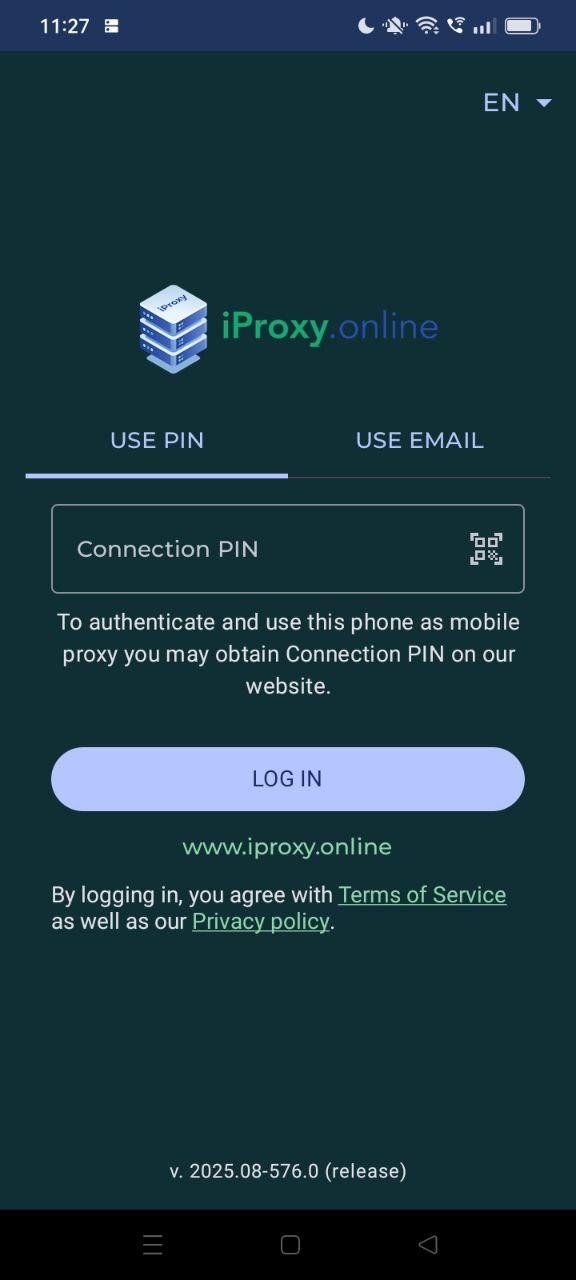
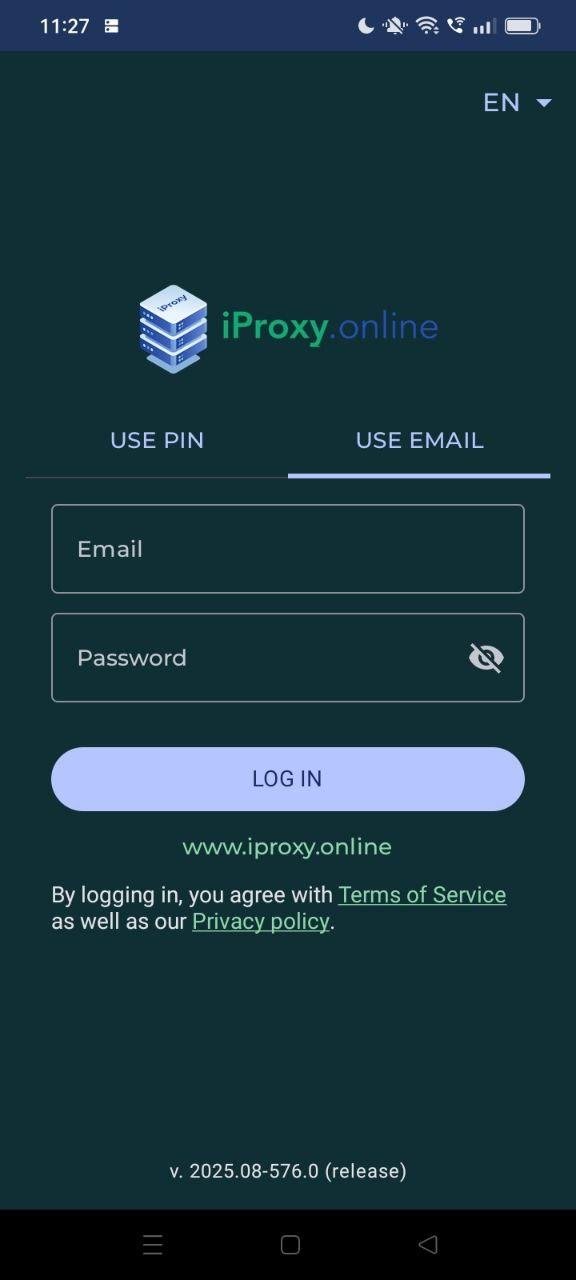
1.Obtain Connection Pin on your website,then use email to log in the Iproxy
2.Setup manager and install openvpn for the android


3.Chose the aasist apps to help you based on information from the screen you are viewing.

4.Do not optimize
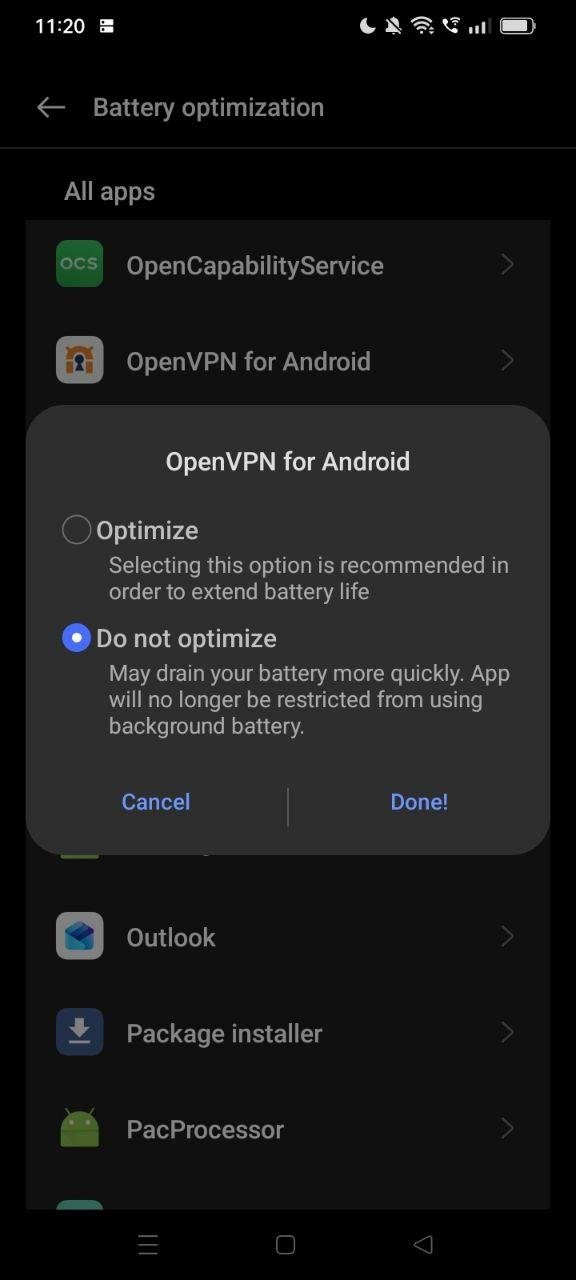
5.Turn on the proxy, traffic split. Confirm the status shows connected and note the displayed IP address.

6.Configure change
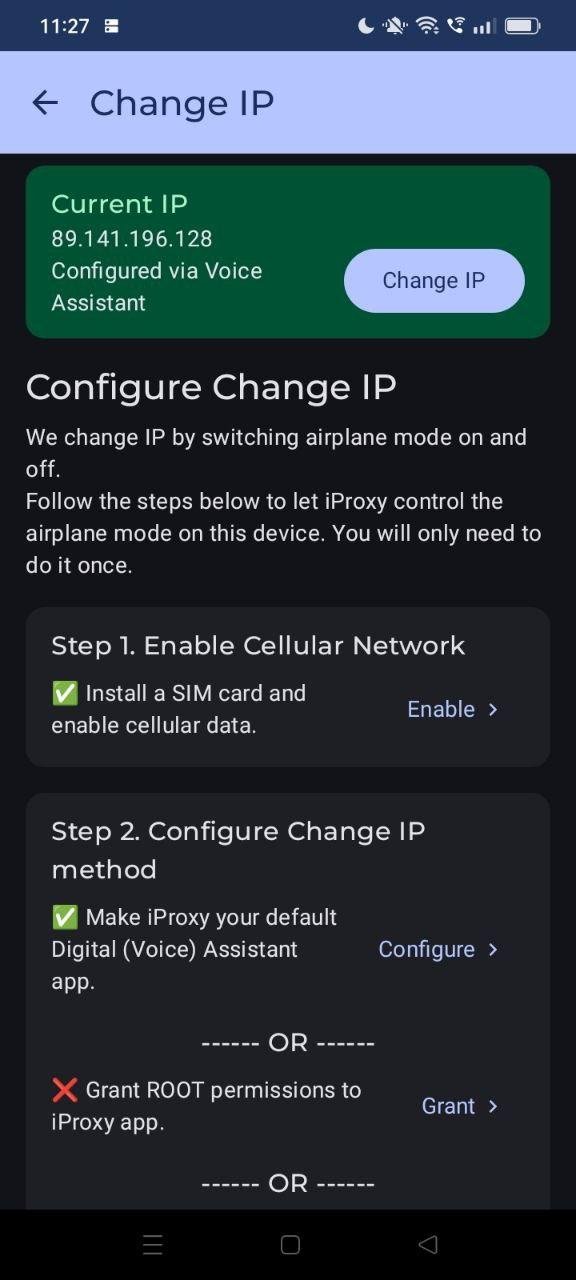
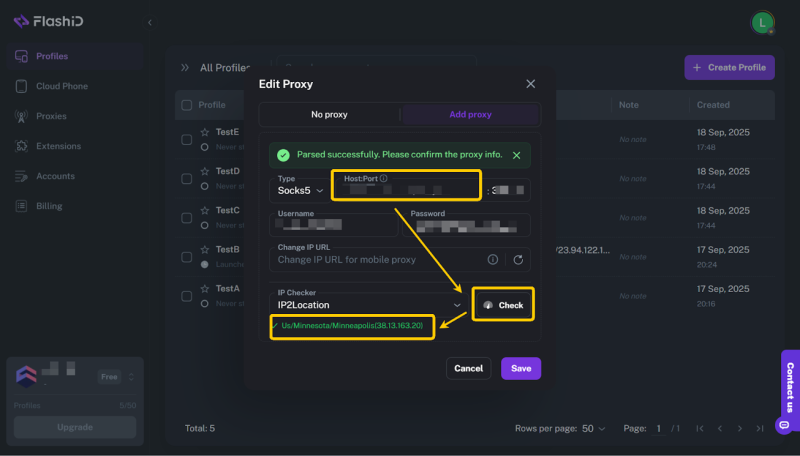
Step 2: Add Proxies to FlashID
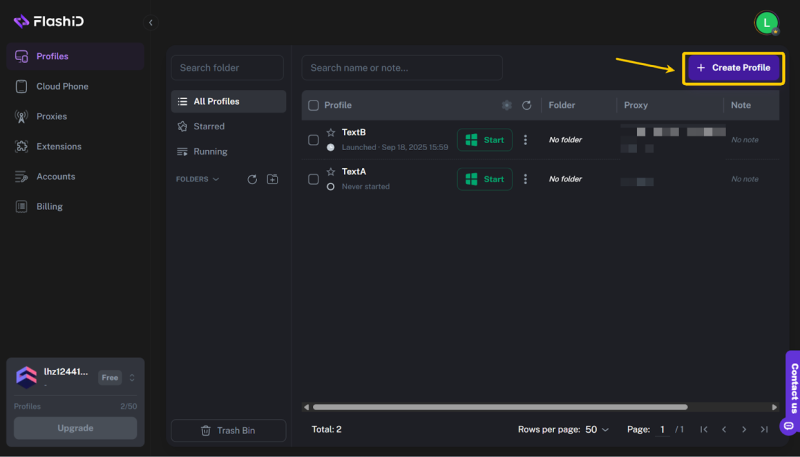
1.Open the FlashID client, and click Create Profile.
2.In the Proxy Settings section, select Add Proxy.
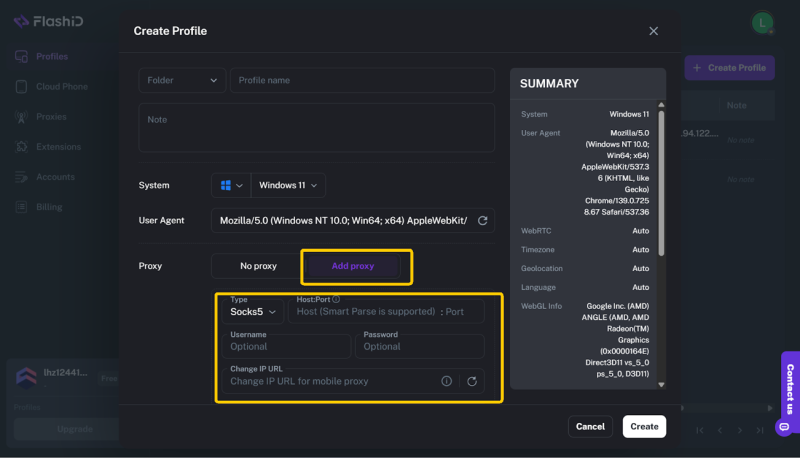
3.Enter the proxy host, port, username, and password provided by Bright Data.
4.Click Test to verify the proxy connection, then Save the profile.
4. Advanced Tips
Choose the right rotation strategy:
- Sticky Sessions → Keep the same IP during a login session to maintain consistency.
- Scheduled Rotation → Change IPs at set intervals (e.g., hourly/daily) via iProxy’s dashboard or Telegram bot.
- Manual Refresh → Rotate IPs on demand for high-risk actions.
Avoid excessive rotation:
Frequent IP changes may trigger platform detection. Set iProxy’s rotation interval reasonably based on your use case.
Monitor device & connection quality:
Keep your Android devices charged, connected to stable mobile data, and check traffic flow in the iProxy app.
Organize devices efficiently:
Assign different phones (and their proxy ports) to separate account groups or platforms for easier management and better isolation.
5. Conclusion
Configuring iProxy mobile proxies in FlashID is straightforward, yet this combination unlocks a truly powerful and private solution for multi-account management.
iProxy lets you turn your own devices into real mobile proxies, providing highly authentic IPs trusted by even the most sensitive platforms, while FlashID ensures complete browser environment isolation with unique fingerprints for each account.
If you prioritize privacy, control, and authenticity, pairing iProxy with FlashID will give you long-term stability, scalability, and a clear competitive edge in managing multiple accounts securely.
You May Also Like