Quick Answer
Visit Instagram or open the Instagram app, then select Create new account. Enter your email address or phone number, create a password, choose a username, and provide your name, birthday, and other required information. When prompted, enter the verification code sent to your email or phone to confirm your contact information. Complete the remaining on-screen steps, then add a profile photo, write your bio, and review your account security settings.
Key Takeaways
- You can create an Instagram account from the mobile app or Instagram website.
- A working email address or phone number makes account verification easier.
- Choose a clear username and complete your profile before you start posting.
- Enable extra security features and choose the account type that matches your goals.
What You Need Before Creating an Instagram Account
You only need a few basic things before you start:
- A working email address or mobile phone number.
- A phone, tablet, or computer with internet access.
- A username idea that is easy to remember.
- A strong password that you do not use on other accounts.
It is also a good idea to decide why you are creating the account. For example, you may want a private account for friends, a creator account for content, or a business account for a brand.
How to Download the Instagram App
If you want to use Instagram on your phone, download the official app.
- iPhone: Open the App Store, search for Instagram, and install the official app.
- Android: Open Google Play, search for Instagram, and tap Install.
- Computer: You can use Instagram through a web browser without installing the mobile app.
The mobile app is usually the easiest option for a new user because most account and content features are available there.
Step-by-Step Instructions for Account Creation
Once Instagram is ready, you can create your account in a few steps.
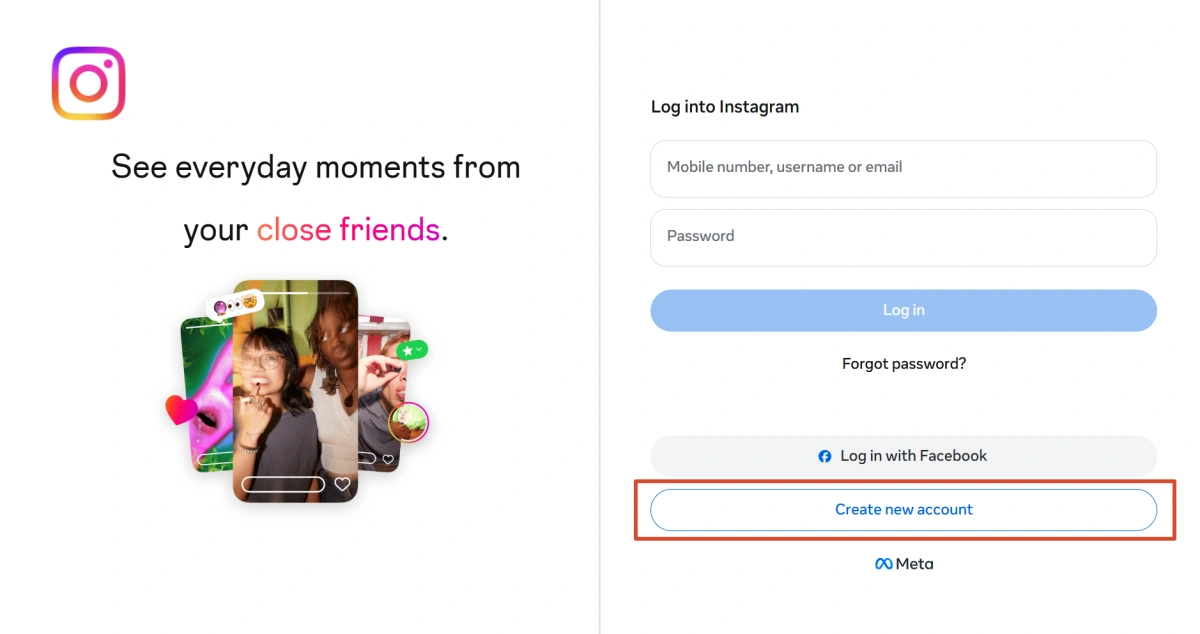
Step 1: Open Instagram and Start Sign-Up
On a mobile device, open the Instagram app and select Create new account or the sign-up option shown on the screen.
On a computer, visit Instagram in your web browser and select Sign up.
Instagram may offer different registration options depending on your device, region, or account setup. You can generally sign up with a mobile phone number or email address, and you may also see an option to continue with Facebook.
Step 2 Enter Your Email or Phone Number
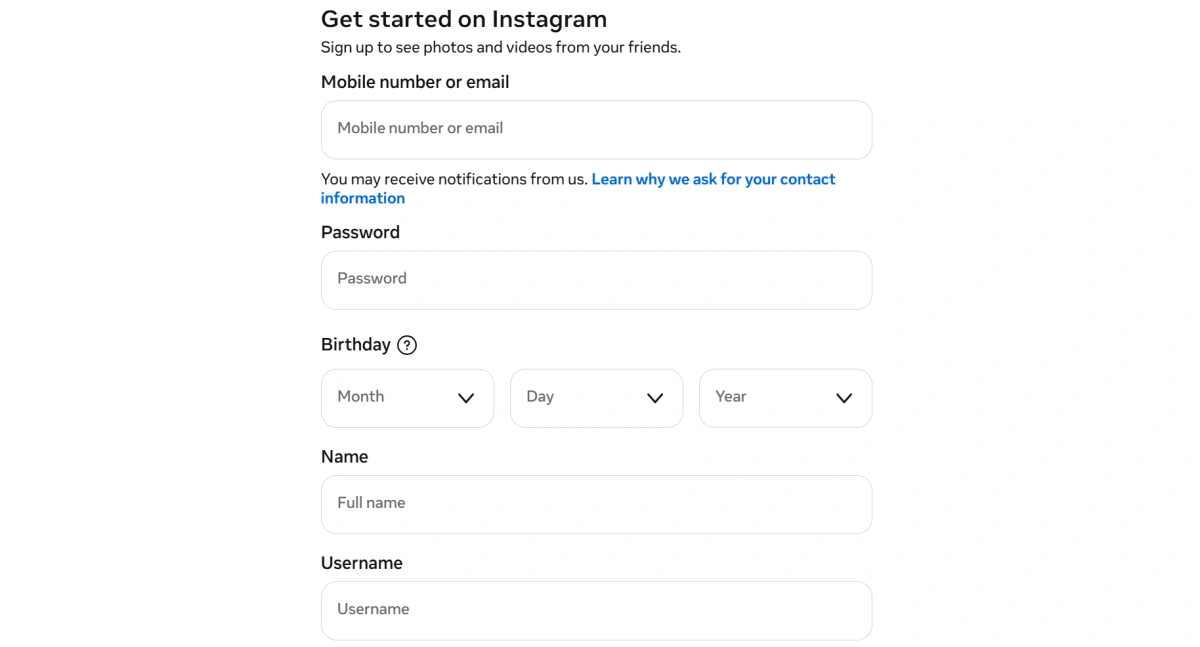
Choose the contact method you want to use and enter your information.
If you use a phone number, Instagram may send you a verification code by text. If you use an email address, check your inbox for the confirmation code or message.
Use an email address or phone number that you can access. This matters later if you need to recover your account.
Step 3 Create a Password
Choose a password that is difficult for other people to guess. Avoid simple choices such as your name, birthday, or “12345678.”
It is also better not to reuse the password from your email, Facebook, or other social accounts. If another account is compromised, a reused password could put your Instagram account at risk.
Step 4 Add Your Name and Birthday
Instagram may ask for your name and date of birth during signup.
Your name does not have to be the same as your username. For example, a person named Sarah Johnson might use Sarah Johnson as the name while choosing sarah.johnson as the username.
Your birthday is used by Instagram for age-related features and experiences. Enter accurate information rather than choosing a random date.
Step 5 Choose Your Username
Your username is the handle people use to find and mention you.
For a personal account, a simple version of your name can work well. For a business, using the brand name usually makes more sense.
For example:
- Personal: sarah.johnson
- Food creator: sarahcooks
- Business: brightcoffee
Try to keep your username short and easy to spell. If your first choice is taken, add a simple word, period, or underscore instead of creating a long string of random numbers.
You can change your username later, but changing it often can make your account harder for people to recognize.
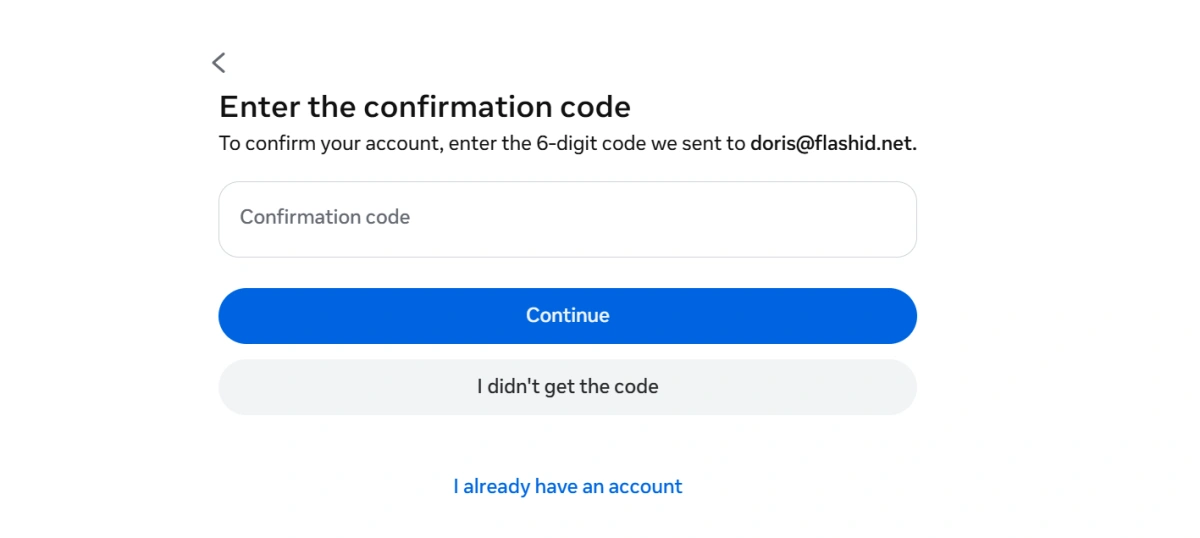
Step 6 Verify Your Email or Phone Number
Check your email or text messages for the verification code from Instagram. Enter the code in Instagram to verify your contact information. If you do not receive the code, check your details and request a new one.
Step 7 Finish the Initial Setup
After your basic information is accepted, Instagram may suggest people to follow, ask you to add a profile photo, or offer other setup options.
You do not need to complete every optional step immediately. You can skip some of them and return to your profile later.
At this point, your Instagram account is ready to use.
Securing Your New Instagram Account
Creating the account is only the first step. You should also protect it before you start building an audience.
1.Create a strong password
Your password is your first line of defense. Choose something that’s hard to guess but easy for you to remember. A strong password typically includes:
- At least eight characters
- A mix of uppercase and lowercase letters
- Numbers and special characters
- No personal information like your name or birthday
Avoid using the same password you use for other accounts. If one account gets compromised, others could be at risk too.
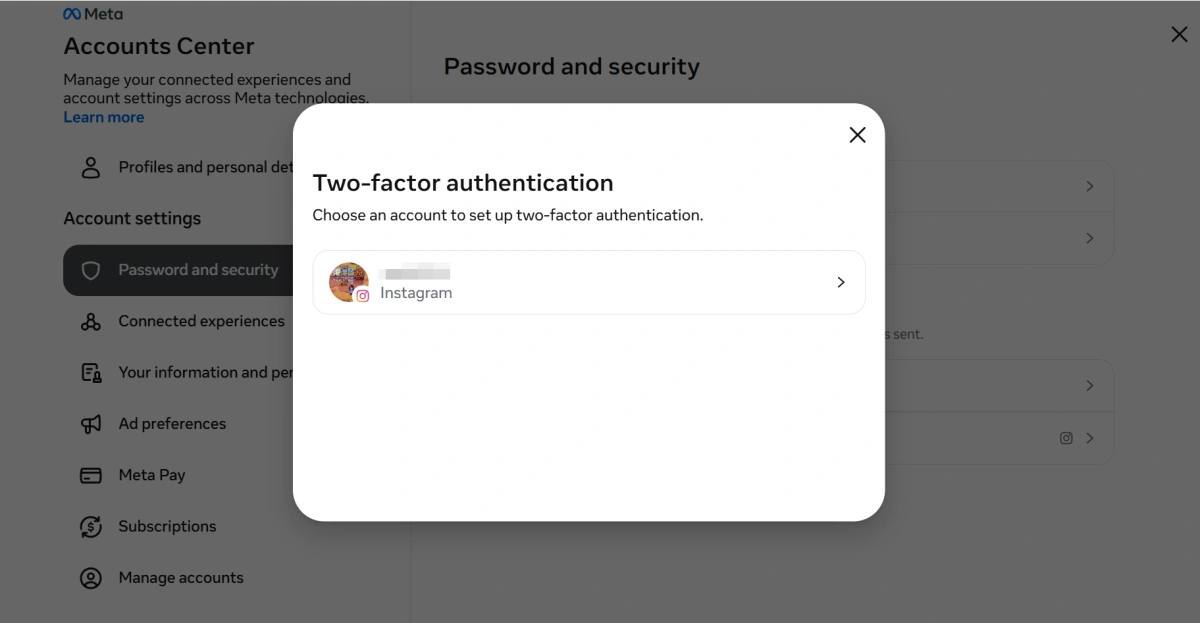
2.Turn On Two-Factor Authentication
On mobile: Go to Profile → Menu → Accounts Center → Password and security → Two-factor authentication. Select your Instagram account, choose a security method, and follow the instructions.
On desktop: Open Instagram, go to More → Settings → Accounts Center → Password and security → Two-factor authentication, then select your Instagram account and security method.
3.Check Your Login Activity
Review the devices and sessions connected to your account from time to time. If you notice a login you do not recognize, take action quickly. Change your password and secure the account instead of ignoring the warning.
4.Be Careful With Third-Party Apps
Avoid giving your Instagram login details to websites or apps you do not trust. Be careful with services that promise free followers, likes, or fast account growth. These services can create security and account-management problems.
Personal Account vs Business Account
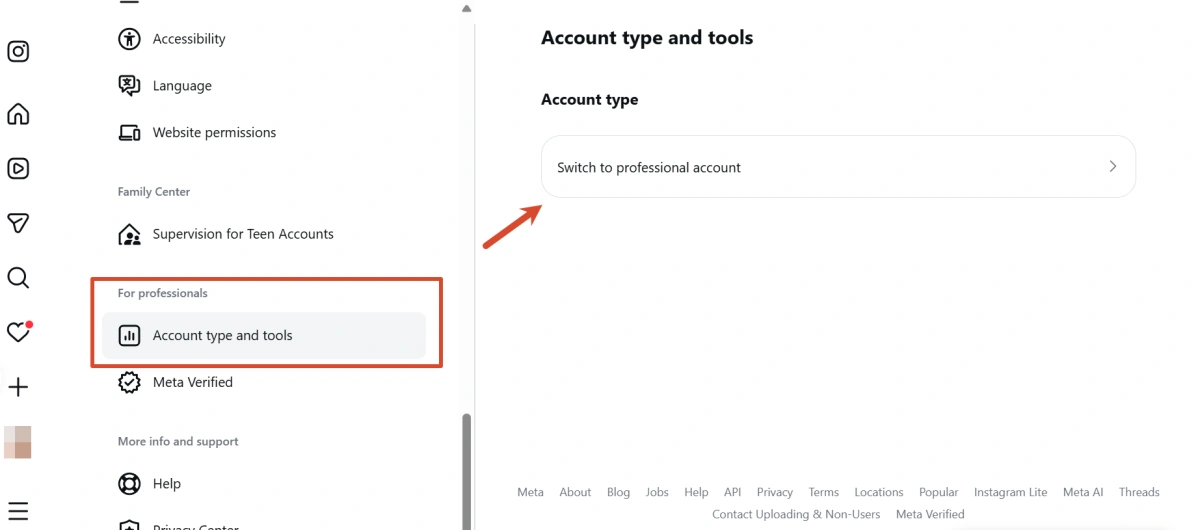
Instagram has three main account types: Personal, Creator, and Business. Creator and Business accounts are professional accounts.
| Account Type | Best For | Key Features |
|---|---|---|
| Personal | Friends, family, and casual users | Can be private |
| Creator | Influencers, artists, and content creators | Professional tools and audience insights |
| Business | Brands, stores, and companies | Professional tools, contact options, and advertising features |
Choose a Personal account if privacy and casual use are the main priorities. Choose a Creator account for content creation, or a Business account for a brand or company.
The account type can be changed later in Instagram settings.
Connecting Your Instagram Account to a Facebook Page
Linking Instagram to a Facebook Page can make it easier to manage content, messages, and promotions across both platforms. This is especially useful for businesses, creators, and anyone managing a brand on social media.
Why Connect Instagram to a Facebook Page?
Connecting the two accounts can give you access to several useful features:
- Share content across platforms: Share Instagram posts and stories on Facebook without posting them separately.
- Manage messages and comments: Use tools such as Meta Business Suite to manage Instagram and Facebook messages and comments in one place.
- Run ads: Create and manage promotions that can appear on both Instagram and Facebook.
- Use shared payment options: Use payment methods available through Facebook when running Instagram promotions.
How to Connect Instagram to a Facebook Page
You can usually start the connection from Instagram:
- Open your Instagram profile.
- Tap Edit profile.
- Find Page under Public business information.
- Select Connect or create.
- Log in to the Facebook account that manages the Page.
- Choose the Facebook Page you want to connect.
- Confirm the connection.
The available options may vary depending on your account type and the current version of Instagram. If you do not see the Page option, check your account settings or consider switching to a professional account if you need business-related features.
Can a Personal Instagram Account Connect to Facebook?
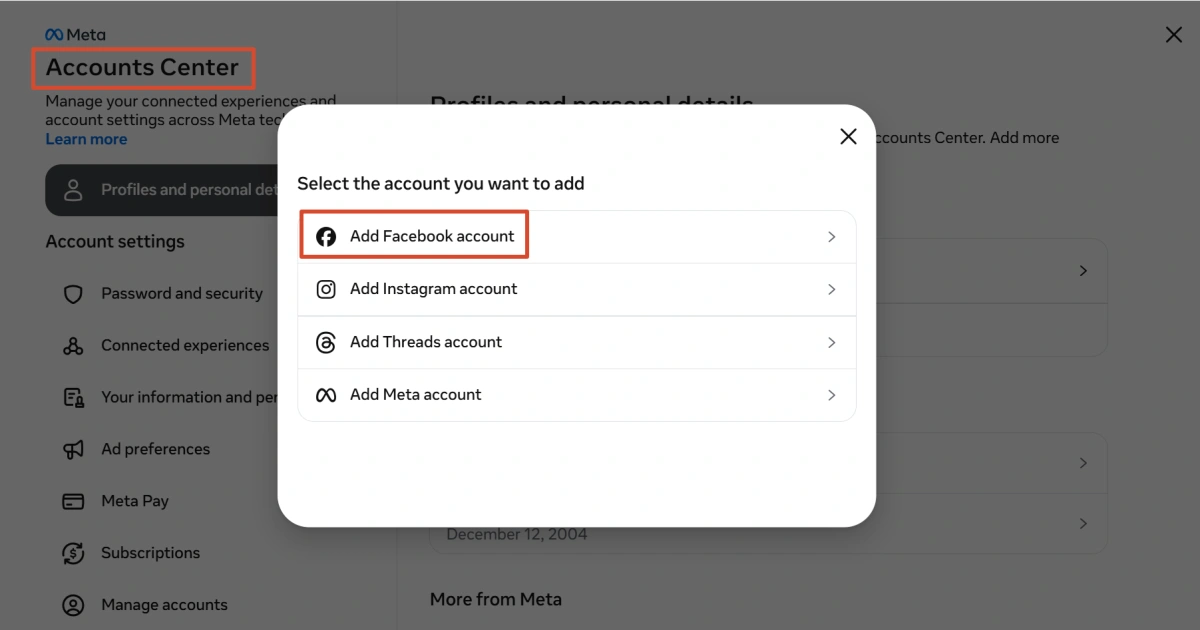
A personal Instagram account can be connected to a Facebook account through the Accounts Center. This allows users to manage certain settings across both accounts and share content between Instagram and Facebook.
5 Tips for Getting Started on Instagram
Once your account is ready, avoid trying to do everything at once. Start with a clear profile and a small amount of useful content, then build your account step by step as you learn what works.
For more practical guidance as your account grows, you can also explore our blog for Instagram tips, management advice, and growth strategies.
Tip 1: Complete Your Profile
Add a clear profile photo and write a short bio that tells visitors what your account is about.
For example, instead of writing:
Welcome to my page!
a food creator could write:
Easy home recipes | Quick meals for busy days | New recipes every week
The second version tells visitors what they can expect.
Tip 2: Follow Relevant Accounts
Follow people, creators, brands, and communities related to your interests. This helps you understand the type of content being shared in your niche.
If you create a fitness account, for example, following trainers, fitness brands, and related creators can help you learn what your target audience cares about.
Tip 3: Start Posting
You do not need ten perfect posts before you begin. Start with a few pieces of content that match your account’s purpose.
A new travel account might start with a short introduction, one useful travel tip, and a photo from a recent trip. This gives visitors a quick idea of what the account offers.
Tip 4: Interact Naturally
Instagram is a social platform, so do not treat it like a one-way publishing tool. Read posts, leave useful comments, reply to people who comment on your content, and take part in conversations that are relevant to your account.
Avoid sending the same comment or message to many accounts. Natural interaction is more useful for building real connections.
Tip 5: Keep Your Connection Stable
Some Instagram users use proxies to maintain a more consistent network environment when managing accounts from different locations. For those who need a stable connection, FlashID Proxy is worth trying, with residential proxies available in 190+ countries and city-level targeting.
Conclusion
Creating an Instagram account does not take much time, but the first setup can affect how easily you manage the account later. Start with a working email or phone number, choose a clear username, and complete the basic profile information.
If you are creating the account for a brand or as a creator, consider using a professional account and connecting it to the right Facebook Page. Most importantly, protect the account with a unique password and two-factor authentication.
Once everything is ready, start small. Follow relevant accounts, publish useful content, and interact with people naturally. You do not need to build a perfect Instagram profile on the first day. A clear purpose and steady activity are a much better place to start.
If you’d like to learn more about facebook and stay updated with practical insights, feel free to join our community.
FAQ
1. Can I create an Instagram account without a phone number?
Yes. Instagram can allow users to register with an email address instead of a phone number. Use an email account that you can access because it may be needed for verification or account recovery.
2. Can I create an Instagram account on a computer?
Yes. You can use Instagram through a web browser and create or manage an account there. However, some features and setup options may be easier to access through the mobile app.
3. Can I connect Instagram to a Facebook Page later?
Yes. You do not have to connect a Facebook Page during the initial Instagram signup. If you later switch to a professional account, you can connect it to a Facebook Page through the account’s professional information settings.
4. How can I protect a new Instagram account?
Use a unique password, enable two-factor authentication, review login activity, and avoid giving your login information to untrusted third-party services. These simple steps can reduce common account-security risks.