Qucik Answer
To create a LINE account, download the LINE app, tap Sign up, and follow the verification method available in your region. You may need to verify a phone number by SMS or phone call, or continue with an Apple or Google account. Then set a display name and password, and add a profile photo if you want to.
If you manage multiple LINE accounts for business or social media work, FlashID anti-detect browser lets you keep each account in a separate profile.
What to Prepare Before LINE Registration
Before creating a LINE account, it helps to prepare the following items. The steps may vary depending on your country or region, so LINE may show different verification options.
- A valid mobile phone number: You may need to receive a verification code by text message or phone call.
- An Apple ID or Google account: Some users may need to continue with Apple or Google instead of using a phone number.
- A profile photo: You can prepare one in advance or add it later after creating your account.
- A stable internet connection: This helps LINE load properly and complete the verification process.
Make sure your phone number can receive messages or calls. Avoid using virtual phone numbers, and select the country or region that matches your phone number.
Where to Download the LINE App
Download LINE from the official website or your device’s official app store. Using an official source helps you install the correct app and avoid unofficial or modified versions.
- iPhone and iPad: Download LINE from the Apple App Store
- Android devices: Download LINE from Google Play
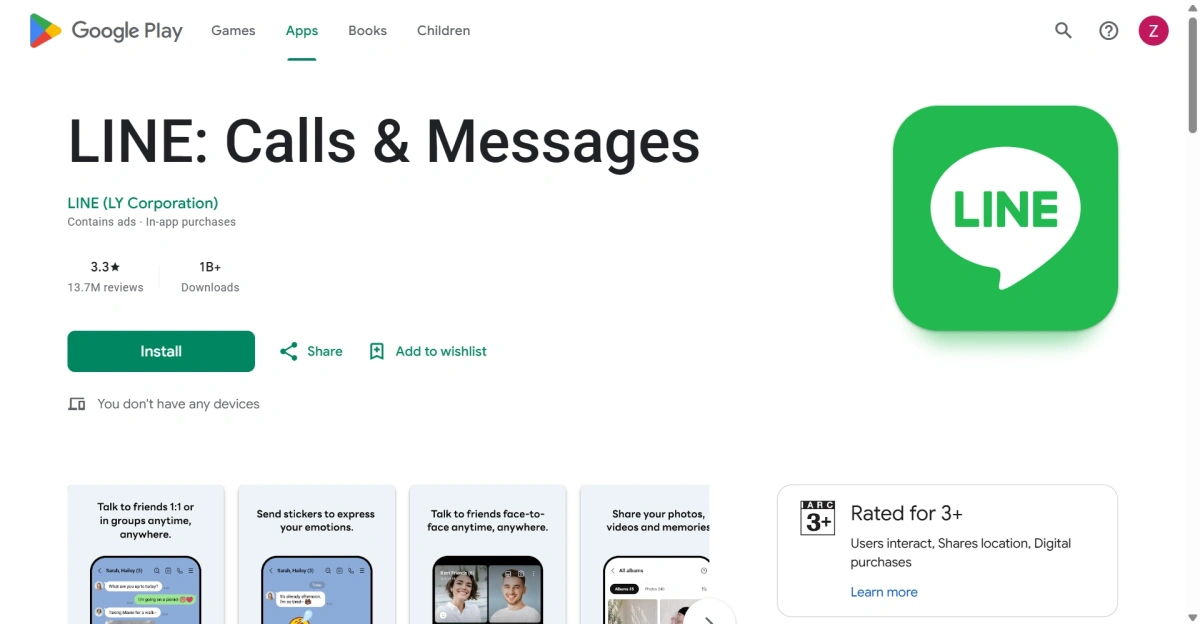
After installing the app, open LINE on your smartphone and tap Sign up to begin the registration process. New users should complete the initial registration on their main mobile device before using LINE on a computer or other devices.
How to Create a LINE Account
Once you have installed the LINE app, you can create an account directly from your smartphone.The screens may look slightly different depending on your country, device, and registration method.
Step 1: Open LINE and Tap “Sign up”
Open the LINE app and tap Sign up on the welcome screen. This will start the registration process for a new LINE account.
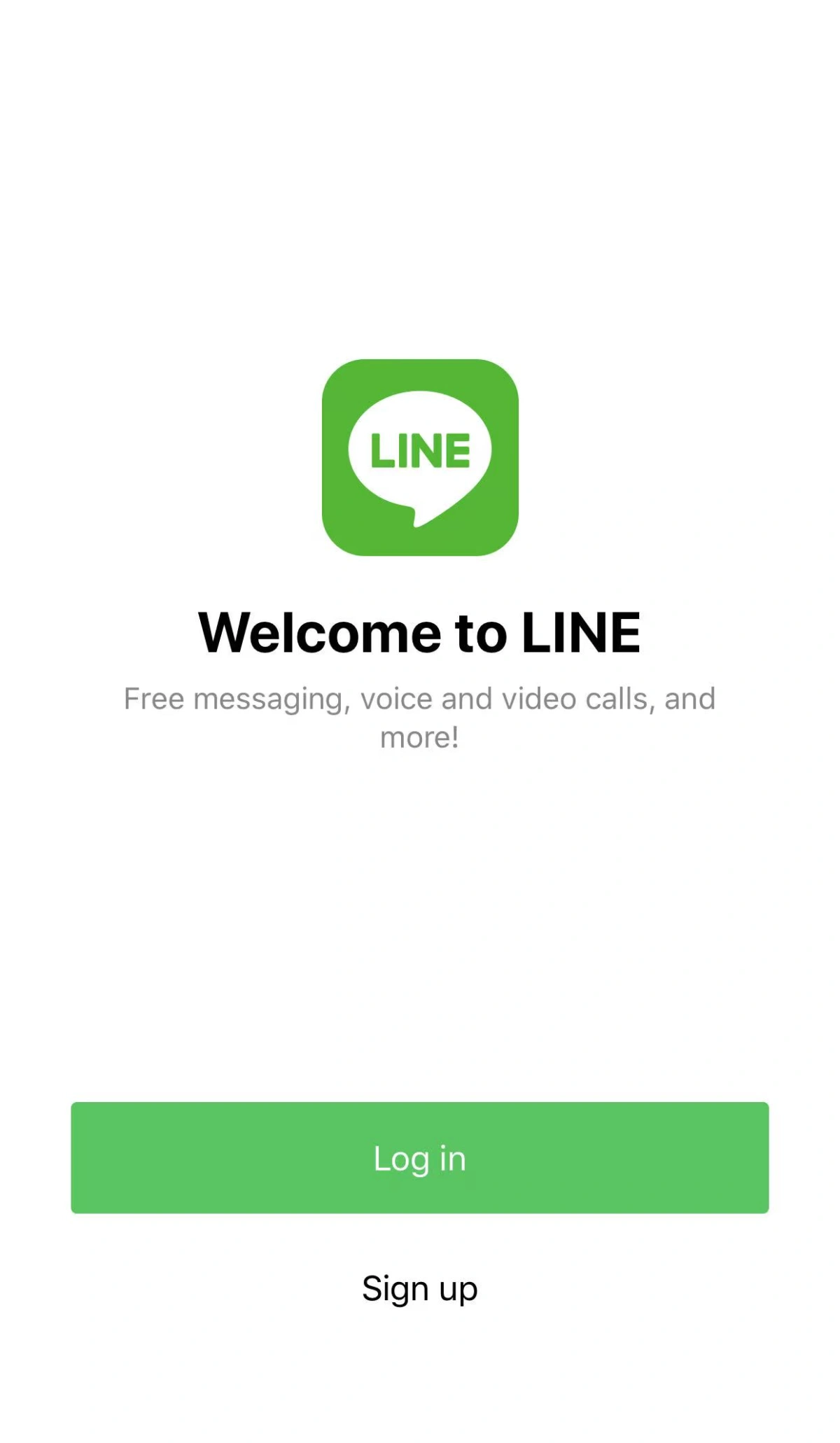
Step 2: Select Your Country or Region
Choose the country or region where your phone number is registered. Then follow the registration option shown on the screen.
For iOS users in mainland China, selecting Mainland China may take you to App Store account verification instead of phone number verification. Follow the instructions shown in the LINE app to continue.
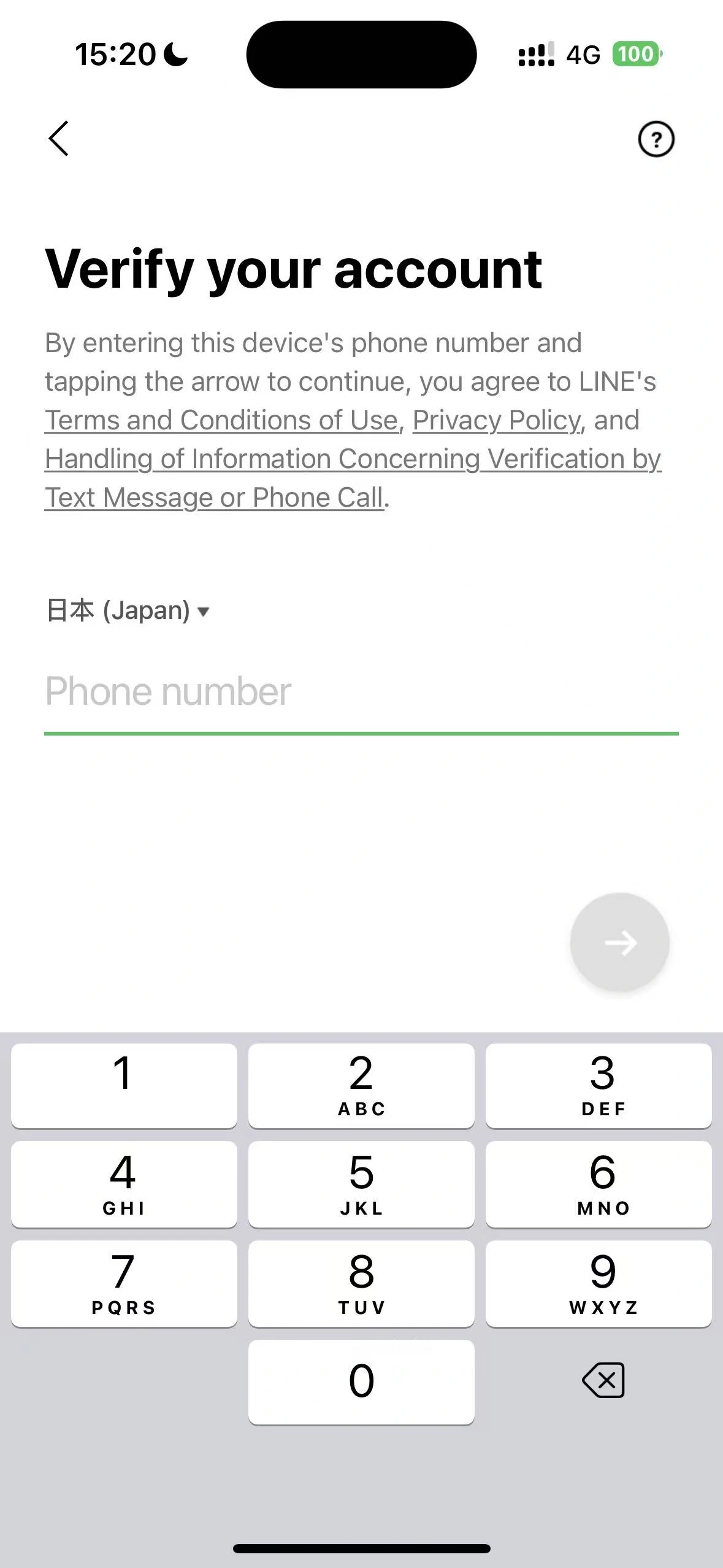
Step 3: Complete the Verification
If you are registering with a phone number, enter it in the correct format and tap Continue, OK, or Send. LINE will send a verification code by text message or, where available, let you verify the number by phone call.
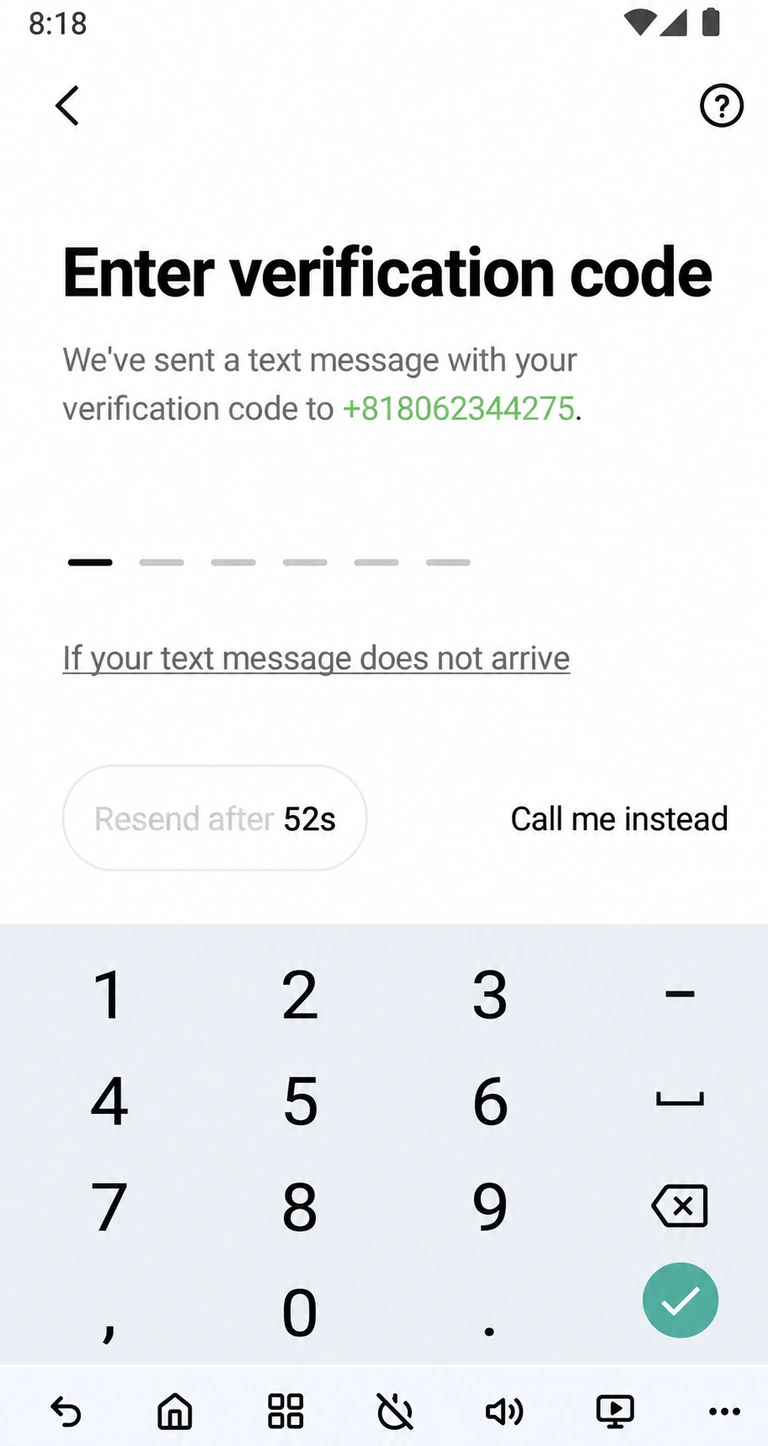
Step 4: Confirm Your New Account and Set Up Your Profile
After verification, select No, create a new account if LINE asks whether you want to continue with an existing account. Then enter your name and add a profile photo. You can also update your profile photo later in the account settings.
Step 5: Create a Password and Review Your Settings
Create a password that meets LINE’s requirements, then choose whether to sync your phone contacts. Before finishing, review your profile, notification, and privacy settings. Once the setup is complete, your LINE account is ready to use.
Personal LINE Account vs. LINE Official Account
A personal LINE account is designed for everyday communication. You can use it to chat with friends and family, join group conversations, make calls, and share photos or videos.
A LINE Official Account is designed for businesses, creators, shops, and service providers. It can be used to send updates, share promotions, answer customer questions, and manage conversations with followers. You create and manage it through the LINE Official Account Manager rather than using it like a regular personal account.
| Feature | Personal LINE Account | LINE Official Account |
|---|---|---|
| Main purpose | Personal communication | Business and customer communication |
| Typical users | Individuals, friends, and family | Businesses, creators, shops, and service providers |
| Main features | Chats, calls, groups, and media sharing | Broadcast messages, auto-replies, coupons, and customer support |
| Setup method | LINE mobile app | LINE Official Account Manager or app |
| Best suited for | Staying in touch with people you know | Promoting products, sharing updates, and managing customers |
How to Create a LINE Official Account
If you want to use LINE for a business, shop, or customer communication, you can create a LINE Official Account through the official registration page:
Create a LINE Official Account
Quick guide:
- Open the LINE Official Account registration page.
- Click Create an account or the relevant start button.
- Sign in with your LINE account or create a LINE Business ID.
- Enter your account name, business information, industry, and purpose of use.
- Review the details and complete the setup.
- Open the management dashboard to add a profile image, greeting message, auto-replies, and other settings.
The available options may vary by country or region, so follow the instructions shown on the How to Create a LINE Account?official LINE website.
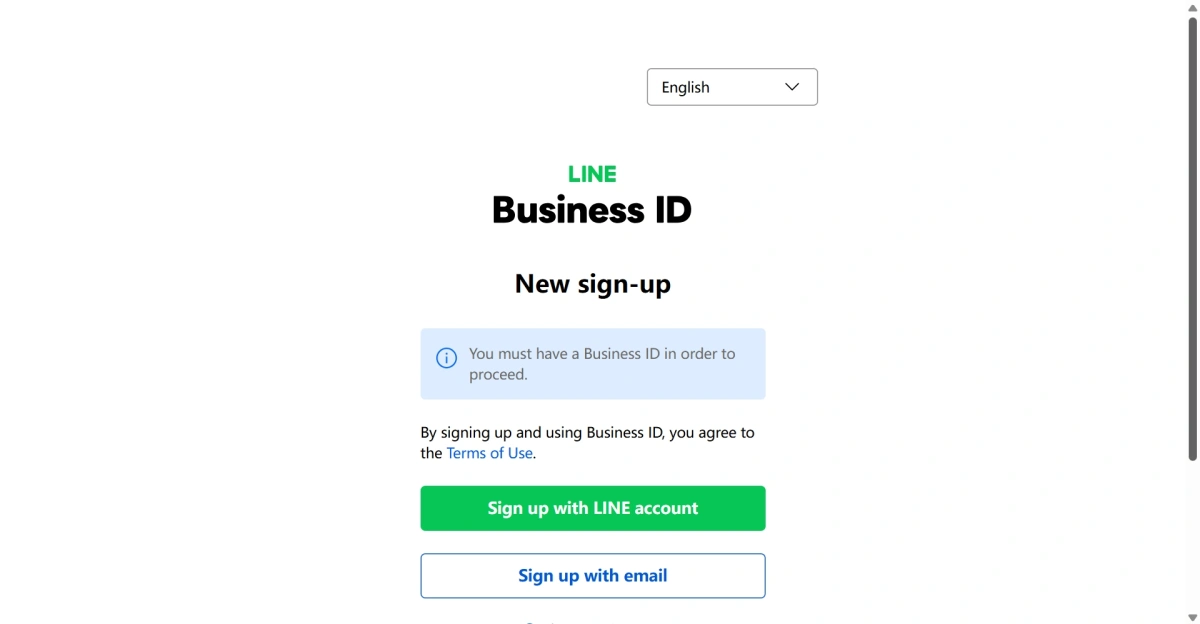
How to Improve LINE Account Stability After Registration
After registration, use your account consistently and follow LINE’s rules. Keep your phone number and profile information accurate, and avoid changing them too often. If you do not receive a verification code, check your number, country code, and SMS settings before requesting another code. Repeated verification attempts may lead to temporary restrictions.
Your login environment also matters. Frequent changes in devices, locations, or networks may trigger additional checks. If you need a stable IP for ongoing account access, you can consider FlashIP, which offers a 90M+ residential IP pool for regional access and longer sessions.
How to Manage Multiple LINE Accounts Separately
Businesses and marketing teams may need separate accounts for different brands, product lines, regions, or customer groups. For example, an agency may manage several clients, while a business may use different LINE Official Accounts for customer support, promotions, and local markets.Keeping these accounts separate helps teams avoid mixing messages, contacts, and account settings. It also makes it easier to assign the right account to the right team member or campaign.
Managing several LINE accounts in one regular browser can mix cookies, login sessions, and account settings. With FlashID anti-detect browser, you can create a separate profile for each LINE account. Each profile keeps its own browser settings, cookies, and login session.
For more details, see our guide to managing multiple LINE accounts with FlashID.
FAQ
Can I Create a LINE Account Without a Phone Number?
In some countries or regions, LINE may allow you to continue with an Apple or Google account instead of a phone number. The available registration method depends on your location and the options shown in the LINE app.
Can I Create a LINE Account on a Computer?
New users usually need to complete registration on a smartphone first. After creating the account, you can use LINE on a computer or other supported devices, depending on the available login options.
Can I Manage Multiple LINE Accounts?
Yes. Businesses, agencies, and marketing teams may need separate LINE accounts for different brands, regions, clients, or campaigns. Each account should use its own valid information and follow LINE’s rules.
What Is the Difference Between a Personal LINE Account and a LINE Official Account?
A personal LINE account is mainly for chatting with friends, family, and groups. A LINE Official Account is designed for businesses, creators, and service providers that need to send updates, answer customer questions, or promote products.
Why Am I Not Receiving the LINE Verification Code?
Check that your country code and phone number are correct, and make sure your phone can receive SMS messages or calls. You should also check whether unknown numbers or international messages are being blocked. Avoid requesting codes repeatedly within a short period.
How Do I Connect LINE to FlashID?
- Open FlashID anti-detect browser and create a profile for each LINE account.
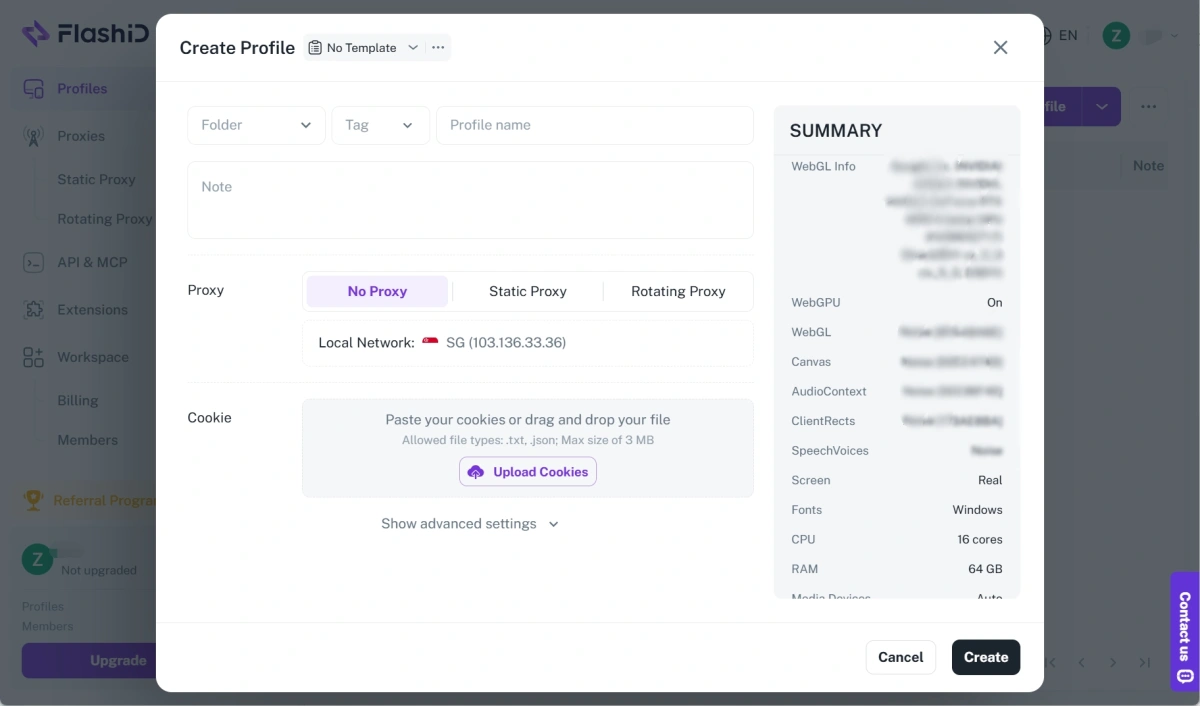
- Give each profile a clear name.
- Assign a suitable proxy if needed.
- Log in to the corresponding account.
- Use separate windows when managing multiple accounts.
Can I Use a Virtual Phone Number to Register for LINE?
LINE may not accept virtual phone numbers, landlines, or numbers that cannot receive SMS or calls. Use a valid mobile number supported in your region.
Does Using a Proxy Guarantee LINE Account Stability?
No. A proxy can provide a more consistent network environment, but it cannot replace LINE verification or guarantee that an account will not be restricted. Your account information and activity should still follow LINE’s rules.