Quick Answer
If you need an email address for a one-time signup, verification code, free trial, software test, or a short-term project, you have three practical options: use a disposable email service for a quick address that may expire, use a Gmail alias such as yourname+test@gmail.com when you only need to separate registrations inside your existing inbox, or create a separate Gmail account when you need an independent inbox and login.
Why Use a Temporary Gmail Account?
A separate email address can be useful whenever you want to keep a short-term registration or project away from your main inbox.
1. One-Time Signups and Verification Codes
Some websites require an email address before you can access a trial, download a file, read certain content, or complete registration. If you only need the account for that initial step, using a separate address prevents these messages from filling your primary inbox.
2. Software and Website Testing
Testing registration and email verification flows often requires multiple test addresses. For example, you may need to check whether a website sends a confirmation email after registration, whether a password-reset email arrives correctly, or whether different notification types are delivered as expected.
3.Protect Your Primary Inbox
Website signups can quickly fill your inbox with newsletters, promotions, and notifications. A temporary Gmail address keeps these messages separate from your main inbox.
4.Protect Your Privacy
Using your primary email for every signup means sharing the same address with more services. A temporary Gmail address can help limit how often you expose your personal or work email.
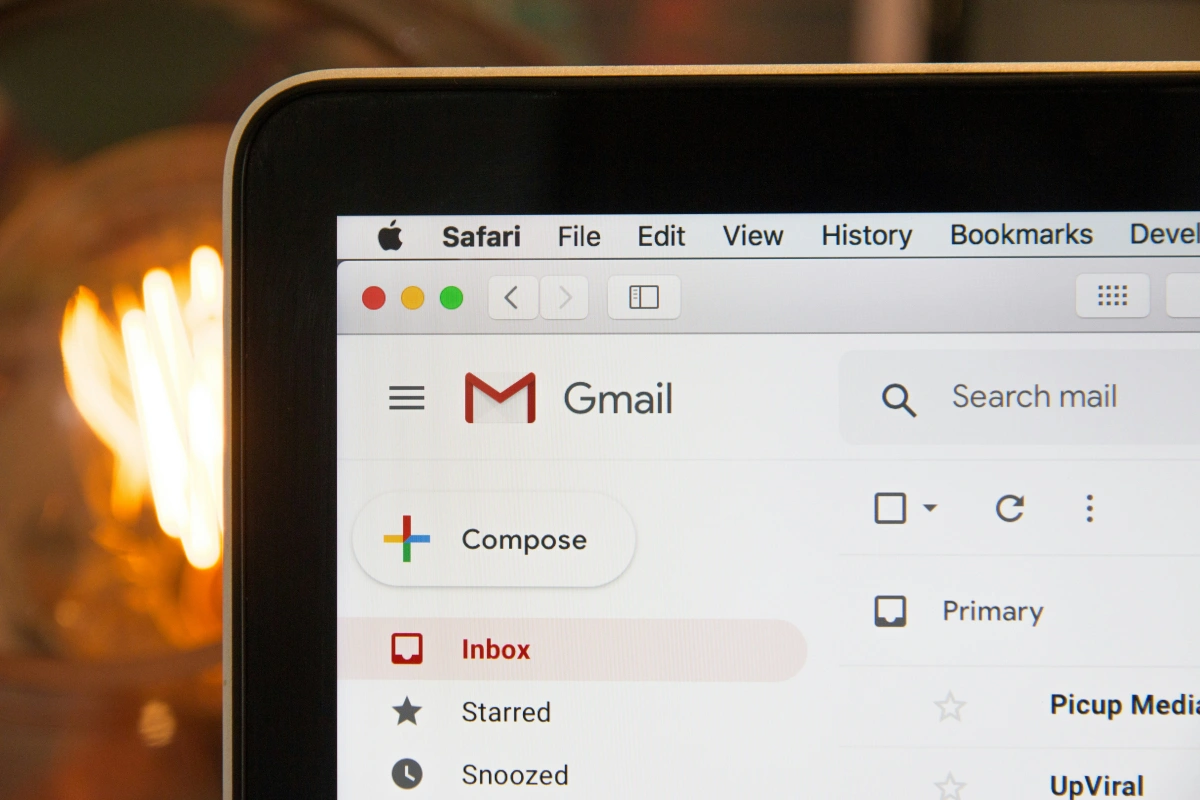
3 Ways to Create a Temporary Gmail Account
There are three common approaches, but they solve slightly different problems:
1.Disposable email service — fastest for one-time use.
2.Gmail alias — useful when you already have Gmail and only need a different address format.
3.Separate Gmail account — the best option when you need a real, independent Gmail inbox.
Method 1: Use a Disposable Email Service
A disposable email service is the fastest option when you need an address immediately and do not need long-term access to the inbox. Popular options include Temp Gmail, 10 Minute Mail, and Temp Mail.
How to create and use one
Step 1: Choose a temporary email provider
Open a disposable email service that provides temporary inboxes. Some services generate an address automatically, while others let you choose an available address.
Step 2: Copy the temporary address
Once the address appears, copy it and keep the temporary inbox page open if the service requires you to access messages through the same session.
Step 3: Use the address for registration
Enter the temporary address on the website or app you want to use. Complete any other required registration fields.
Step 4: Open the temporary inbox
Return to the temporary email service and wait for the verification message. Depending on the provider, the message may appear automatically or require you to refresh the inbox.
Step 5: Complete verification
Open the email, copy the verification code, or click the confirmation link. Finish the registration before the temporary inbox expires.
Advantages
- Usually takes only a few minutes.
- No Google Account needs to be created.
- Convenient for one-time registrations and short tests.
- Keeps registration emails out of your primary inbox.
Disadvantages
- The address may expire automatically.
- Some websites block disposable email domains.
- Some services use public or shared inboxes.
- Recovering an account later may be difficult or impossible.
Best for: one-time registrations, temporary access, and tests where you do not need the mailbox later.

Method 2: Use a Gmail Alias
If you already have Gmail, you can create an address variation without opening another Gmail account.
Suppose your existing address is:
You can use:
yourname+test@gmail.com or yourname+shopping@gmail.com
Messages sent to these addresses still arrive in your original Gmail inbox.
How to create a Gmail + alias
Step 1: Start with your existing Gmail address.
Step 2: Add + and a custom label before @gmail.com.
Step 3: Use the new address when registering for a website or application.
Step 4: Open your normal Gmail inbox to receive the verification email.
Step 5: If necessary, create a Gmail filter based on the alias so that messages are automatically labeled or sorted.
For example, if you use yourname+testing@gmail.com for software testing, you can create a filter that identifies messages sent to that address and moves them into a dedicated label.
What about adding dots?
Consumer Gmail addresses generally ignore periods in the username. If your address is yourname@gmail.com, variations such as your.name@gmail.com generally deliver to the same inbox.
Advantages
- No new Gmail account is required.
- All messages remain in one inbox.
- Useful for testing and identifying signup sources.
- Gmail filters can organize messages automatically.
Disadvantages
- It does not create a separate inbox.
- It does not create a separate Google Account.
- Some websites may not accept addresses containing+.
Best for: software testing, email organization, and situations where you do not need an independent Gmail account.
Method 3: Create a Separate Gmail Account
If you need a real Gmail address with its own inbox and login credentials, create a new Google Account.
This is the most suitable approach when the email will be used for a temporary project but you still need to access the account after the initial signup.
Step-by-step: Create a new Gmail account
Step 1: Open Google’s account creation page
Go to Google’s account creation page and select Create account. Choose the account type that matches your intended use.
Step 2: Enter your basic information
Follow the prompts to enter the required account information.
Google will then ask you to choose a Gmail address. Try to make the address easy to identify if you are creating it for a specific project.
If your first choice is unavailable, try adding a relevant word or number combination.
Step 3: Create a password
Set a password that is different from the password used for your primary Gmail account. If you expect to access this account again, store the credentials somewhere secure rather than relying on browser autofill alone.
Step 4: Complete Google’s verification process
Follow the verification instructions shown on screen. Depending on the signup flow, Google may ask for additional information or verification before allowing the account to be created.
Step 5: Complete the account setup
After the account is created, open Gmail and confirm that you can access the inbox.
Which Method Should You Use?
The simplest way to choose is to look at how much access you need after the initial signup.
| Situation | Method | Separate Inbox | Long-Term Access |
|---|---|---|---|
| One-time signup | Disposable email | Usually | No |
| One-time verification code | Disposable email | Usually | No |
| Website or email testing | Gmail alias | No | Yes |
| Need a separate inbox | New Gmail account | Yes | Yes |
| Temporary project | New Gmail account | Yes | Yes |
| Account may become important later | New Gmail account | Yes | Yes |
| Banking or sensitive information | Permanent email | Yes | Yes |
If a website accepts disposable addresses and you only need one verification email, the first method is the quickest. If you already have Gmail and simply need to identify different test registrations, an alias is easier because everything stays in one inbox. If you need an independent mailbox that you can log into separately, create a new Gmail account.
How to Manage Multiple Accounts with Temp Gmail
Using a different Gmail address for each account can make multi-account management easier. For example, you might use separate addresses for different e-commerce stores, social media accounts, client projects, or testing environments. But once you have several accounts, keeping track of where each one is logged in can become just as important as managing the email addresses themselves. Instead of switching between multiple accounts in the same browser, you can assign each account to its own browser profile.
Keep Each Account in a Separate Anti-Detect Browser Profile
If you use separate Gmail addresses for different accounts, an anti-detect browser can help keep those accounts organized in dedicated browser profiles. Each profile provides an independent browser environment, so you can assign one profile to each account instead of mixing several logins in the same browser session.
For example:
Gmail A → E-commerce Account A → Profile A Gmail B → Social Media Account B → Profile B Gmail C → Test Account C → Profile C
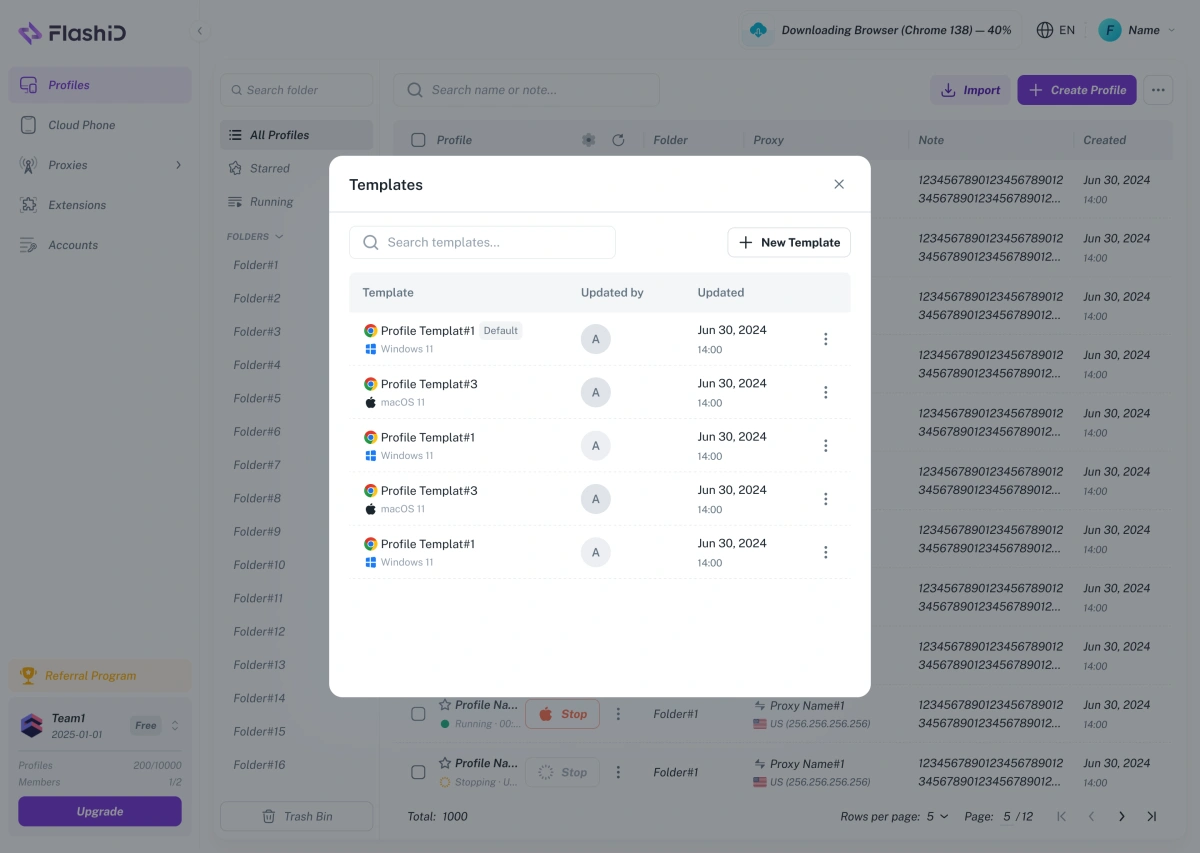
With FlashID Antidetect Browser, you can create a separate browser profile for each account and configure the environment based on the needs of that account. Profiles can also be organized and managed from the same workspace, which makes it easier to find the right environment when you are working with multiple accounts.
For users managing several similar accounts, Profile Templates can also reduce repetitive setup work. Instead of configuring every new profile from the beginning, you can reuse a saved profile configuration when creating another environment.
Keep the Network Setup with the Browser Profile
A separate email address and browser profile solve the account organization problem, but network configuration can become another thing to manage when you are working with multiple accounts.
FlashID includes built-in proxy integration, so you can purchase and manage proxies within the platform and associate them with browser profiles. It supports residential, datacenter, static ISP, and mobile proxies across different locations, giving you a way to manage the browser environment and its network connection in the same workflow.
Make Repetitive Account Tasks Easier
Managing several accounts does not only mean logging in and out. You may also need to open the same websites, perform similar actions, or work with several profiles at the same time. Repeating these steps manually can become tedious as the number of accounts grows.
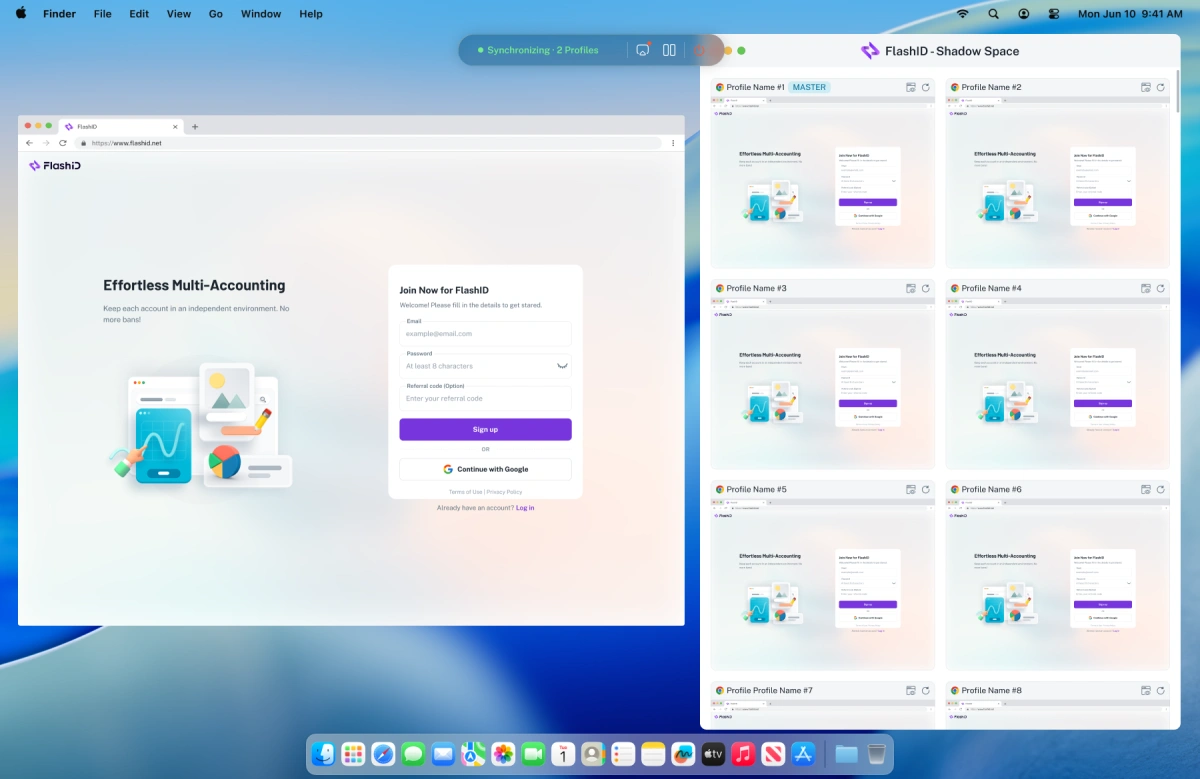
FlashID’s Window Sync can help with this type of repetitive workflow by synchronizing actions across selected browser windows. For example, when the same URL needs to be opened or the same browser action needs to be performed across multiple profiles, you can work with several windows at the same time instead of switching between them one by one.
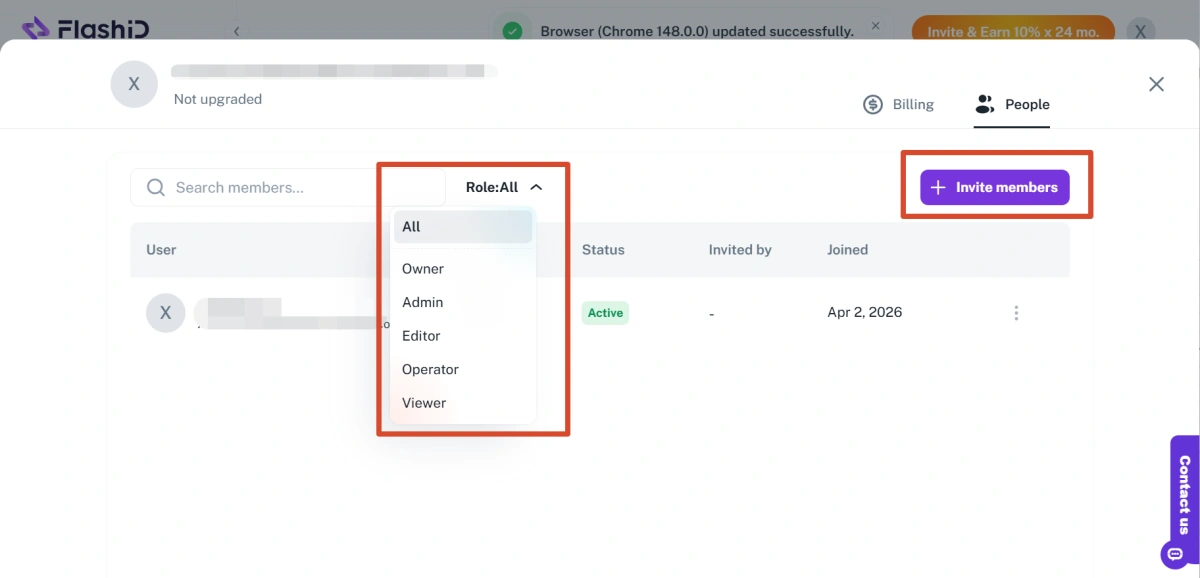
For teams, Workspace also provides a way to manage account environments collaboratively. Shared profiles and account-related resources can be organized in one workspace rather than being scattered across individual team members’ browsers.
In a typical multi-account workflow:
- Temporary Gmail: Provides a separate email address for each account when needed.
- Browser profiles: Give each account its own browser environment.
- Built-in proxy: Keeps the network configuration connected to the corresponding profile.
- Window Sync: Makes repetitive actions across selected profiles easier.
- Workspace: Helps teams organize and work with shared account environments.
This way, a temporary Gmail address is not treated as an isolated email solution. It becomes one part of a larger account-management workflow, with the email, browser environment, and network setup organized around the same account.
Keep Temporary Accounts from Becoming Permanent Problems
Temporary accounts are easy to create, but the moment an account becomes useful, the rules change.
If you may need the account later, save its login credentials and recovery information. Do not use a disposable inbox as the only recovery method for an important account, because an expired address can prevent you from receiving password-reset or security messages.
Before using a temporary email service, check whether the website accepts disposable domains. Some platforms block them during registration, while a newly created Gmail account may work normally.
For sensitive services such as banking, payments, or accounts containing important personal or business information, use an email address that you control and can recover reliably.
Want to Go Further?
If you’re using multiple Gmail accounts or want to keep your accounts safer, check out these two guides:
- Multiple Gmail Accounts: How to Create, Switch, and Manage Them Safely in 2026 — Learn how to create, switch between, and manage multiple Gmail accounts more efficiently.
- Gmail Account Suspended? Common Reasons, Appeal Tips, and Recovery Guide — Find out why Gmail accounts may be suspended and what you can do to recover them.