Quick Answer
To create a YouTube Brand Account, sign in to your Google Account, go to YouTube’s channel creation page, and create a new channel using your brand name. Once the channel is ready, open YouTube Studio, go to Settings > Permissions, and invite team members by email. You can assign roles such as Manager, Editor, or Viewer based on their responsibilities, and update or remove access when needed.
If you manage multiple YouTube channels, you can use the FlashID anti-detect browser to create separate browser profiles and organize team access.
What Is a YouTube Brand Account?
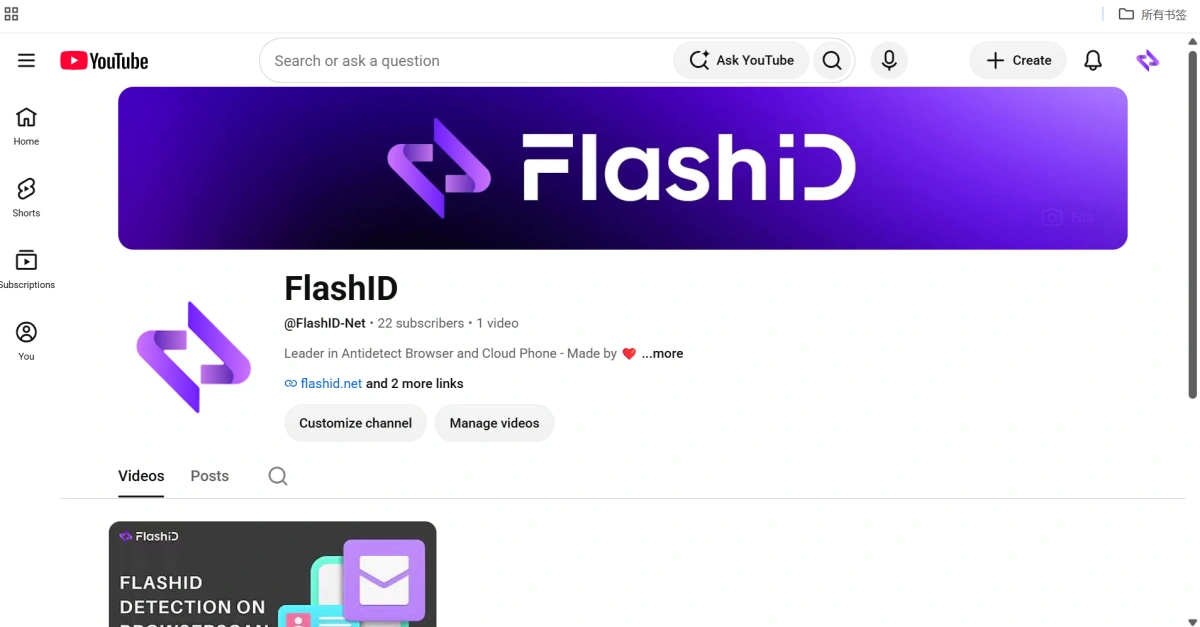
Businesses often use YouTube as part of their content marketing and social media marketing strategies to share brand information, publish videos, and connect with their target audiences. A YouTube Brand Account lets you create a channel under a business or brand name instead of your personal Google Account name. It also allows multiple Google Accounts to manage the same channel, making it suitable for businesses and organizations.
YouTube Brand Account vs. Personal YouTube Channel
The main difference between a YouTube Brand Account and a personal YouTube channel is how the channel is identified and managed.
| Comparison | Personal YouTube Channel | YouTube Brand Account |
|---|---|---|
| Account association | Directly associated with an individual’s Google Account | Associated with a separate Brand Account |
| Channel identity | Uses the Google Account’s name and picture by default | Can use a separate brand name and picture |
| Ownership | Managed through the individual’s Google Account | Supports multiple Brand Account owners |
| Best suited for | Individual creators | Businesses and organizations |
How to Create a YouTube Brand Account
Step 1: Sign in to Your Google Account
Go to YouTube and sign in with your Google Account. If you are creating a channel for a business, use an account managed by the organization rather than an employee’s personal account to keep channel ownership under the business’s control.
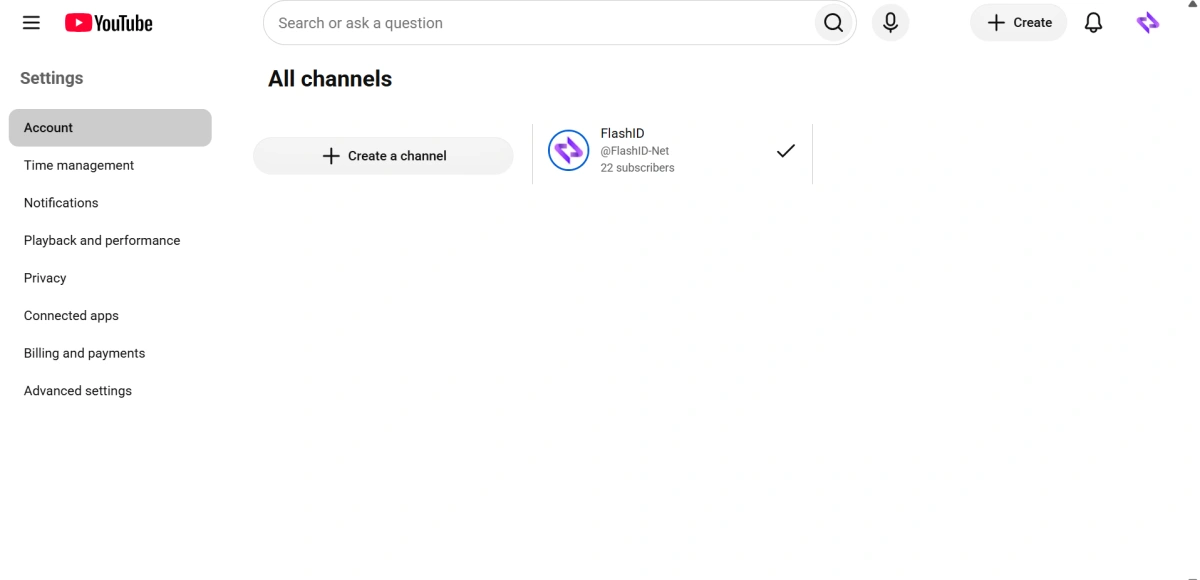
Step 2: Open the Channel List and Create a New Channel
Click your profile picture in the top-right corner and open the channel switcher. Alternatively, visit the YouTube Channel Switcher directly. Select Create a new channel to continue.
Step 3: Enter Your Channel Name and Choose a Handle
Enter your brand or business name as the channel name, then choose a unique YouTube handle. A handle starts with “@”, such as @yourbrand, and helps viewers find and identify your channel.
What to Check After Creating Your YouTube Brand Account
After creating your channel, check the following:
- Channel Name and Handle: Make sure both are correct.
- Profile Picture and Banner: Upload your brand logo and channel banner.
- Channel Description: Add a short introduction to your brand and content.
- Account Security: Enable 2FA authentication for your Google Account.
After creating your YouTube channel, you can start focusing on building an audience. If you want to learn how to attract viewers and grow your subscriber base, read our guide on how to get your first 1,000 YouTube subscribers.
How to Manage YouTube Channel Permissions
How to Add a YouTube Channel Manager
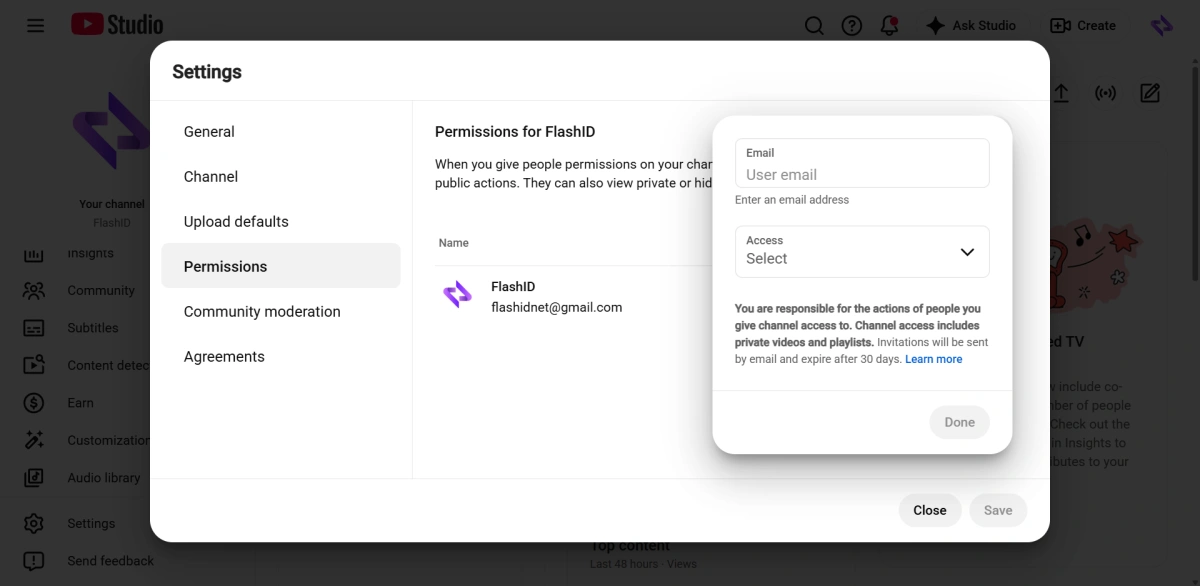
To invite someone to help manage your YouTube channel, follow these steps:
- Open YouTube Studio: Sign in to YouTube Studio.
- Go to Permissions: Click Settings in the left menu, then select Permissions.
- Invite a Team Member: Click Invite and enter the person’s email address.
- Assign a Role: Select the appropriate role from the Access dropdown menu, such as Manager, Editor, or Viewer.
- Send the Invitation: Click Done to send the invitation. The invited person must accept it by email to gain access.
Once sent, an invitation expires after 30 days if it is not accepted.
How to Change or Remove YouTube Channel Permissions
- Go to YouTube Studio > Settings > Permissions.
- Find the team member you want to update.
- Click the dropdown menu next to their current role.
- Select a new role or choose Remove access.
Brand Account Roles vs. YouTube Channel Permissions
YouTube previously used Brand Account roles to manage channel access. It now recommends YouTube Studio’s Channel Permissions, which offer more specific roles for team members. If your channel still uses Brand Account permissions, you may need to migrate to the newer system before managing access through YouTube Studio.
How to Manage Multiple YouTube Channels
Create Separate Browser Profiles for Different YouTube Channels
If you manage multiple YouTube channels, keeping their browsing environments separate can make account management easier. With the FlashID anti-detect browser, you can create individual browser profiles for different channels. Each profile maintains separate browsing data and configurable browser fingerprinting settings, helping you keep different account environments organized.
Unlike traditional setups that require separate proxy configuration, FlashID can automatically align the IP address with the browser fingerprint and device environment when using its built-in proxy service. This reduces manual setup and helps maintain consistent browsing environments across profiles.
Combine FlashID Workspaces with Proxies for Team Collaboration
If you manage multiple YouTube channels, you can use the FlashID anti-detect browser to create separate browser profiles for each channel. Each profile maintains separate browsing data and configurable browser fingerprinting settings, helping you organize different account environments.
When using FlashID’s built-in proxy service, IP and browser fingerprint settings can be configured together, reducing the need for separate manual setup.
How to Set Up FlashID with FlashIP Proxies
Create a profile→Add a FlashIP Proxy→ Launch the Profile
FAQ
Can I Create Multiple YouTube Brand Accounts with One Google Account?
Yes. You can create and manage multiple YouTube channels with one Google Account. Each channel can have its own name, content, and audience.
Can I Transfer a YouTube Channel to Another Google Account?
Yes. You can transfer a channel associated with a Brand Account to another Google Account by changing its ownership. However, the new owner must first be added as an owner, and certain ownership changes have waiting periods.
Does Deleting a YouTube Channel Also Delete Its Brand Account?
No, deleting a YouTube channel and deleting its associated Brand Account are different actions. If you only want to remove the channel, make sure you select the channel deletion option rather than deleting the entire Brand Account.
What Should I Do If My YouTube Channel Suddenly Gets Limited Reach?
A sudden drop in views does not necessarily mean your channel has been shadowbanned. First, check YouTube Studio Analytics, review any policy notifications, and compare the performance of recent videos. If you suspect a visibility restriction, read our guide on how to test for and fix a YouTube shadowban for possible causes and troubleshooting steps.
Can Other People See Which Google Account Owns a YouTube Brand Account?
viewers cannot see the Google Account used to manage a Brand Account through the public channel page. They see the channel’s public name and branding instead.