Quick Answer
You can download a Pinterest video in several ways depending on the Pin and your device. If the creator has enabled Pinterest’s official download option, use it first; otherwise, copy the Pin link and use a reputable online downloader, browser extension, or mobile tool. Screen recording is a useful fallback when other methods fail, while advanced users can use command-line tools. If you manage several Pinterest accounts, an antidetect browser such as FlashID can keep each account in a separate browser profile and proxy environment, while Window Sync can reduce repetitive work across selected profiles.
Why Do People Download Pinterest Videos?
Pinterest is often used as a visual reference library rather than a platform people visit only to watch videos. Downloading a useful Pin can make that content easier to access, organize, and review later.
1. Offline access
Tutorials, recipes, workouts, and DIY guides are easier to follow when the video is stored locally. This is especially useful when traveling, commuting, or working somewhere with unreliable internet.
2. Building a creative reference library
Pinterest is a major source of visual inspiration, so users often download videos to build a private, organized collection of creative assets. These videos serve as design references, style inspiration, mood board material, or content ideas for personal projects, art, crafting, and content creation.
3. Protecting useful references from disappearing
Pinterest content can change over time. A creator may remove a Pin, change its visibility, or replace the original content. Saving a video gives you a local copy for personal reference when you are allowed to download it.
4. Marketing and team research
Social media managers and marketers often study Pinterest content to understand visual trends, creative formats, and campaign ideas. A downloaded reference can also be easier to share internally with a team or client.
How Pinterest Video Downloads Actually Work
Before choosing a downloader, it helps to understand the difference between saving a Pin and downloading its video.
Saving a Pin is not the same as downloading it
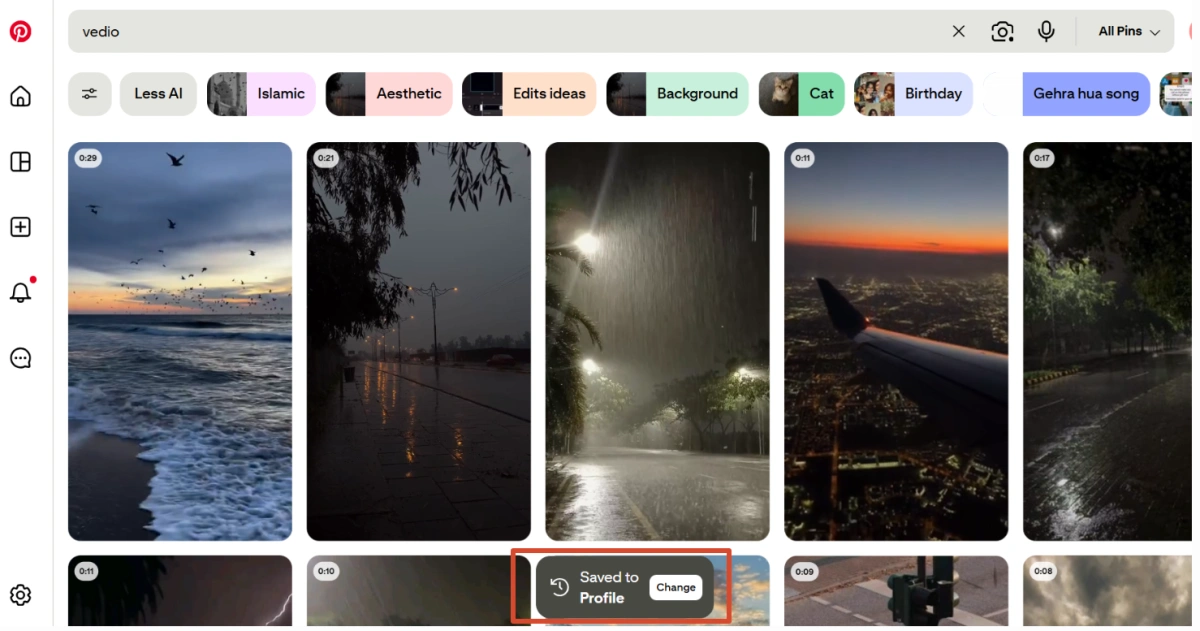
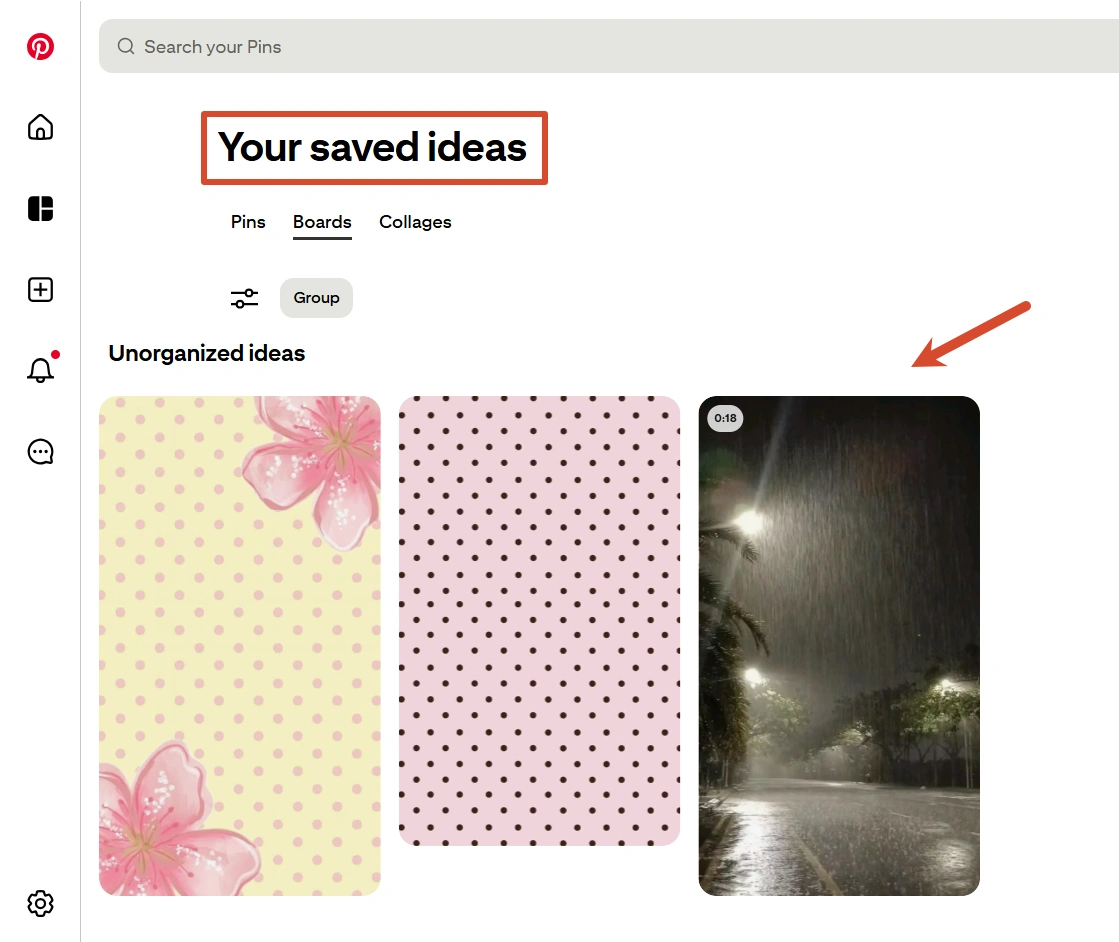
When you save a Pin to a board, Pinterest keeps the Pin in your account so you can find it again. That does not automatically create a video file on your phone or computer.
Check the official download option first
Pinterest limits direct video downloads to protect creators’intellectual property, so you generally cannot simply right-click and save a video from the web. Instead, Pinterest only provides an official Download video option for full-screen, 9:16 video Pins when the creator has enabled downloads.
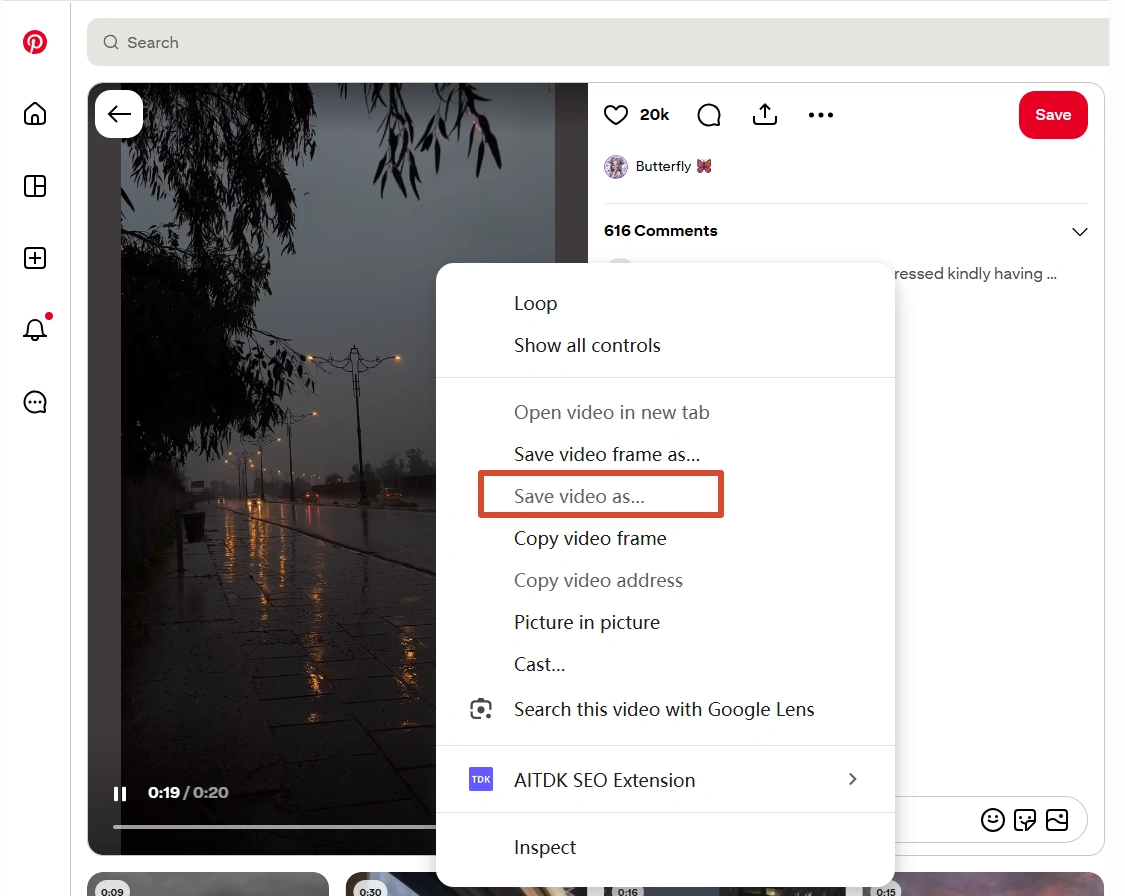
When downloads are enabled, you can download the video directly in the Pinterest app, and the downloaded file includes the creator’s username as a watermark. If you see a Download video option, this is the simplest and safest route because you do not need to use a third-party downloader.
7 Ways to Download Pinterest Videos
Method 1: Use Pinterest’s Official Download Option
This should be your first choice whenever it is available.
Steps
- Open the Pinterest app and find the video Pin.
- Tap the menu icon on the Pin.
- Look for Download video.
- Tap the option and allow Pinterest to save the file to your device if prompted.
- Open your Photos or Gallery app to find the downloaded video.
If you do not see the download option, the creator may not have enabled downloads for that video, or the Pin may not meet the conditions for Pinterest’s official download feature. Pinterest states that the download setting applies to full-screen video Pins.
Best for: mobile users who want the simplest and most direct option.
Method 2: Use an Online Pinterest Video Downloader
Online downloaders are useful when Pinterest does not show an official download button, especially on desktop.
Steps
1.Open the Pinterest video you want to save.
2.Click or tap Share and choose Copy Link.
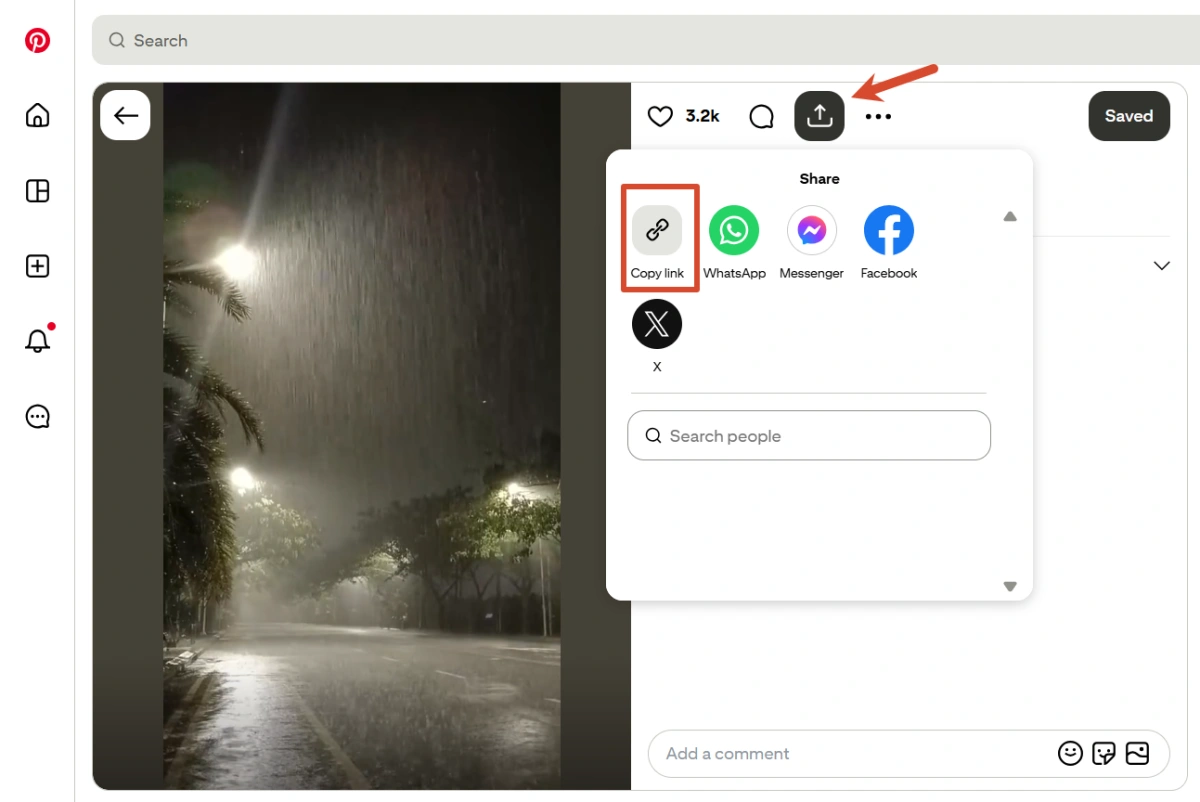
3.Open a reputable Pinterest video downloader in a new browser tab.
4.Paste the Pin URL into the downloader.
5.If the site offers multiple resolutions, choose the one you need.
6.Click Download and wait for the file to finish.
7.Check your browser’s Downloads folder.
What to check before using one
| Check | What to look for |
|---|---|
| HTTPS | The site should use a secure connection |
| Login | A downloader should not need your Pinterest password |
| Permissions | Avoid unnecessary browser or device permissions |
| Pop-ups | Close suspicious redirects instead of installing unknown software |
Best for: occasional downloads on Windows, Mac, Android, or iPhone.
Method 3: Install a Browser Extension
If you download Pinterest videos regularly, an extension can remove the repeated copy-and-paste step.
Steps
1.Open the Chrome Web Store or Firefox Add-ons.
2.Search for a Pinterest video downloader extension.
3.Check the developer, reviews, permissions, and recent update history.
4.Install the extension.
5.Refresh Pinterest.
6.Open the video Pin and look for the extension’s download button or icon.
7.Click the button and check your Downloads folder.
Extensions can stop working after Pinterest changes its page structure, so check whether the extension is still maintained before relying on it for regular work.
Best for: frequent individual downloads where convenience matters more than bulk processing.
Method 4: Download on Android or iPhone
Mobile users have two practical options: use an online downloader in the browser or use a dedicated download application.
Android
- Open Pinterest and copy the video Pin link.
- Open your mobile browser.
- Visit a reputable downloader.
- Paste the Pin URL.
- Choose the available video quality.
- Download the file and check your Gallery or Downloads folder.
iPhone
- Copy the Pinterest video link.
- Open Safari.
- Paste the link into a reputable downloader.
- Download the file.
- If Safari does not place the file directly in Photos, find it in the Files app and move it to the location you prefer.
For either platform, avoid download apps that request unrelated permissions such as contacts, microphone, or camera access when those permissions are not necessary for the task.
Best for: users who mainly save Pinterest content on mobile.
Method 5: Record the Screen When Other Methods Fail
Screen recording is useful when a Pin cannot be downloaded through the normal methods but can still be played on your device.
Windows
- Open the Pinterest video and switch to full screen.
- Press Windows + Alt + R to start Xbox Game Bar recording.
- Play the video from beginning to end.
- Press Windows + Alt + R again to stop recording.
- Find the recording in your saved videos.
Mac
- Open the Pinterest video.
- Press Shift + Command + 5.
- Choose the entire screen or a selected portion.
- Start recording.
- Play the video and stop the recording when it ends.
iPhone and Android
Open the device’s Control Center or Quick Settings, start Screen Recording, play the Pinterest video, and stop the recording when finished.
The main drawback is quality. A screen recording captures the video as it is displayed, so the result can be affected by your screen resolution, playback quality, and connection stability.
Best for: videos that cannot be retrieved through conventional download tools.
Method 6: Use Command-Line Tools or APIs
Developers and advanced users may prefer command-line tools when they need more control over repeated downloads or structured data.
A typical workflow is:
- Install a suitable command-line video tool in your development environment.
- Copy the Pinterest Pin URL.
- Pass the URL to the tool using its documented command syntax.
- Let the tool identify the available media source.
- Save the output to a designated folder.
- For API-based workflows, use the service’s documented input fields and export the returned media information.
This approach can be useful when you already work with scripts, APIs, or automated data pipelines, but it is unnecessary for someone who only wants to save one or two Pinterest videos.
Best for: developers, researchers, and users handling repeatable technical workflows.
Method 7: Manage Multiple Pinterest Accounts with an Anti-Detect Browser
The problem changes when you manage several Pinterest accounts instead of downloading a few videos from one account.
For example, you may have separate accounts for different brands, content projects, or niches. Keeping all of them inside one ordinary browser can make cookies, sessions, and browser data harder to separate. More importantly, switching repeatedly between accounts can turn a simple download task into a messy workflow.
How FlashID fits this workflow
FlashID Antidetect Browser creates separate browser Profiles with isolated browser environments. Each Profile can maintain its own fingerprint, cookies, local data, and proxy configuration, allowing you to keep different Pinterest accounts in separate working environments. FlashID also supports proxy assignment at the Profile level, including built-in proxy options.
Learn More about FlashID Proxy
Set up a Pinterest download workflow
- Create one FlashID Profile for each Pinterest account or project.
- Give each Profile a clear name, such as Pinterest-Brand-A or Pinterest-Research.
- Assign the appropriate proxy to each Profile if your workflow requires separate network identities.
- Open the Profile and log in to the corresponding Pinterest account.
- Use an online downloader or browser extension inside that Profile.
- Keep downloaded files in folders that match the relevant account or project.
- Repeat the same setup for your other Pinterest accounts.
Where Window Sync helps
If several Profiles need to perform the same browser-side steps, FlashID’s Window Sync can mirror actions such as clicking, typing, scrolling, and navigation from one active Profile to selected Profiles. Each Profile still keeps its own isolated browser identity and proxy settings.
For example, suppose several Pinterest Profiles need to open the same downloader, paste different links, and move through the same page sequence. Instead of manually repeating every browser interaction, you can use Window Sync for the repetitive interface actions.
Best for: social media managers, marketers, creators, and teams handling multiple Pinterest accounts.
Pinterest Video Download Methods Compared
| Method | Best for | Main advantage | Main drawback |
|---|---|---|---|
| Official download | Supported Pins | Safest and simplest | Not available on every Pin |
| Online downloader | Occasional use | No installation | Third-party site risk |
| Browser extension | Frequent downloads | One-click workflow | Can break after updates |
| Mobile downloader | Phone users | Convenient on mobile | App/site quality varies |
| Screen recording | Difficult Pins | Works as a fallback | Lower or variable quality |
| Command line/API | Advanced users | More control | Requires technical setup |
| Antidetect Browser | Multi-account workflows | Isolation + less repetition | Requires setup |
What to Keep in Mind Before Downloading
Downloading a video does not automatically give you the right to republish it. If you are saving content for personal reference, research, or offline viewing, keep the file private unless you have permission to share it.
If you plan to use a Pinterest video commercially, check who owns the content and whether you have the necessary rights. Do not remove creator attribution or reuse someone else’s video in an advertisement simply because you were able to download the file.
Security matters too. A legitimate downloader should not need your Pinterest password just to process a public Pin URL. Avoid websites that ask you to install unknown software, complete suspicious surveys, or grant unrelated permissions.
Finally, organize the videos after downloading them. Create folders by topic, brand, project, or account instead of leaving dozens of files in the Downloads folder. If you manage multiple Pinterest accounts, matching each download folder to its corresponding browser Profile can also make it easier to track where each reference came from.
The simplest rule is straightforward: use Pinterest’s official download option when it is available, choose third-party tools carefully when it is not, and use separate browser environments when your workflow involves multiple accounts. That gives you a practical way to save useful Pinterest videos without turning a simple download task into an unnecessarily complicated process.
FAQ
Where are downloaded Pinterest videos saved?
Downloaded videos are usually saved to your device’s default Downloads folder. On mobile, the exact location depends on your device and download method, so check your Photos, Gallery, or Files app if the video does not appear immediately.
Can I download Pinterest videos in HD?
The available quality depends on the original Pin and the tool you use. If multiple resolutions are offered, choose the highest available option. A third-party downloader cannot create quality that is not present in the original video.
Why does my downloaded Pinterest video have a watermark?
Videos downloaded through Pinterest’s official download feature may include the creator’s username as a watermark. This is different from third-party downloaders, which may handle downloaded files differently.
Can I download Pinterest videos in bulk?
Pinterest’s standard download feature is designed for individual Pins rather than large-scale bulk downloading. If you need to process many videos, the available options will depend on the downloader, technical workflow, and the platform’s current restrictions.
Why is my Pinterest video download not working?
A download may fail because the Pin is unavailable, the downloader no longer supports Pinterest’s current page structure, the video source cannot be retrieved, or the network connection is unstable. Try opening the Pin normally first, then check whether the same issue occurs with another download method.
Can I download a Pinterest video and edit it for my own content?
You may be able to edit a downloaded video technically, but downloading it does not give you ownership or reuse rights. If you plan to publish an edited version, check the creator’s permissions and the copyright rules that apply to your intended use.