Why Manage Multiple Lingopie Accounts?
Common scenarios for multiple accounts
Many Lingopie users find themselves needing more than one account.
Families may want separate accounts so each member can keep their own viewing history, language level, vocabulary lists, and learning progress.
Tutors may also manage different accounts for individual students, allowing lessons, saved videos, and study preferences to remain organized.
In addition, language learners or content testers may use separate accounts to compare courses, explore different target languages, or test regional content.
Keeping these accounts separate makes it easier to avoid mixed recommendations, overwritten progress, and confusion between users.
Risks of using a single browser
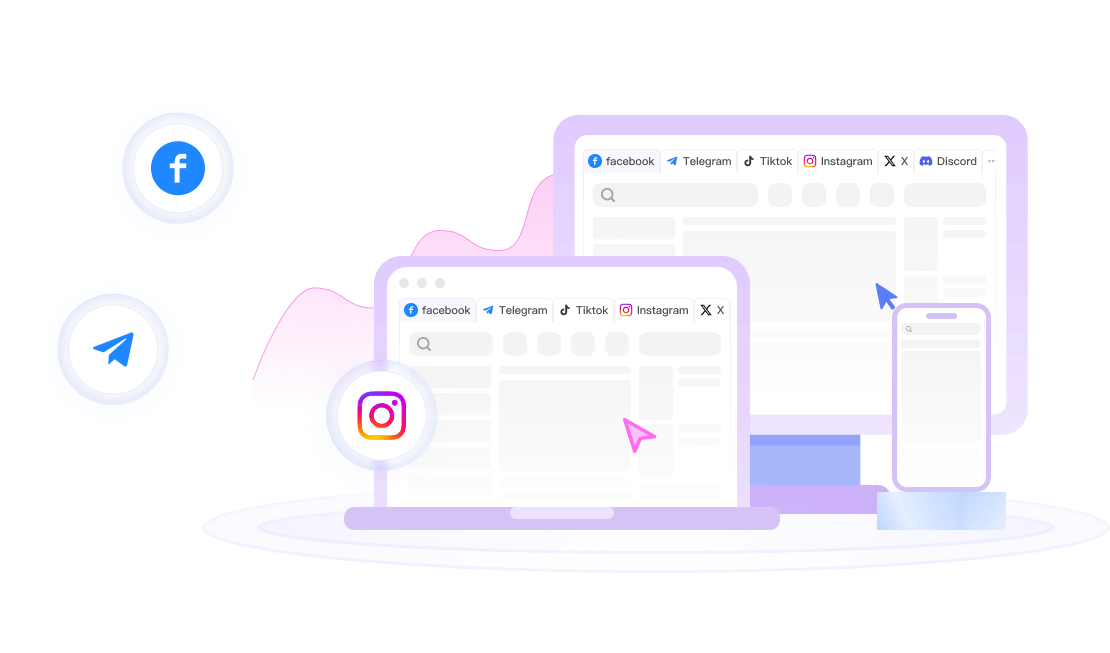
Logging in to multiple Lingopie accounts through the same standard browser can cause accounts to share cookies, cache, local storage, and the same browser fingerprint. This may lead to repeated logouts, incorrect account switching, mixed session data, or one user seeing another account’s saved preferences. Because all logins come from the same browser environment, the accounts may also appear closely connected. Lingopie does not clearly prohibit multiple accounts, but using one browser profile for all of them creates unnecessary overlap and makes account management less stable and more difficult.
How to Log In to Lingopie (Standard Methods)
Log in with email and password
- Go to lingopie.com/login.
- Enter your email address and password.
- Click “Log in”. If you have an active subscription, you’ll be directed to your dashboard.
Log in with Google
- On the login page, click the “Google” button.
- Choose the Google account you want to use.
- Authorize Lingopie to access your basic profile information.
Log in with Apple (app only)
Apple login is available only on the Lingopie mobile app (iOS). From the app’s login screen, select “Continue with Apple” and authenticate with your Apple ID.
Log in with Facebook
- Click the “Facebook” button on the login page.
- Log in to your Facebook account if prompted.
- Confirm permissions for Lingopie.
Common Lingopie Login Issues and Fixes
Forgot password recovery
- On the login page, click “Forgot password”.
- Enter the email address associated with your account.
- Check your inbox for a password reset link. If you don’t see it, check your spam folder.
Google/Facebook account selection
If you have multiple Google or Facebook accounts, make sure you select the one that is linked to your Lingopie subscription. Lingopie will remember the chosen account for future logins.
Browser cache troubleshooting
If the login page fails to load or you see errors, clear your browser’s cache and cookies. Then restart the browser and try again.
Why FlashID for Multiple Lingopie Logins?
FlashID Antidetect Browser is a low-cost anti-detect browser that creates completely isolated profiles for each browsing session. Each profile has a unique digital fingerprint — including separate cookies, canvas data, fonts, and other parameters — so Lingopie sees each login as coming from a different device. This makes it easier and safer to manage multiple Lingopie accounts on the same computer while reducing the risk of account association or unusual activity flags.
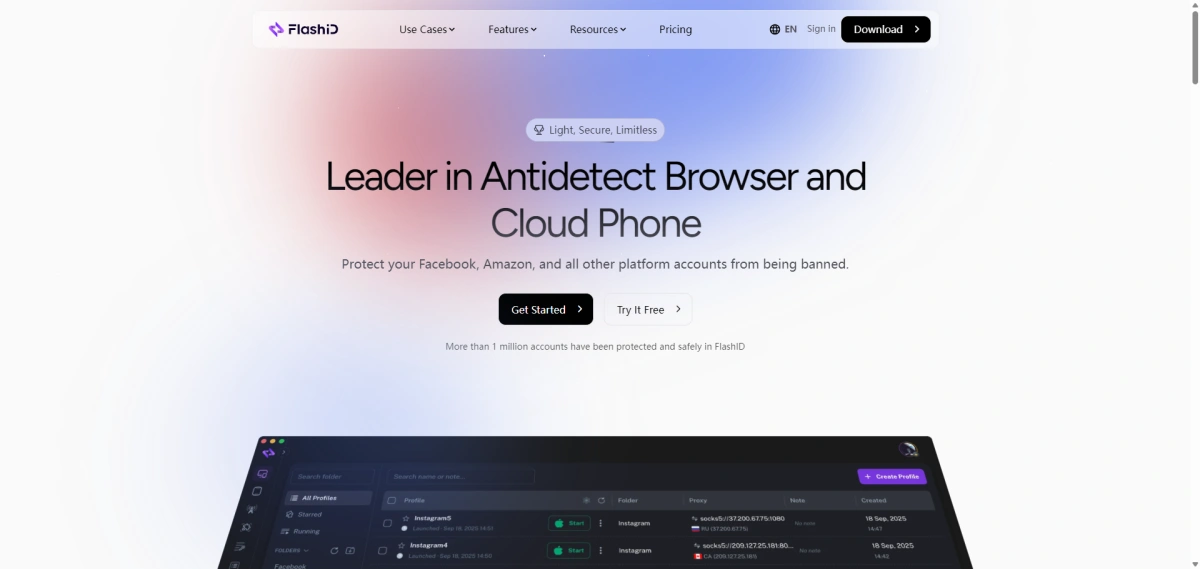
FlashID Features Overview lets you explore core capabilities like profile isolation and fingerprint customization.
1.Low-Cost Profiles with Advanced Fingerprint Control
Although FlashID is positioned as a low-cost anti-detect browser, it still provides detailed fingerprint settings, making it a high-value option for multi-account management.
Beyond these essential settings, FlashID gives users more dimensions of control to create consistent environments for different accounts. For example, WebRTC can be disabled, kept real, matched with the profile’s proxy, or configured manually instead of relying only on basic randomization. Frequently used configurations can also be saved as profile templates for reuse, making it easier to create and manage multiple isolated Lingopie sessions.
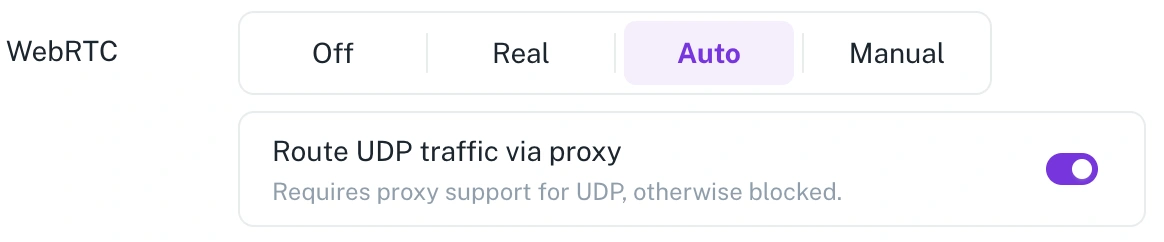
FlashID continues to update and improve its fingerprint configuration capabilities as browser technologies evolve. Users can follow the official FlashID changelog to stay informed about the latest fingerprint engine upgrades and newly supported settings.
2.Built-in proxy for stable connections
FlashID includes built-in proxy management for individual browser profiles. Its proxy network covers more than 20 countries and supports static, rotating, datacenter, and static ISP options. Users can assign a proxy to each Lingopie profile with one click, helping different accounts maintain separate and stable IP environments.
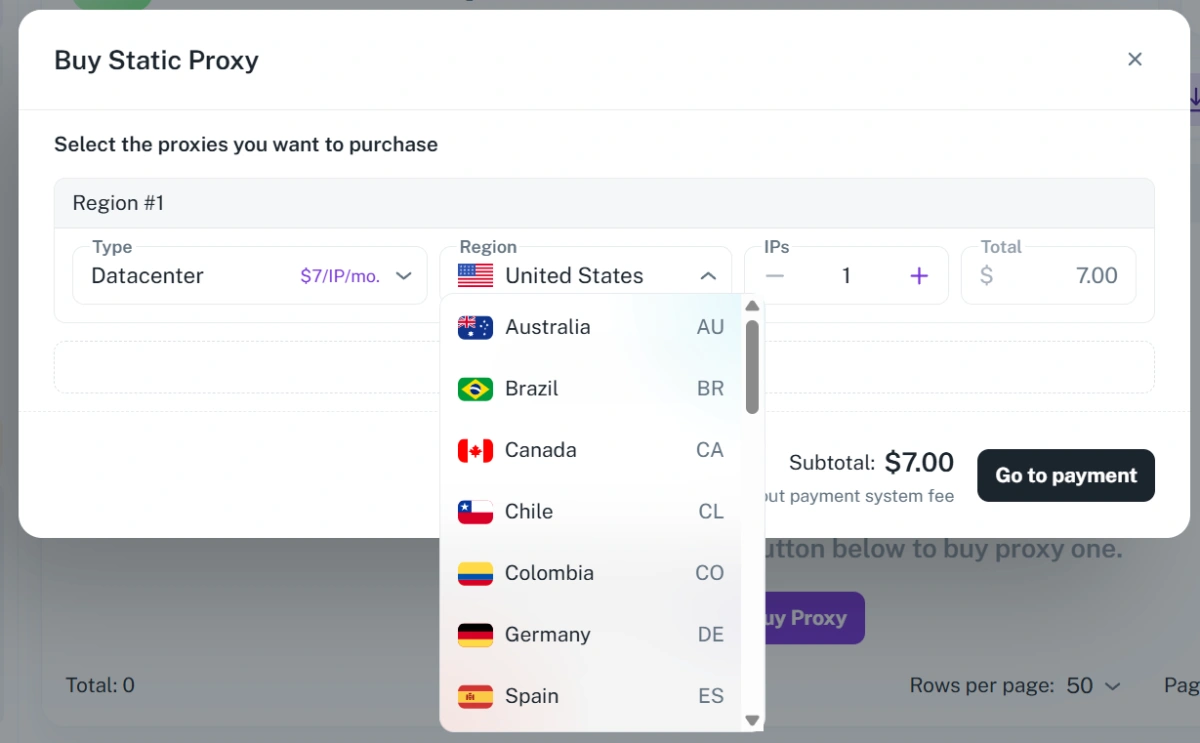
Because proxy settings are managed together with the browser fingerprint, timezone, and device environment, FlashID reduces manual configuration errors and improves consistency between the IP location and profile settings. This is especially useful for Lingopie accounts that require regional access or more reliable login sessions.
3.Automation and window sync features
For power users, FlashID offers RPA tools to automate repetitive login tasks and sync windows across profiles, saving time when managing many accounts.
Step-by-Step: Set Up FlashID for Lingopie
Step 1 Create a new FlashID profile
- Download and install FlashID.
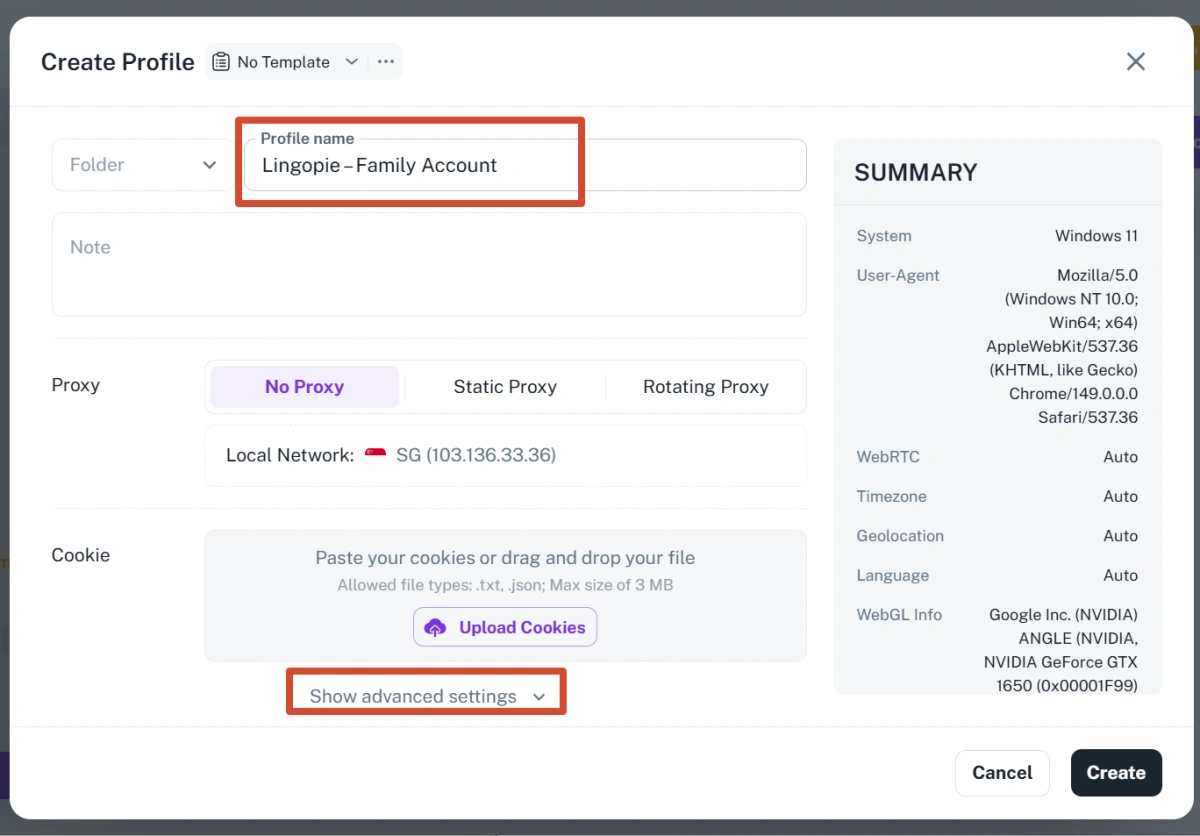
- Launch the application and click “Create Profile”.
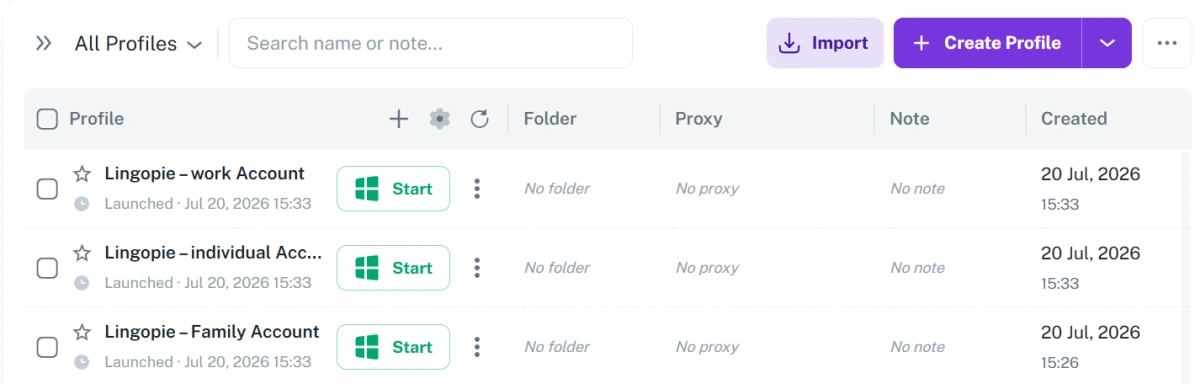
- Set a profile name (e.g., “Lingopie – Family Account”).
- FlashID automatically generates a unique fingerprint.
You can adjust settings like screen resolution and timezone if needed.
Step 2 Configure proxy (optional)
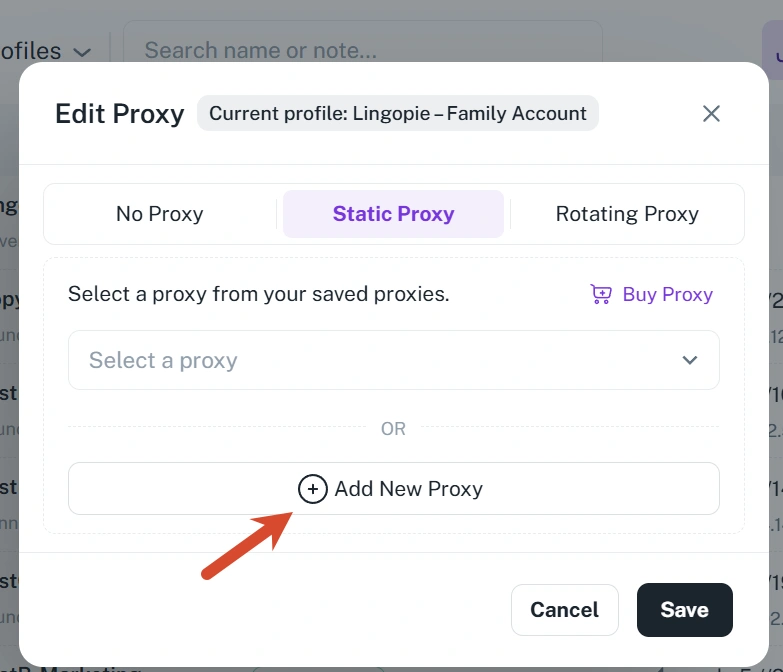
If you want each account to use a different IP, go to Profile Settings > Proxy and enter your proxy details. This step is optional but recommended for better separation.
Step 3 Log in to your first Lingopie account
- Double-click the profile to open a new browser window.
- Navigate to Lingopie’s login page.
- Use any of the standard login methods (email, Google, etc.).
- Your session is now isolated.
Step 4 Create additional profiles for other accounts
Repeat the process for each Lingopie account. Name profiles clearly so you don’t mix them up. You can run all profiles simultaneously in separate windows.
Best Practices for Safe Multi-Account Management
Use different fingerprints per account
Do not copy the same fingerprint across profiles. Let FlashID generate unique fingerprints for each account to maximize isolation.
Avoid mixing personal and work accounts
Keep your personal Lingopie account separate from accounts used for testing or teaching. Use dedicated profiles for each purpose.
Monitor account health regularly
Check each account periodically for unusual activity or login issues. FlashID does not guarantee account safety, but proper use reduces risk.
FAQ
1.Can I log in to multiple Lingopie accounts on the same computer?
Yes, using FlashID you can create separate browser profiles for each account and log in simultaneously without cross-contamination of cookies or fingerprints.
2.Does FlashID work with Lingopie’s Apple login?
Apple login is only available on the Lingopie mobile app. FlashID runs on desktop, so you can use email, Google, or Facebook to log in to Lingopie in FlashID profiles on your computer.
3.What if I forget my Lingopie password?
You can reset your password through Lingopie’s official “Forgot password” link. FlashID does not interfere with this process.
4.Is it safe to use FlashID for Lingopie accounts?
FlashID creates isolated environments, which can help reduce the chance of accidental association between accounts. However, always follow Lingopie’s terms of service. FlashID does not prevent bans but supports safer multi-account workflows.
You May Also Like