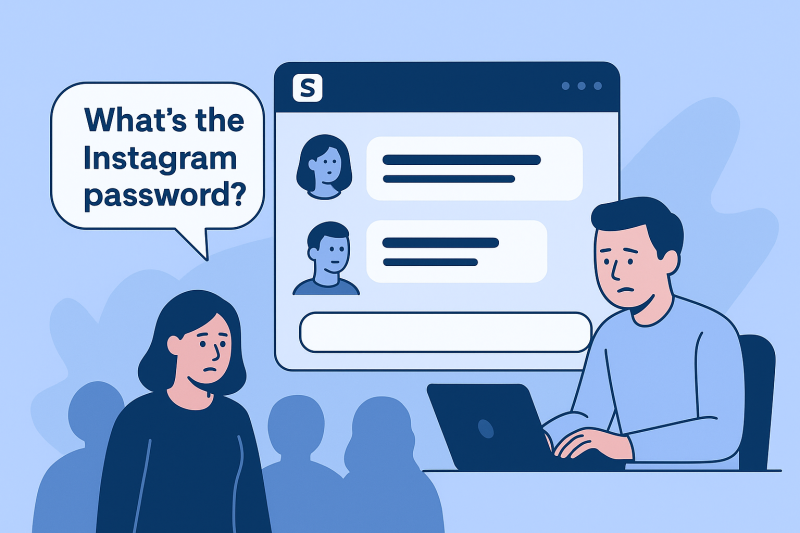
Has the phrase “What’s the Instagram password?” become a common Slack message in your team? If you’re still sharing a single login, you’re not just stuck in the past—you’re actively putting your account and brand at risk. The good news? In 2025, sharing your Instagram account doesn’t have to mean sharing your personal password or losing control
Fortunately, there are multiple methods to manage and share Instagram accounts efficiently, ranging from business account features to third-party tools, all designed to protect your accounts from potential issues such as account bans, linking, or suspensions . Finally, I’ll show you the simple steps to instantly revoke access when a team member moves on. Let’s build a collaborative, secure, and efficient Instagram presence for your team.
Why Share an Instagram Account with Your Team
Ecommerce businesses rely heavily on Instagram for marketing, customer engagement, and sales. By sharing account access, your team members can handle different responsibilities like:
- Content creation and scheduling posts
- Responding to customer inquiries and managing direct messages (DMs)
- Running paid ad campaigns and tracking their performance
- Monitoring analytics to improve marketing strategies
- Competitor analysis to stay ahead in the market

The Hidden Risks of Traditional Instagram Account Sharing
When teams still share one password, problems show up immediately:
Instagram flags unfamiliar devices
- Accounts trigger suspicious-activity warnings
- Team members overwrite each other’s sessions
- Logins clash because of inconsistent IPs
- The account becomes vulnerable to leaks or unauthorized changes
I have seen accounts locked for 24–72 hours simply because two people logged in from different cities within minutes. In 2025, Instagram’s security systems track behavior more aggressively than ever, so outdated sharing methods create more risk than value.
These risks aren’t limited to Instagram—e-commerce platforms like Amazon and Etsy also penalize inconsistent account behavior, often linking and suspending stores that appear to be operated by the same user.
But there are now some third-party tools that can solve these problems, such as FlashID.This is exactly why tools like FlashID were created. FlashID provides an essential solution by generating isolated, authentic browser profiles for each account or store. Each profile appears completely unique to the platform, eliminating the behavioral patterns that trigger linking or bans. With FlashID, your team can securely manage multiple stores, run test campaigns, and monitor competitors—all powered by reliable automation—without the constant fear of account suspensions. It’s the secure foundation that lets you scale with confidence.
| Feature | FlashID | Traditional Shared Account |
|---|---|---|
| Account Security | ✅Each user gets a unique, isolated browser profile | ❌Single login shared across entire team |
| Login Consistency | ✅Maintains consistent IP/ device fingerprint per profile | ❌Inconsistent IPs and device signatures |
| Account Linking Risk | ✅Zero risk of platform linking accounts | ❌High risk of accounts being linked and suspended |
| Password Security | ✅No password sharing required | ❌Single password circulated among team |
How to Share Your Instagram Account Safely Without Sharing Your Password
Sharing a password is a fundamental security risk. The professional method involves using Instagram’s official tools in combination with a security platform like FlashID to create a system that is both efficient and impervious to bans.
Complete Step-by-Step Guide: Configuring and Using FlashID with Instagram for Team Access
Step 1: Create and Configure Your FlashID Environment
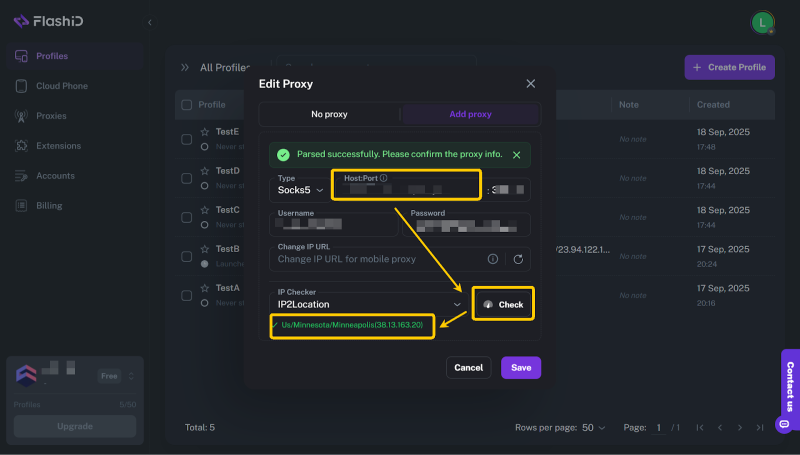
1.Open the FlashID client, and click Create Profile.
2.In the Proxy Settings section, select Add Proxy.
3.Enter the proxy host, port, username, and password provided by Instagram.
4.Click Test to verify the proxy connection, then Save the profile.
Step 2: Log into Instagram in the Configured Environment
1.First-Time Instagram Login
- In your launched FlashID browser, navigate to instagram.com
- DO NOT USE saved passwords from your regular browser
- Log in with your Instagram credentials
- Complete any 2FA verification (if enabled)
- Allow location access when prompted (this should match your proxy location)
2.Configure Instagram Settings
- Go to Settings > Privacy > Login Activity
- Verify only ONE location/device is shown (your FlashID profile)
- Review Settings > Security > Two-Factor Authentication
- Consider enabling 2FA if not already active
3.Verify Connection Stability
Browse Instagram for 5-10 minutes,like a few posts and check Stories to ensure no “Suspicious Login” warnings appear.
Step 3: Add Team Access
- Option A (Simple): Share FlashID profile access with team members
- Option B (Official): Add team to Meta Business Suite first, then grant FlashID access
Step 4: Daily Workflow
Team members:
- Open FlashID → Launch assigned profile
- Access Instagram only through this browser
- Do all work inside FlashID
- Log out before closing

Build a Secure and Scalable Instagram Workflow for Your Team in 2025
Sharing your Instagram account in 2025 isn’t about trust anymore—it’s about professional control, operational security, and using the right tools to protect your business. By moving away from shared passwords and relying on Meta’s built-in access controls, you empower your team while keeping your brand safe. When you layer these tools with FlashID’s secure, isolated browser profiles, you gain unmatched clarity, accountability, and peace of mind across every account you manage.
Start today. Convert your Instagram to a Professional account, connect it through Meta Business Suite, and strengthen your workflow with FlashID to manage access safely at scale. With the right setup, you’ll build a collaborative Instagram strategy that’s designed to grow—and engineered to stay secure.
Frequently Asked Questions (FAQ)
1.Q:Is it safe to share my Instagram password with my team?
A:No. Sharing a single password exposes your account to security risks, login conflicts, and potential bans. In 2025, Instagram tracks device fingerprints and login behavior closely.
2.Q:What’s the best way to give my team access without sharing my password?
A:we strongly recommend using both together for a complete solution. Think of it as a two-layer security model:
- Layer 1 (Business Suite): The official framework for managing people and permissions.
- Layer 2 (FlashID): The security infrastructure that manages secure and consistent access. This combination gives you maximum security, compliance, and operational smoothness.
3.Q:Why does Instagram flag accounts when multiple teammates log in?
A:Instagram’s security system monitors IP addresses, device types, browser fingerprints, and login locations. When multiple logins occur across different cities or devices, Instagram often triggers suspicious-activity warnings or temporarily locks the account.
4.Q:How does FlashID help prevent account linking and bans? A:FlashID creates isolated, authentic browser profiles for each team member. Instagram sees each profile as a completely unique user, which prevents account linking and reduces the risk of bans—especially for e-commerce teams managing multiple stores.
5.Q:Is this setup complicated for my team to learn?
A:Not at all. The setup is a one-time process. After that, team members simply open the designated FlashID profile to access Instagram—it feels just like opening a dedicated browser for work. There’s no need to handle passwords or 2FA codes for daily access.