Are you constantly switching between multiple Gmail accounts just to find one important email? Have you ever replied from the wrong inbox, missed a client message, or forgotten which account is connected to which project?
You’re not alone. Many professionals, including business owners, marketers, recruiters, freelancers, customer support teams, and content creators, use more than one Gmail account every day. One account may be for personal communication, another for work, and others for marketing, testing, customer service, or business operations.
Google makes it easy to sign in to multiple accounts and switch between them without logging out each time. But as the number of accounts grows, simple switching is no longer enough. Without a clear management system, multiple Gmail accounts can quickly lead to confusion, missed messages, recovery problems, and even security checks caused by unusual login behavior.
In this guide, we’ll explain how to create, switch, and manage multiple Gmail accounts in a safer and more organized way in 2026.
How to Create a New Gmail Account
Creating a new Gmail account is simple. Go to the Google Account sign-in page, click Create account, choose whether the account is for personal use, a child, or work/business, and then follow the on-screen steps.
During the setup process, Google may ask for basic information, a username, a password, and recovery details. In some cases, phone verification may also be required. After the account is created, you can use it for Gmail and other Google services.
A practical tip: keep your username, password, recovery email, and phone number organized from the beginning. This becomes especially important when you manage more than two or three accounts.
How to Add and Switch Between Multiple Gmail Accounts
Gmail allows users to add more than one account and switch between them. On desktop, you can open Gmail, click the profile icon in the top-right corner, select Add another account, and sign in to your second Gmail account.
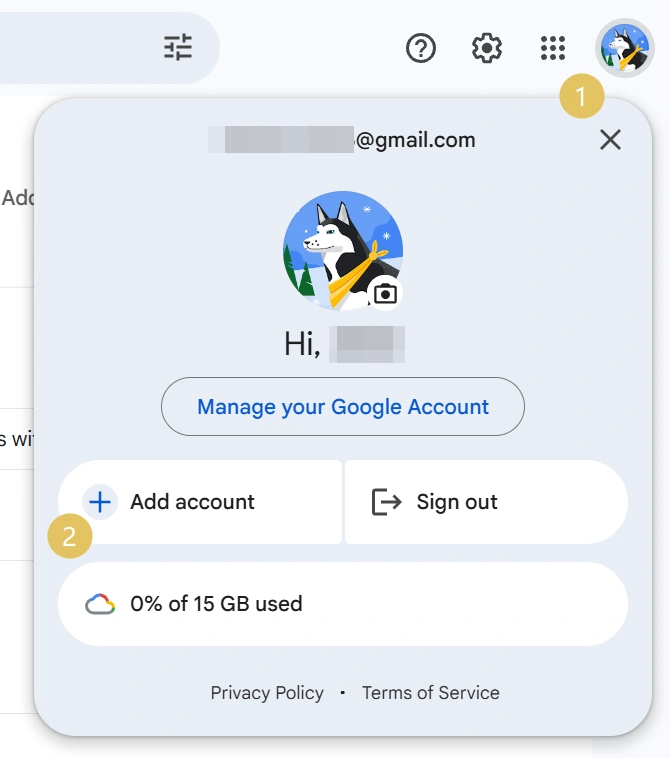
In the Gmail app, Google also provides an option to add another email account from the profile menu. If you use multiple accounts in the Gmail app, you can also view emails from different accounts in All inboxes.
This method works well for a small number of accounts, especially if you only manage personal and work email. But when the number of accounts grows, Gmail’s built-in switcher may not be enough.
Common Problems When Managing Multiple Gmail Accounts
Managing multiple Gmail accounts is not difficult at first, but the problems usually appear as the number of accounts increases.
- Sending from the wrong account:
- Mixed personal and business messages:
- Forgotten passwords and recovery details:
- Too many inboxes to check
- Team sharing issues:
- Security checks:
Common Ways to Manage Multiple Gmail Accounts
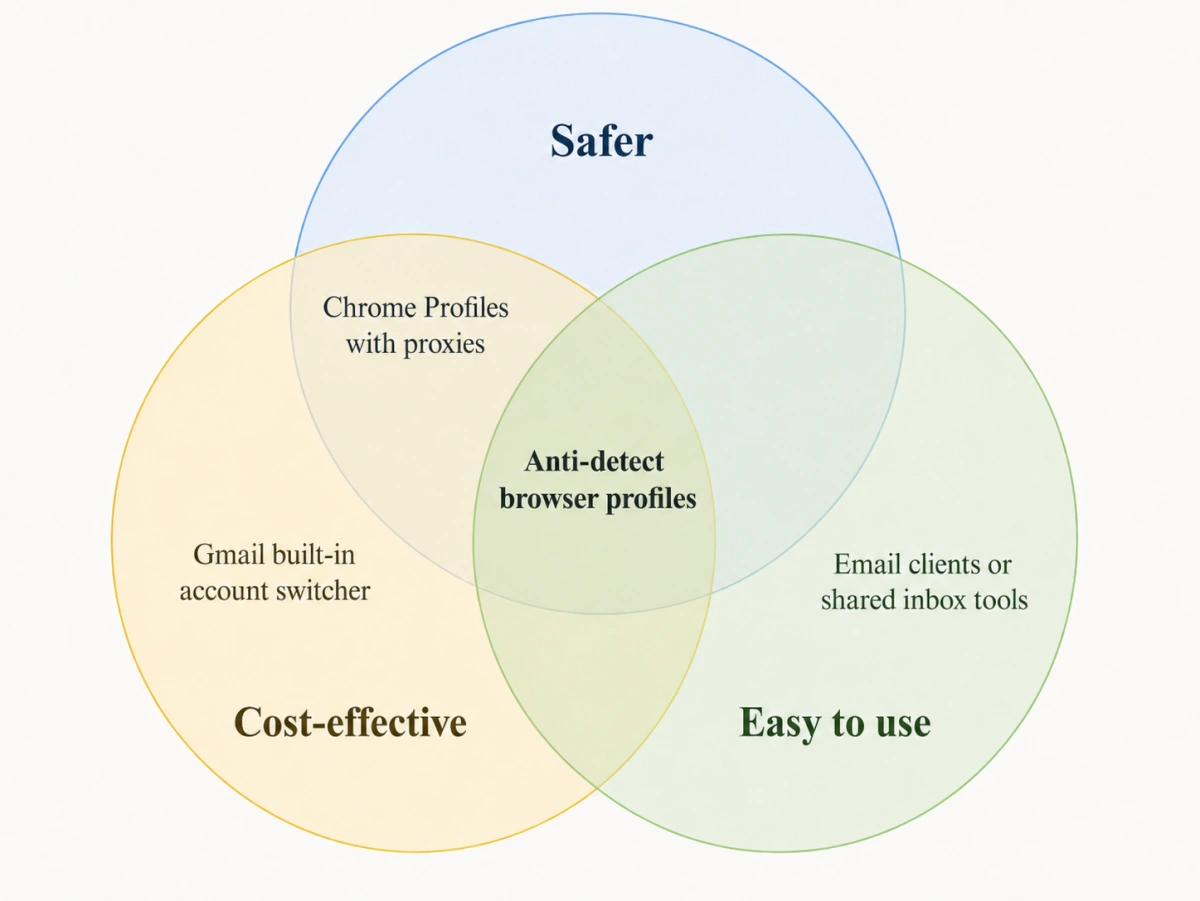
There is no single best method for everyone. The right choice depends on how many accounts you manage and how important account separation is.
A. Gmail’s Built-in Account Switcher
This is the easiest method. It is suitable for users who only have two to five Gmail accounts and mainly need simple switching.
The limitation is that all accounts are still managed inside the same browser or app environment. As the number of accounts grows, it can become messy.
B. Chrome Profiles
Another practical way to manage multiple Gmail accounts is to create separate Chrome Profiles.
To set this up, click the profile icon in the top-right corner of Chrome and create a new browser profile. You can give each profile a different name and profile picture, which makes it easier to recognize which Gmail account belongs to which profile. Before using a new profile, make sure you are only signed in with the Gmail account assigned to that profile. If several Google accounts are already logged in, sign out of the extra accounts and remove them from the profile to avoid mixing sessions.
However, this method still has some limitations. Chrome Profiles are not designed for large-scale account management. You cannot easily group, filter, label, batch manage, or share profiles with team members. If you want stronger separation, you may also need to use a different proxy for each profile. But switching and configuring proxies manually can be time-consuming and easy to get wrong, especially when you manage many Gmail accounts.
C. Email Clients or Shared Inbox Tools
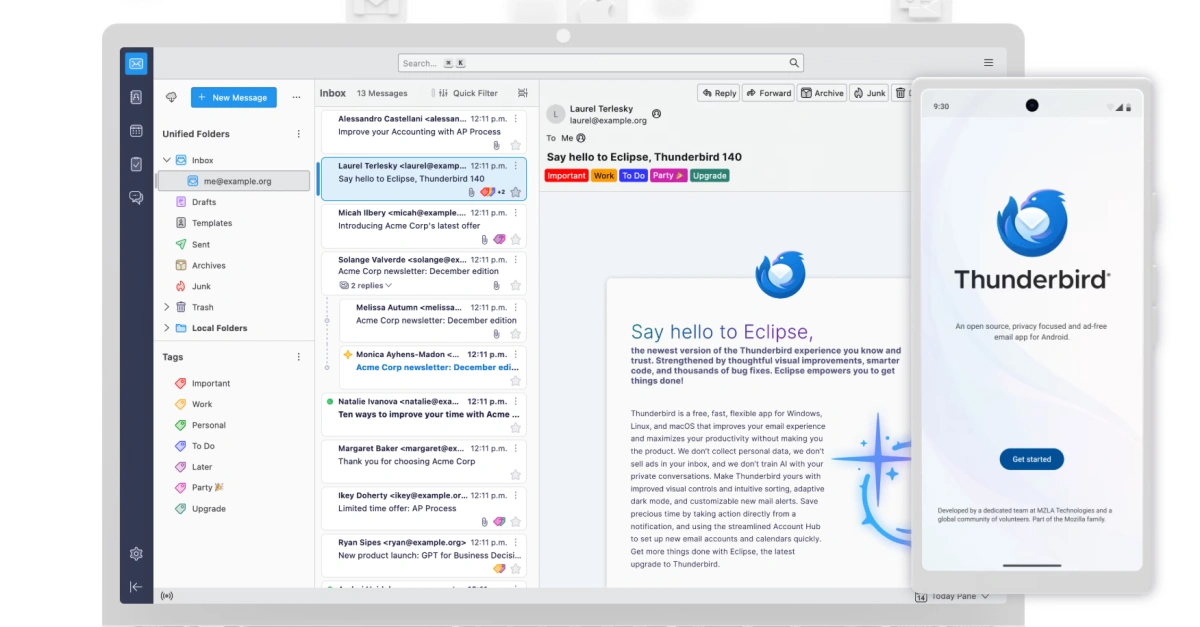
Email clients like Outlook or Thunderbird, and shared inbox tools, can help users check multiple email accounts from one place.
These tools are useful for communication management, but they do not fully separate browser fingerprints, cookies, device information, or login environments.
D. Anti-Detect Browser Profiles
An anti-detect browser is a practical tool for users who need stronger separation between multiple Gmail accounts. It creates an independent browser profile for each account, meaning every profile can have its own cookies, cache, browser fingerprint, and proxy settings. As a result, each Gmail account operates in a more consistent and separate environment.
Beyond safety, anti-detect browser profiles also make large-scale account management easier. Instead of opening endless browser tabs or switching between different devices, users can manage multiple Gmail accounts from one organized dashboard. Profiles can be named, grouped, filtered, and assigned to different tasks, making the workflow much cleaner.
Next, let’s take FlashID as an example to see how an anti-detect browser can help manage multiple Gmail accounts more efficiently.
How To Manage Multiple Gmail Accounts With A Anti-detect Browser
Step1:
Download Flashid and register an account. If you’re not ready to download it yet, you can try it for free first.
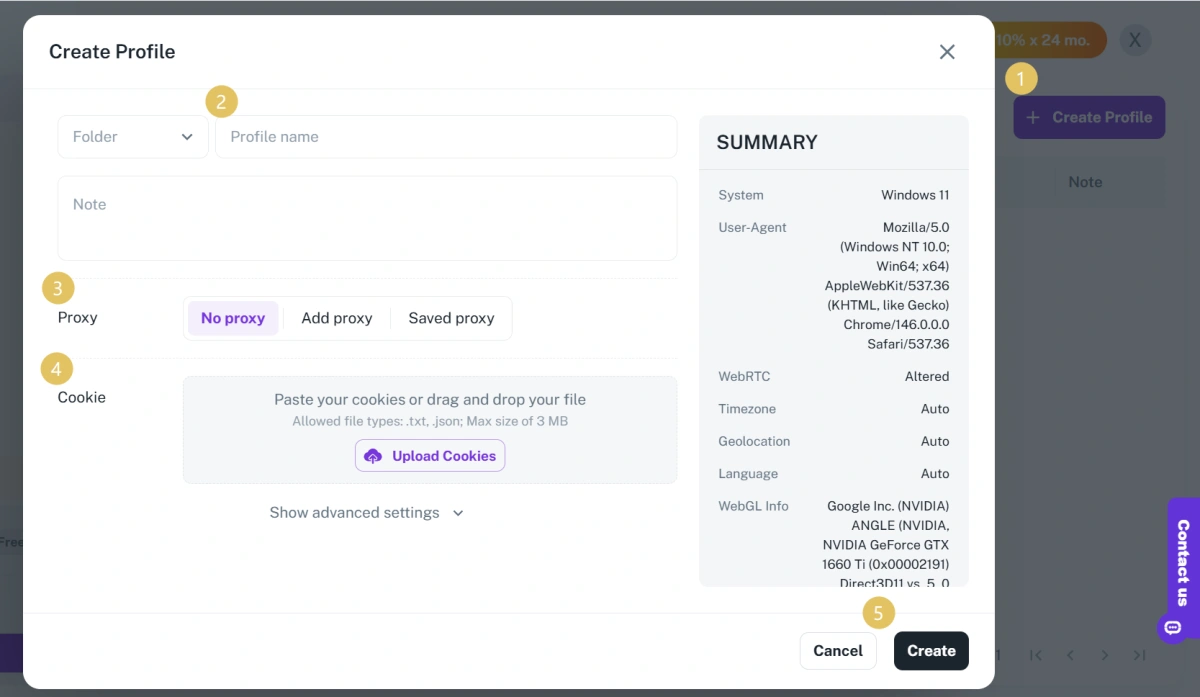
Step2: Create a Profile
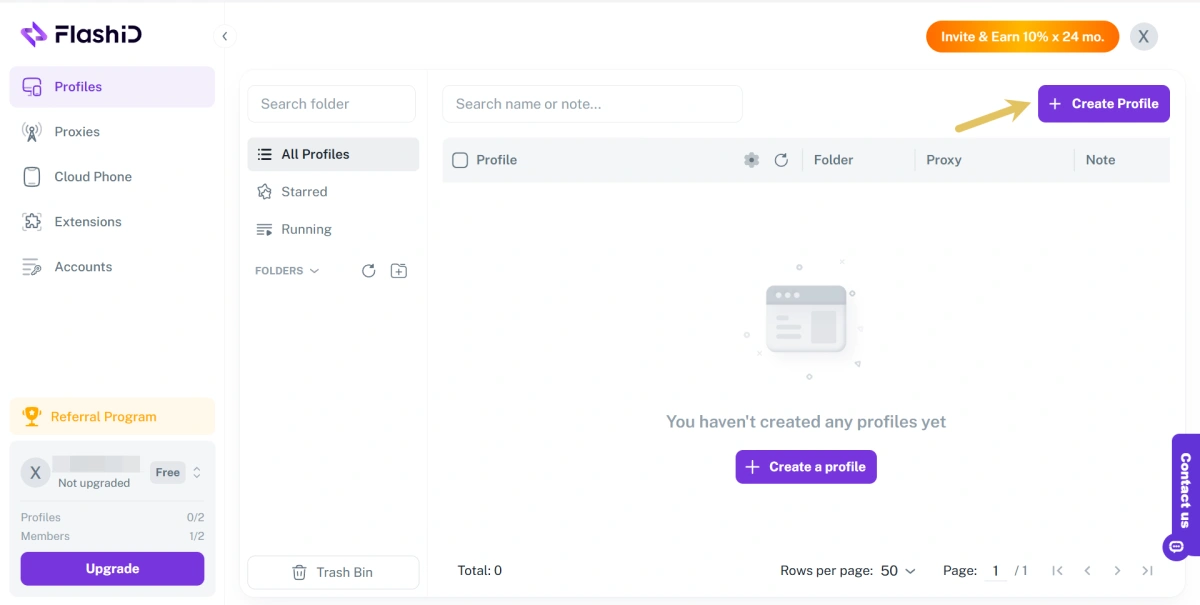
Create a separate profile for each Gmail account. Enter a profile name and configure the fingerprint parameters. Each profile generates a unique browser fingerprint, helping build an independent environment for that Gmail account.
Step 3: Add a Proxy
Go to the Proxy Settings panel, click “Add Proxy,” and input your proxy’s host, port, username, and password. Click “Test” to verify the connection and then save it.
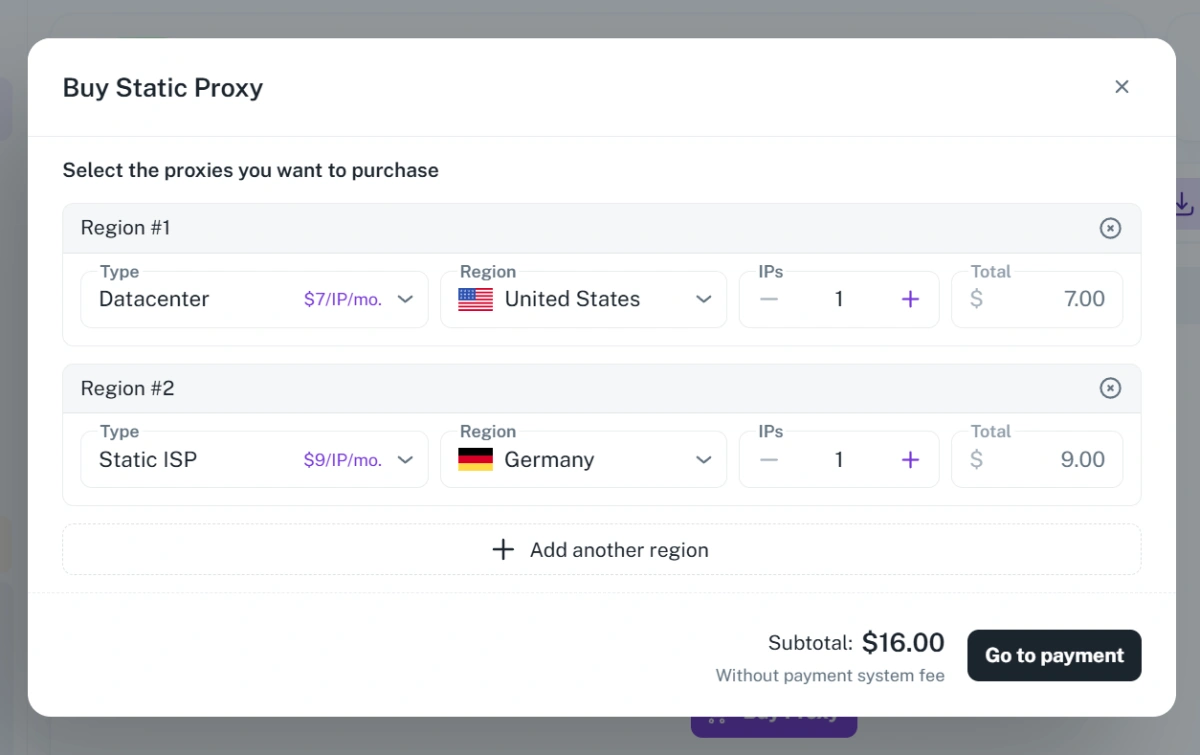
You can manage IP environments directly inside FlashID’s built-in proxy network, which covers 20+ countries and regions such as the US, Japan, and South Korea. FlashID proxy service pricing starts from $7/IP/mo. for datacenter proxies and $9/IP/mo. for static ISP proxies, helping you set up Gmail profiles faster and reduce manual proxy errors.
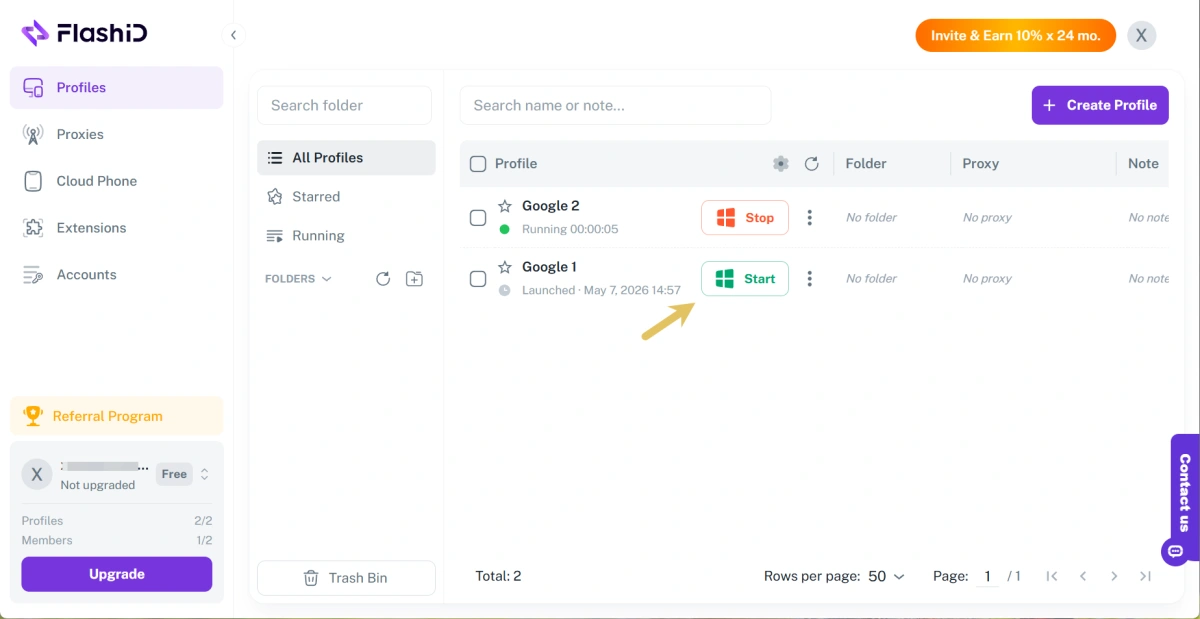
Step 4: Launch and Start Working
Click “Start” to launch your profiles. Each profile will open in a separate browser or Cloud Phone window, with its own fingerprint, IP address, and isolated cache space.
FlashID is not just an anti-detect browser. It is a unified environment system designed for large-scale multi-account operations. It combines cloud phone infrastructure, advanced browser fingerprint technology, proxy configuration and automation tools into one ecosystem.
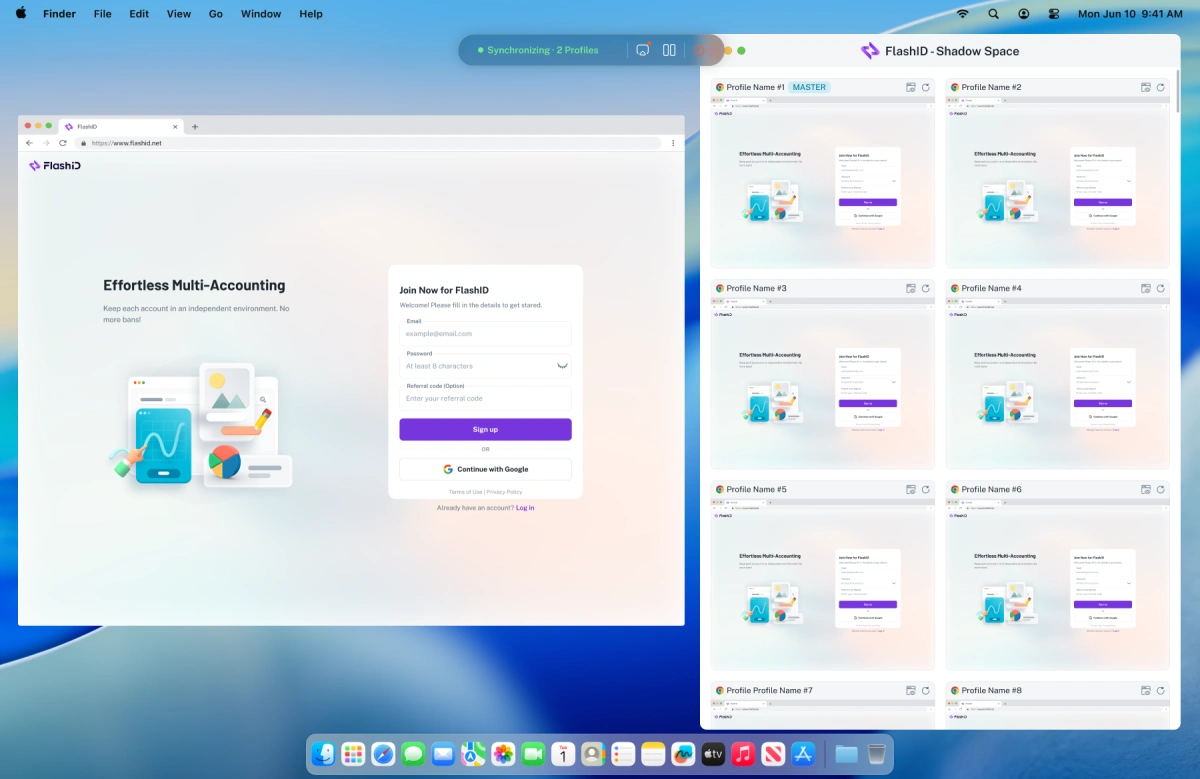
With Synchronizer feature, Gmail users can control multiple profiles at the same time. This helps teams batch-manage account actions, check inboxes, switch workflows, and handle repetitive Gmail tasks more efficiently while keeping each account in a separate profile.
Conclusion
Multiple Gmail accounts can make work and communication easier, but only when they are managed properly. For a small number of accounts, Gmail’s built-in switcher may be enough. For business users, teams, or anyone managing many accounts, separate profiles and stable login environments are more important.
Tools like FlashID can help users organize Gmail accounts through isolated profiles, proxy configuration, and workflow features, making multi-account management more structured and efficient.
However, even with careful management, Gmail accounts may still face login restrictions, verification issues, or suspension in some cases. In our next guide, we will explain what to do if your Gmail account gets banned or suspended, and how to improve your chances of recovery. Stay tuned to the FlashID blog for more practical Gmail account management tips.
If you’d like to stay updated with practical insights and industry trends, feel free to join our community.
FAQ
1.Can I have multiple Gmail accounts?
Yes. Users can create and use multiple Gmail accounts. The key is to use them responsibly and keep each account properly organized.
2.How many Gmail accounts can I have?
Google does not promote a simple “unlimited accounts” rule for every user. In practice, account creation and usage may be affected by verification, recovery information, and security signals.
3.Can I manage multiple Gmail accounts in one browser?
Yes, but it may become confusing when the number of accounts increases. Separate browser profiles are usually better for organization.
4.Is it safe to use multiple Gmail accounts?
It can be safe if the accounts are used responsibly, with clear purposes, stable login environments, and proper recovery settings.
5.What is the best way to manage many Gmail accounts?
For a few accounts, Gmail’s built-in switcher is enough. For larger workflows, Chrome Profiles, shared inbox tools, or anti-detect browser (such as Flashid) may provide better structure.