Pinterest is a visual inspiration hub where creators and businesses share content and build brand influence—ranging from home design and travel guides to recipes and fashion ideas. But when you log in full of enthusiasm only to face the cold message “Your account has been disabled,” the confusion and anxiety are real. Don’t worry—this article explains common reasons why Pinterest accounts get disabled and provides a proven step-by-step guide to appeal and regain access.
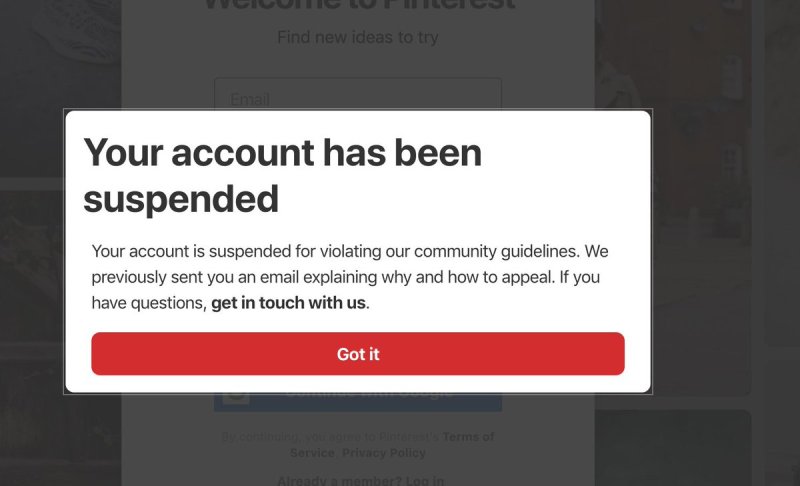
Common Reasons Pinterest Accounts Get Disabled
Understanding why your account was restricted is the first step to avoiding repeated mistakes and successfully appealing. Pinterest’s Community Guidelines are designed to maintain authenticity, safety, and friendliness on the platform. Violations that often lead to restrictions or bans include:
- Content Violations: Posting spam, repeated content, copyrighted images/videos without permission, explicit or violent material, or false information.
- Abnormal Activity: Using automation tools to mass-follow or like, posting large volumes of content in a short period, or frequently switching login devices.
- Commercial Violations: Failing to disclose sponsored content, selling counterfeit or prohibited items, or engaging in excessive marketing.
- Account Issues: Using false identities, operating multiple accounts improperly, or having your account hacked.
- Harassment: Posting hate speech, violating others’ privacy, or maliciously reporting other users.
- System Errors: Legitimate accounts mistakenly flagged, unusual network environments causing suspicion, or sudden spikes in traffic misidentified as artificial activity.
What to Do If Your Account Gets Disabled
Step 1: Stay Calm
- Don’t panic—most bans are not permanent.
- Immediately stop using any automation tools.
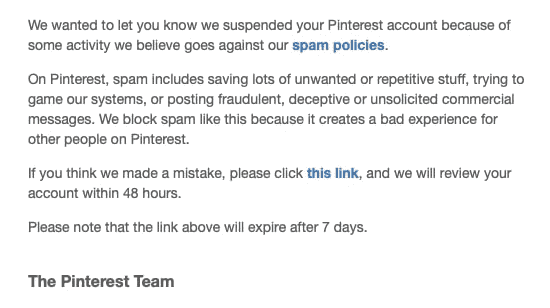
- Carefully read the notification email from Pinterest to identify the specific violation.
- Avoid creating a new account right away, as this can lead to all associated accounts being disabled.
Step 2: Prepare Appeal Materials
Before submitting an appeal, gather the following:
- Email address associated with the disabled account
- Username
- Approximate account creation date
- Account type (personal, business, etc.)
- Proof of identity (driver’s license, passport photo, etc.)
- For brands/businesses: business registration documents
Step 3: Submit an Appeal
Visit [Pinterest Help Center
Search for “account disabled”
Find the appeal form link
If the form is not available, contact Pinterest via their Twitter account @PinterestHelp
Step 4: Write a Polite Appeal Letter
Key points:
- Be sincere and polite
- Clearly explain your situation
- Admit any mistakes if violations occurred
- Provide supporting evidence
- Commit to following the rules in the future
Appeal Pattern:
Subject: Appeal for [Your Username] Account
Dear Pinterest Team,
My account, [username], has been disabled. The associated email is [your email]. [Choose one]
- I believe this may be a mistake, as I have always followed platform rules.
- I understand I may have violated [specific rule], but I have corrected my actions and reviewed the guidelines.
This account is important to me because [explain purpose]. I have attached proof of identity for your review.
Thank you for your consideration.
[Your Name]
[Contact Information]
Step 5: Wait Patiently
- Appeals typically take 3–7 days.
- Avoid submitting multiple appeals.
- Check your spam folder to avoid missing a response.
What to Do If the Appeal Fails
If the official appeal process doesn’t resolve the issue, try these alternatives:
- Politely reach out via Pinterest’s official social media (Twitter, Facebook)
- If you are an advertiser, contact Pinterest Ads support
- Consult the Pinterest community forums for others’ experiences (do not share sensitive account info publicly)
How to Avoid Future Bans
Fully read and understand Pinterest’s Community Guidelines and Business Policies
Publish original content or ensure you have permission to share
Maintain moderate engagement and avoid growth automation tools
Clearly mark sponsored content with tags like #ad or #sponsored
Regularly review account security—use strong passwords and two-factor authentication
Diversify content and avoid over-promotion
Stay updated with Pinterest announcements and policy changes
Use professional tools for compliant multi-account management, such as the FlashID Anti-detect browser:
- Create a separate browser environment for each Pinterest account
- Isolate account fingerprint data to prevent bans due to linked environments
- Use clean residential IPs to simulate real user networks
- Set varied operation intervals to avoid identical activity patterns
- Note: Tools are for compliant isolation only and cannot replace creating genuine, valuable content
Conclusion
When dealing with Pinterest account bans, prevention is key: follow platform rules, post original content, and use professional tools like FlashID for compliant account management. Appeals should be approached calmly—analyze the cause, communicate sincerely through official channels, and provide valid proof. For long-term success, continuously provide quality content, foster real engagement, and adjust strategies based on policy updates. Properly combining tools with compliant operations ensures your Pinterest journey is safe, sustainable, and rewarding.
FAQ (Frequently Asked Questions)
1.Q: Why was my account disabled?
A: Common reasons include spam, copyright violations, automation, false info, harassment, or system errors.
2.Q: Can I get my account back?
A: Yes, most bans are temporary if you appeal properly and provide verification.
3.Q: What should I do first?
A: Stay calm, stop automation tools, check the notification email, and avoid creating a new account.
4.Q: How do I appeal?
A: Use Pinterest Help Center or contact @PinterestHelp with your account info and a polite explanation.
5.Q:How long does it take?
A: Typically 3–7 days. Avoid submitting multiple appeals and check spam folders.
6.Q: How to prevent future bans?
A: Follow guidelines, post original content, clearly label sponsored posts, secure your account, and consider compliant tools like FlashID for multi-account management.
You May Also Like