Clicks, Bots, or Sessions: The Three Levels of Telegram Automation People Constantly Confuse
How managing Telegram through Cloud Phone, the Bot API, and a user MTProto client differs—and why choosing the wrong layer creates technical limitations.
Imagine a team buying Telegram accounts, proxies, and Cloud Phone access. Each account is opened in a separate Android environment. Window Sync lets the operator repeat clicks across several devices at once. Then a question arises: how can the team automatically read conversations, reply as regular user accounts, work with their contacts, monitor session status, and collect results?
The problem is not that any one method is inherently limited. It is that users often mix up three different automation mechanisms, each of which controls a different type of entity.
This article explains how UI automation, the Bot API, and MTProto differ, which tasks each approach actually solves, and when mobile infrastructure alone is no longer enough.
“Automate Telegram” Is Far Too Vague a Requirement
When users say “automation,” they may mean fundamentally different things:
- repeating actions in the Android app;
- a chatbot, support workflow, or notification system;
- performing actions as a regular Telegram account;
- reading conversations available to that account;
- managing several authorized sessions;
- handling errors and results for each account.
Until the identity is defined—who or what must perform the action—it is too early to choose a tool.
A BlackHatWorld user described a typical scenario: he bought five Telegram accounts, residential rotating proxies, and an AdsPower subscription, created separate profiles, and opened Telegram Web. After preparing the environment, he asked how to automate actions across all profiles at once and whether he needed a “special Telegram bot.” Participants suggested several different solutions: browser automation, RPA, standalone scripts, a userbot, and a third-party Telegram tool. Isolated profiles alone do not answer the question of how Telegram actions will actually be executed.
A Stack Overflow user stated the problem even more directly: he wanted to give a bot access to a regular account, read messages, and reply in a way that made the response appear to have been sent by the user. The answers explained that the Bot API does not provide such a general access model.
This is not an imaginary problem. Across different communities, people use the word “bot” to refer to screen automation, the Bot API, and a user client alike.
Let us begin with the most visual approach: automation that sees Telegram the same way an operator does—through the application interface.
Level 1. UI Automation: Controlling the Telegram Interface
What Is Cloud Phone?
Cloud Phone is a virtual Android device that runs in the cloud. It emulates a real smartphone, with its own operating system, environment, and fingerprint data. Users can install applications, open them, and interact with them just as they would on a physical phone.
FlashID provides Cloud Phones of this kind and lets users manage multiple Android devices at the same time.
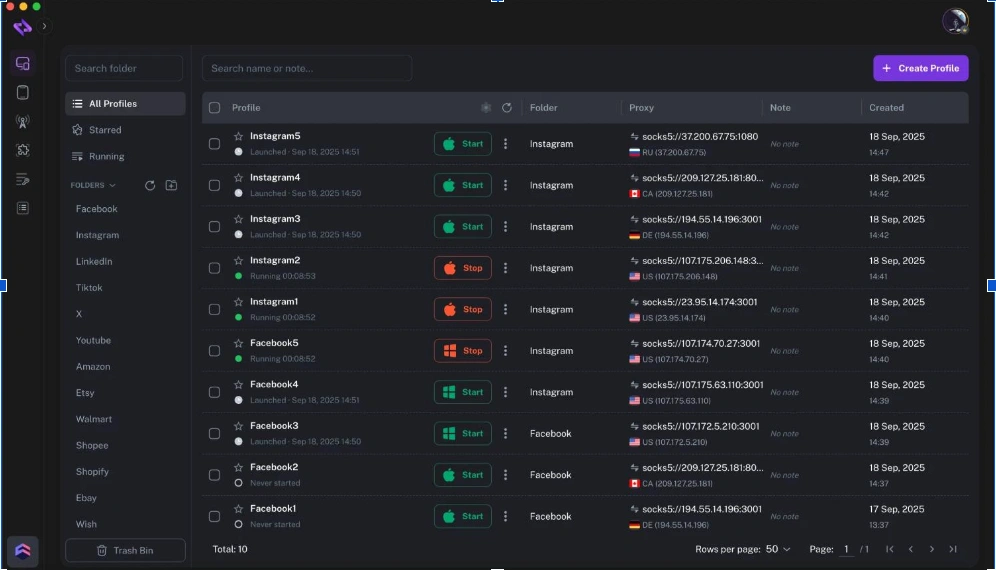
How Window Sync Works
Window Sync synchronizes operations between browser windows and Cloud Phones. Actions such as typing, clicking, navigating, and scrolling are performed in one window and reproduced in the selected environments.
For Cloud Phone, this means controlling multiple Android instances and applications, including Telegram.
In practice, Window Sync is a semi-automation tool rather than full script-based automation: the operator continues to control the process in real time, while the system repeats the same actions across several environments.
Why This Is Interface Automation
UI automation controls what is displayed on the screen. It:
- opens the application;
- clicks interface elements;
- enters text;
- scrolls through pages;
- repeats actions in the selected Android environments.
It is not a Telegram API and does not call Telegram methods directly.
Where UI Automation Is Useful
This approach makes sense for:
- processes available only through the Android application;
- manual control of nonstandard screens;
- initial account setup;
- working with system permissions;
- visually verifying the result;
- operations in which an operator must see and confirm every step;
- repeating identical actions across several synchronized environments.
What UI Automation Does Not Know About Telegram
Window Sync works with visible interface actions. It reproduces typing, clicks, and scrolling, but it does not interpret the internal status of each Telegram session or choose a different branch of a Telegram workflow for each account.
On its own, UI automation does not know:
- which Telegram account is open;
- whether the account is restricted;
- whether it is already in the required chat;
- whether the previous action has finished loading;
- whether the account has encountered a different system dialog;
- whether the Telegram task completed at the server level;
- which result should be recorded in the statistics.
UI automation is effective when an operation must pass through the application and the interfaces remain in the expected state. However, the object it controls is still the screen, not a Telegram session represented as a structured entity.
When a team needs an automated participant in a conversation rather than an automated screen, the second approach comes into play: the Bot API.
Level 2. Bot API: Automating a Special Telegram Account
What Is a Telegram Bot?
Telegram defines bots as special accounts controlled by software that do not require a separate phone number. A bot’s code usually runs on an external server, while Telegram delivers events to it through a webhook or getUpdates.
Bot API authorization is based on a unique token. Requests are sent over HTTPS to Bot API methods, and responses are returned as JSON. This is fundamentally different from signing in as a user with a phone number, authorization code, and 2FA.
A bot token cannot be treated as a replacement for a user Telegram session. It is the credential of a different identity with a different permissions model.

Tasks the Bot API Handles Well
The Bot API is well documented and designed for building:
- chatbots;
- customer support solutions;
- notification systems;
- menus and buttons;
- Mini Apps;
- payment flows;
- group and channel management when the required permissions are available;
- interactions with users who have initiated contact with the bot.
Bot API Limits
Telegram recommends that bots send no more than approximately one message per second in a single chat. For groups, the stated limit is no more than 20 messages per minute, while bulk notifications are limited to roughly 30 messages per second. Once these limits are exceeded, the Bot API begins returning 429 errors.
Telegram also supports paid broadcasts: when the requirements are met, a bot can send up to 1,000 messages per second by paying for the volume in Telegram Stars. This feature is specifically intended for broadcasting to the bot’s subscribers; it does not turn the Bot API into a system for managing regular user accounts.
Even within the official bot model, scaling is handled not by imitating hundreds of user accounts, but through a separate platform model with its own rules and limits.
Business Bots Changed the Boundary Between Bots and Users
In 2024, Telegram Business allowed users to connect chatbots that could process and reply to messages on their behalf. The account owner could choose which chats the bot was allowed to access.
In May 2026, Telegram expanded this model into “Chat Automation” in profile settings. Any user can now connect a bot to their profile and configure its access to chats. Since May 8, 2026, a Premium subscription is no longer required to connect a Business Bot.
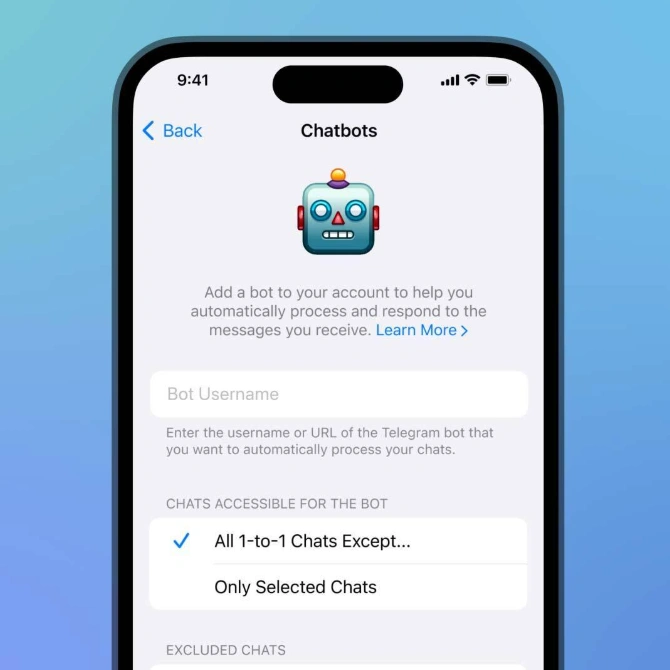
Technically, the interaction takes place through a business connection. The bot receives a separate connection_id, a set of permissions, and recipient settings.
Through an authorized connection, a business bot can use supported methods to send and edit messages, mark chat history as read, modify profile information, work with media, pin messages, and perform many other actions.
There is, however, an important limitation. The can_reply permission allows a connected business bot to send and edit messages only in private chats where an incoming message was received within the previous 24 hours.
It is therefore inaccurate to say that the Bot API cannot act on behalf of a user at all. Through a limited business connection, it can perform some actions on behalf of the connected profile. However, this is a delegated model with its own identifier, permissions, and list of supported methods—not a full user-client session.
When the goal is not to delegate selected actions to a bot, but to work programmatically with a complete user account as a Telegram client, the third level is used: MTProto.
Level 3. MTProto: Automating a Full User Session
What Is MTProto?
MTProto is the protocol used by Telegram clients. For third-party developers, Telegram provides TDLib, a full-featured cross-platform client library that handles network communication, encryption, local storage, and data consistency.
How a User Client Is Authorized
A user client is authorized not with a BotFather token, but in the same way as a regular Telegram account:
- with an api_id and api_hash;
- a phone number;
- an authorization code;
- 2FA, when required;
- a stored key and session data.
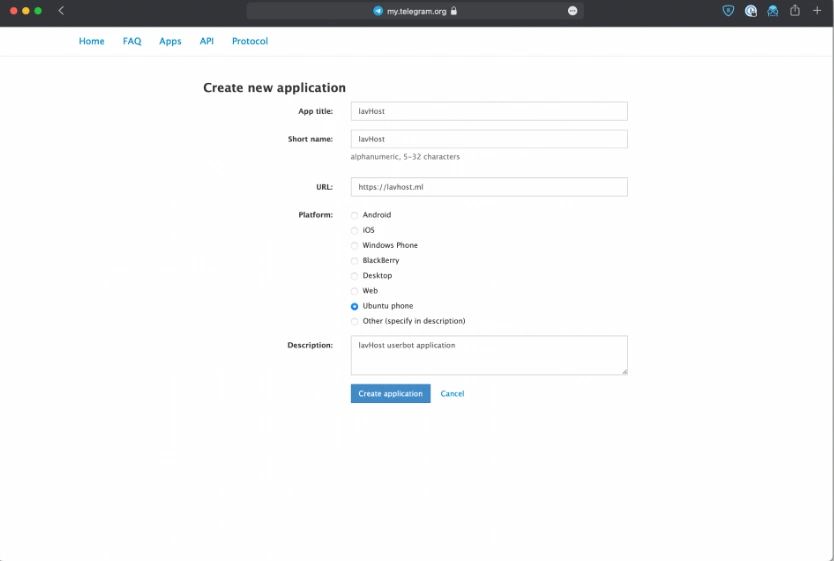
Telegram associates the authorization with the client’s auth_key_id. After successful authorization, the client can call methods available to the user account without requesting a new code every time it starts.
The technically accurate term is an automated Telegram user client. “Userbot” is acceptable as a common term, but it is important to understand that this is not a bot account. It is a regular user account controlled through a client library.
What a User Client Can Do
Telegram maintains separate method lists: methods available only to users, only to bots, and through a business connection.
A user client can work with the entities visible to the authorized account, subject to its permissions, privacy settings, and server-side restrictions. This is why MTProto is chosen for scenarios that require the system to:
- act on behalf of a regular account;
- work with the channels and groups available to it;
- read its conversations;
- use native user methods;
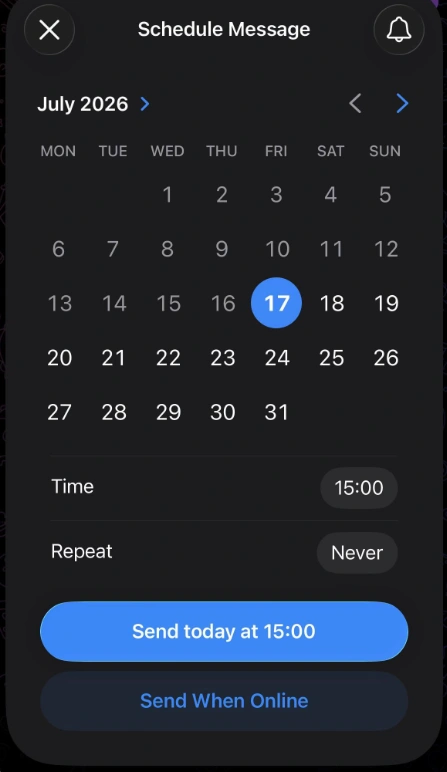
- schedule messages;
- publish stories from a user profile;
- process additional Telegram events.
Why MTProto Is More Than Just Another API
Working with MTProto introduces stateful infrastructure:
- separate authorization;
- a session key;
- local storage;
- an entity cache;
- updates;
- RPC errors;
- concurrent-access management;
- session recovery or revocation;
- server-side limits.
The key distinction is this: in the Bot API, the primary asset is the bot token. In user-account automation, the primary asset is the Telegram session.
What Is a Session File?
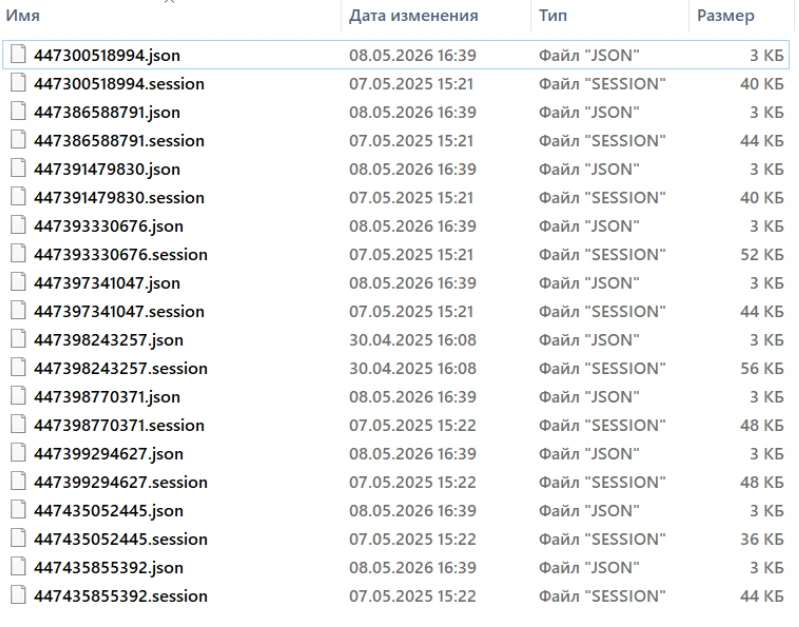
Telethon stores user authorization in a session file. The file contains enough information to sign in again without requesting a new code. The SQLite file stores connection data, the address and port of the Telegram server, the authorization key, and additional information.
Telethon also stores information about previously encountered entities—users, chats, and channels—in the session so that it does not need to make unnecessary requests to Telegram.
A session is a sensitive asset: anyone who obtains a file containing a valid authorization can access the corresponding account.
Concurrent Access to a Session
When working with session files, the error sqlite3.OperationalError: database is locked may occur. This happens when two or more clients use the same session at the same time. The recommended solution is to use a separate session for each client.
At the server level, Telegram defines the AUTH_KEY_DUPLICATED error. It occurs when an authorized session sends requests in parallel over more primary TCP connections than permitted. In this case, the key may be invalidated.
Scaling MTProto is not as simple as copying one session file into several processes. Teams must understand the distinction between Telegram authorization, MTProto sessions, local session storage, and concurrent connections.
Errors Are a Normal Part of Operation
Telegram’s official documentation states this directly: errors will occur when working with the API, and the client must handle them correctly.
FLOOD_WAIT_X means that the maximum permitted number of attempts to call a method has been exceeded and the client must wait for the specified number of seconds. This is a server-side restriction, not an interface error or an MTProto-library failure.
Increasing concurrency does not eliminate FloodWaitError. Parallel operations only bring the system closer to the flood limit faster.
An Official API Does Not Make Every Scenario Acceptable
Telegram welcomes the development of third-party clients, but its API Terms require applications not to perform actions on a user’s behalf without the user’s knowledge and consent.
Telegram also warns that API clients are closely monitored to prevent abuse. Using the API for flooding, spam, or artificially manipulating counters may result in a permanent ban.
Choosing UI automation, the Bot API, or MTProto does not override Telegram’s rules. Neither the official Android client, the official API, nor specialized software makes a prohibited scenario acceptable.
The Real Problem Starts Not at the First Login, but at the First Hundred Sessions
A single MTProto client can be built on top of a library. As the number of accounts grows, however, the challenges become operational as well as technical:
- where each session is stored;
- which account is active;
- which session is restricted or revoked;
- which task was running;
- which actions were completed;
- where 2FA credentials and additional parameters are stored;
- whether a particular account can be used in the next task;
- how many actions each account has completed;
- how to handle FLOOD_WAIT, authorization errors, and restrictions;
- how to prevent the same session from being started in conflicting ways across several processes.
Building an MTProto client is not the same as building a system for managing a large number of Telegram clients.
What Must Be Built Around a Standard MTProto Library
The more accounts and workflows a team has, the more functions it must implement itself—or cover with a combination of scripts, databases, and administrative spreadsheets:
- session storage;
- binding accounts to parameters and proxies;
- a task queue;
- control of concurrent operations;
- RPC error handling;
- account statuses;
- retry logic;
- a results log;
- load distribution;
- an operator interface;
- format import and export;
- reporting.
Telegram Soft Expert: Not a Fourth Type of Automation, but a Ready-Made System for Managing MTProto Workflows
Telegram Expert operates at a different layer and addresses the tasks that arise when regular Telegram accounts are managed centrally.
The product combines:
- an account panel;
- folders and statuses;
- bulk account checking;
- session management;
- Session, JSON, and TData support;
- actions performed with user accounts;
- conversation management;
- contacts;
- messages;
- audience management;
- reports;
- tracking the number of completed actions;
- proxies and proxy-pool checking.

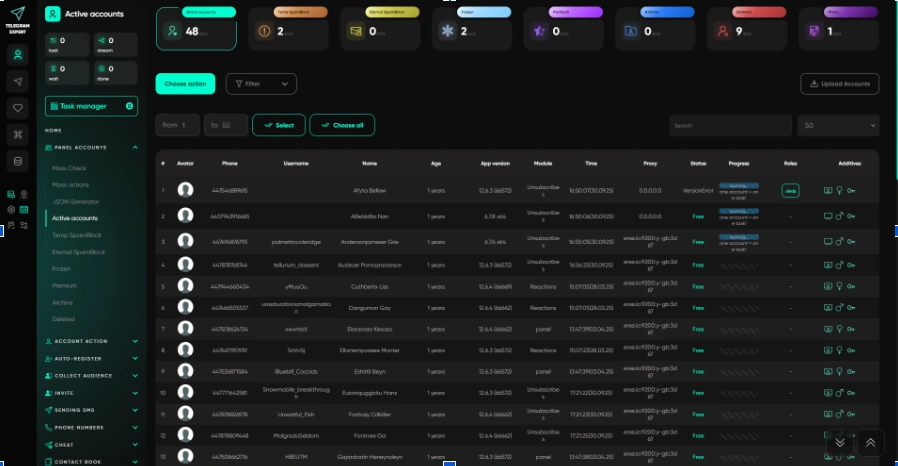
In Telegram Expert, accounts can be centrally assigned to active, temporarily restricted, permanently restricted, frozen, Premium, archived, and deleted categories. Bulk checking makes it possible to verify accounts and move them between folders according to the result.
The main value of the panel is not simply that it displays a list of accounts. It prevents the operator from treating every session file as equally suitable for work.
Telegram Expert Understands the Task, Not the Button Coordinates
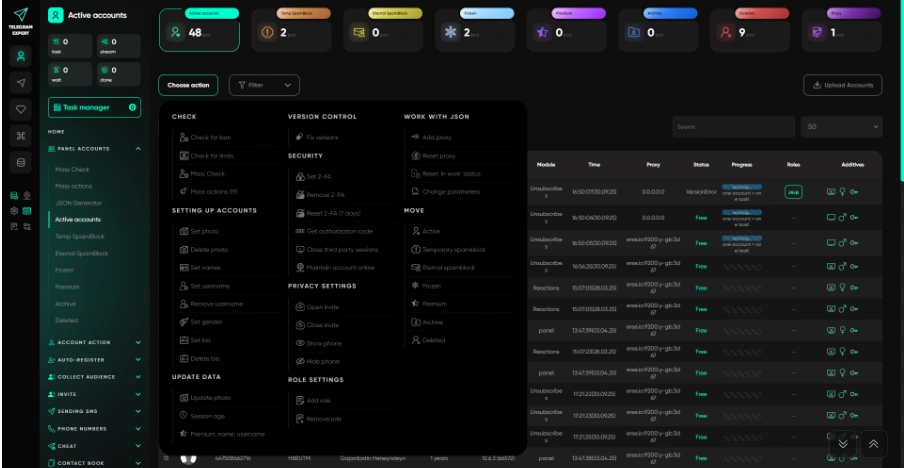
Telegram Expert receives a task at the level of a Telegram workflow:
- check the selected accounts;
- read unread conversations;
- perform an action using suitable sessions;
- record the result;
- separate problematic accounts;
- generate statistics.
Why Session, JSON, and TData Become a Separate Infrastructure Layer
Account formats are not merely decorative files.
In Telegram Expert:
- the JSON generator creates a missing or damaged JSON file for a Session;
- the converter transforms accounts from Session to TData and back;
- the duplicator creates sessions for mobile and desktop clients;
- the panel provides centralized management of the accounts and sessions themselves.
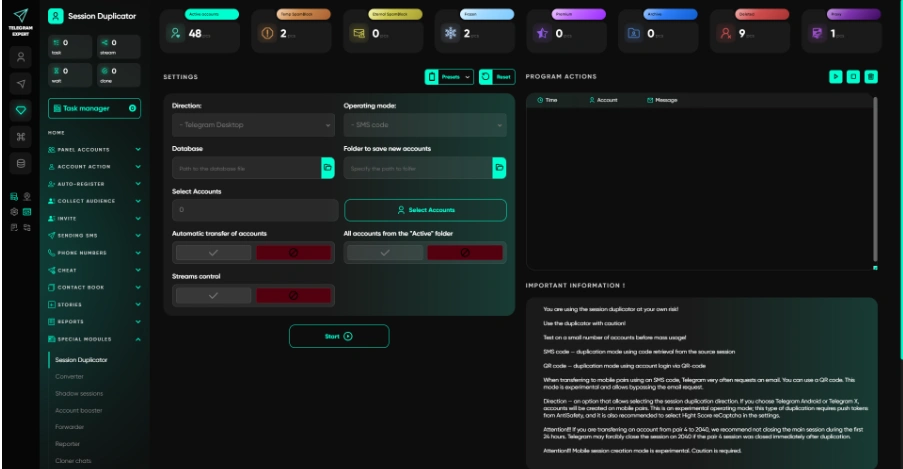
Cloud Phone stores the working mobile environment. Session or TData represents the authorization of a Telegram client. For a team, it is important not only to preserve each component, but also to move an account between the working formats required by a particular task.
Controlling the Result Matters More Than Starting the Task
UI synchronization clearly shows that an action has started. Professional automation, however, must also answer:
- how many accounts started the task;
- how many completed it;
- how many encountered an error;
- how many actions each account performed;
- which data should be excluded or merged;
- which accounts should no longer be assigned to work.
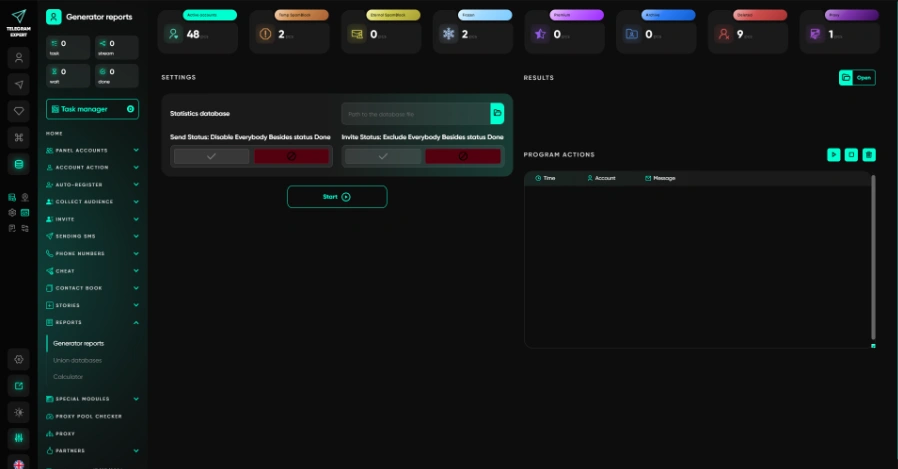
Telegram Soft Expert includes a report generator, database merging, and a calculator that tracks the number of broadcasts and invites performed by each account.
FlashID and Telegram Expert Cover Different Parts of the Same Process
FlashID:
- provides separate Android Cloud Phones;
- isolates mobile environments;
- allows the Telegram application to be launched;
- synchronizes clicks, typing, and scrolling;
- helps the team manage groups of mobile devices.
Telegram Expert:
- manages user Telegram sessions;
- tracks account status;
- performs specialized Telegram tasks;
- distributes workloads;
- records results;
- maintains Session, JSON, and TData formats.
FlashID manages the environment and the screen. Telegram Expert manages the Telegram account as an operational entity.
The Bot API remains a separate tool for chatbots, Mini Apps, support workflows, and permitted business scenarios.
Conclusion
None of the three approaches is a universal replacement for the others.
- Cloud Phone is required when a process must run through the mobile application.
- The Bot API is appropriate when a company needs a separate software participant in Telegram or delegated automation of business chats.
- MTProto is required when the system must work with a full user session.
Once the number of sessions grows, however, the central problem is no longer sending a single API request; it is managing the entire account lifecycle. At this level, Telegram Expert turns a collection of session files and standalone scripts into a centralized management system.
You May Also Like