What Is a User-Agent and How Can You Change It?A User-Agent (UA) is a string that browsers send to websites as part of an HTTP request. It tells the website which browser, operating system, and device you are using. Websites use this information to optimize page display, analyze traffic, detect suspicious activity, and deliver different experiences to different users. Understanding how User-Agent works is important for developers, marketers, automation users, and anyone interested in browser fingerprints or online privacy.
Quick Answer
- A User-Agent (UA) is a string sent by a browser to websites, indicating the browser, operating system, and device.
- UA helps websites optimize layouts, analyze traffic, detect suspicious activity, and deliver tailored experiences.
- A UA string includes general identifiers, operating system info, rendering engine, compatibility info, and application (browser) details.
- You can check your UA via developer tools or fingerprint analysis websites.
- Tools like FlashID synchronize UA and other fingerprint parameters for realistic simulation, while simple browser extensions only change the UA string.
What Is a User-Agent?
A User-Agent is a text string included in the HTTP header when a browser requests a webpage. You can think of it as the browser “introducing itself” to the website.
When you open a website, your browser sends a request to the server. Along with that request comes additional information called the HTTP header. The User-Agent is one of the most important parts of that header.
What Is User-Agent Used For?
UserAgent plays an important role in today’s web ecosystem. Websites, advertisers, developers, and security systems all rely on UA data to better understand the environment a visitor is using and respond accordingly.
1.Website Traffic Analysis
Many analytics platforms use UserAgent information to identify the visitor’s browser, operating system, and device type. This helps website owners understand how users access their websites, optimize page layouts for popular devices, and improve the overall browsing experience.
2.Website Compatibility
Different browsers and operating systems may render websites differently. By analyzing UserAgent data, developers can adjust website functions and layouts to ensure pages work properly across Chrome, Firefox, Edge, mobile devices, and tablets.
3.Malicious Activity Detection
Security systems often analyze UserAgent strings to identify suspicious or abnormal behavior. Unrealistic browser versions, fake devices, or inconsistent UA information may indicate bots, automated scraping tools, or malicious traffic attempting to abuse the website.
4.Ad Targeting
Advertising platforms use UserAgent data to deliver more relevant ads to users. For example, mobile users may see app-related promotions, while desktop users may receive software or SaaS advertisements better suited for larger screens.
5.Data Analysis & Market Research
Researchers and data analysts use UserAgent information to study browsing trends and user behavior across different devices and browsers. This helps companies better understand audience preferences and make decisions about product development, marketing strategy, and platform support.
6.Multi-Account Management
In multi-account operations, UserAgent management becomes especially important. Websites can use UA information to identify similarities between accounts, such as browser version, operating system, or device environment. If multiple accounts share highly similar fingerprints, they may become linked together.
Because of this, many users choose to modify their UserAgent to create more isolated browser environments. However, simply changing the UA string through a browser extension is often not enough. So many users choose to use anti-detect browsers that can generate fingerprints matching real device characteristics, allowing each account to operate in an isolated browser environment. This creates a more realistic browsing profile and helps reduce the risk of detection or account association.
Learn More about Antidetect Browser
What Is a User-Agent Made Of?
A User-Agent string is made up of several sections, with each part providing specific details about the browser, operating system, rendering engine, and device environment. Although these strings may look complicated at first glance, once you understand the structure, they become much easier to read and analyze.
To better understand how User-Agent works, let’s look at a few examples and break down what each section actually means.
Mozilla/5.0 (Macintosh; Intel Mac OS X 10_15_7) AppleWebKit/605.1.15 (KHTML, like Gecko) Version/16.1 Safari/605.1.15
Mozilla/5.0 (Windows NT 10.0; Win64; x64; rv:150.0) Gecko/20100101 Firefox/150.0
Mozilla/5.0
General identifier indicating that the UserAgent follows the Mozilla specification and is version 5.0.
Operating System Information
Operating system information shows the OS type and version. This is important for web developers because different operating systems can have different features or limitations.
- ***Macintosh; Intel Mac OS X 10_15_7 ***means the user is on a desktop Mac with an Intel processor running macOS Catalina 10.15.7.
Rendering Engine
The rendering engine determines how HTML, CSS, and JavaScript are interpreted, and different versions may support different features.
- AppleWebKit/605.1.15 indicates the browser uses WebKit for rendering webpages, version 605.1.15.
Compatibility Information
Compatibility mode indicates whether the browser is currently in a specific compatibility mode.
- KHTML, like Gecko indicates that WebKit originates from KHTML and is compatible with Gecko (Firefox’s engine).
Application Information
This section describes the browser itself—its name, version, and engine—which helps websites understand browser capabilities and security support.
- Version/16.1 Safari/605.1.15 Indicates that the user is using the Safari browser with version 16.1 and WebKit engine 605.1.15.
Do all browsers have the same UserAgent?
The User-Agent information in popular browsers like Chrome, Firefox, and Safari can have small differences. But in general, every User-Agent string shows the operating system, browser type, version, and rendering engine. Now, let’s take a closer look at how the User-Agents of these three popular browsers differ from each other.
Chrome User Agent
Mozilla/5.0 (Windows NT 10.0; Win64; x64) AppleWebKit/537.36 (KHTML, like Gecko) Chrome/148.0.0.0 Safari/537.36Programming
Edge User Agent
Mozilla/5.0 (Windows NT 10.0; Win64; x64) AppleWebKit/537.36 (KHTML, like Gecko) Chrome/148.0.0.0 Safari/537.36 Edg/148.0.0.0
Firefox User Agent
Mozilla/5.0 (Windows NT 10.0; Win64; x64; rv:150.0) Gecko/20100101 Firefox/150.0
From the following table, we can see that even if browsers share the same operating system and universal identity, rendering engine and version differences still make each UA string unique
| Browser | General Identifier | Operating System | Rendering Engine | Compatibility Mode | Browser Version |
|---|---|---|---|---|---|
| Chrome | Mozilla/5.0 | Windows NT 10.0; Win64; x64 | AppleWebKit/537.36 | KHTML, like Gecko | Chrome/148.0.0.0 |
| Edge | Mozilla/5.0 | Windows NT 10.0; Win64; x64 | AppleWebKit/537.36 | KHTML, like Gecko | Edg/148.0.0.0 |
| Firefox | Mozilla/5.0 | Windows NT 10.0; Win64; x64 | Gecko/20100101 | — | Firefox/150.0 |
How to View and Modify User-Agent
1.How to View Your User-Agent
Use Fingerprint Detection Websites
You can visit fingerprint analysis websites to instantly see your current UA and browser fingerprint information.
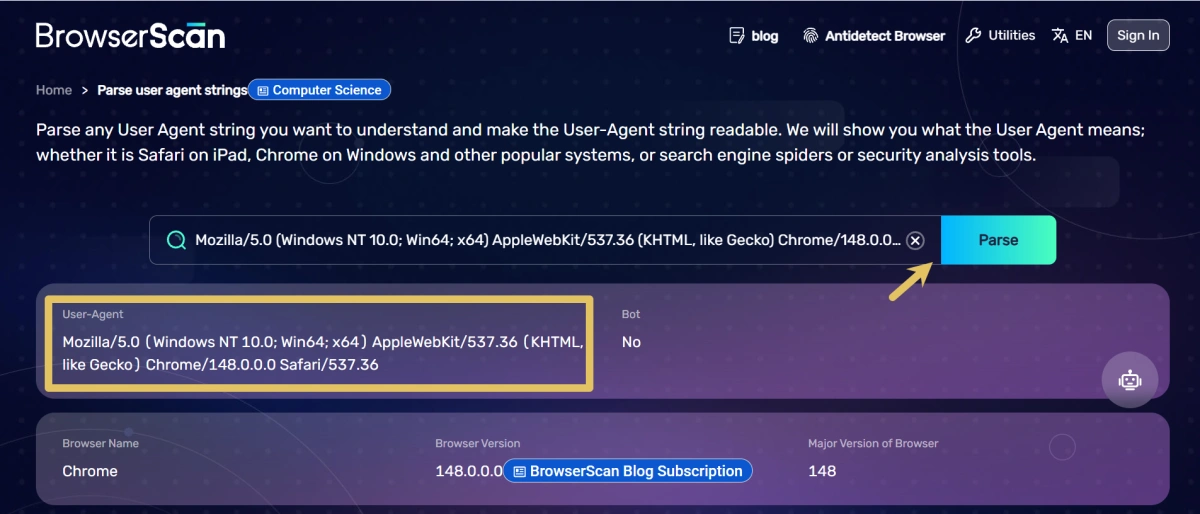
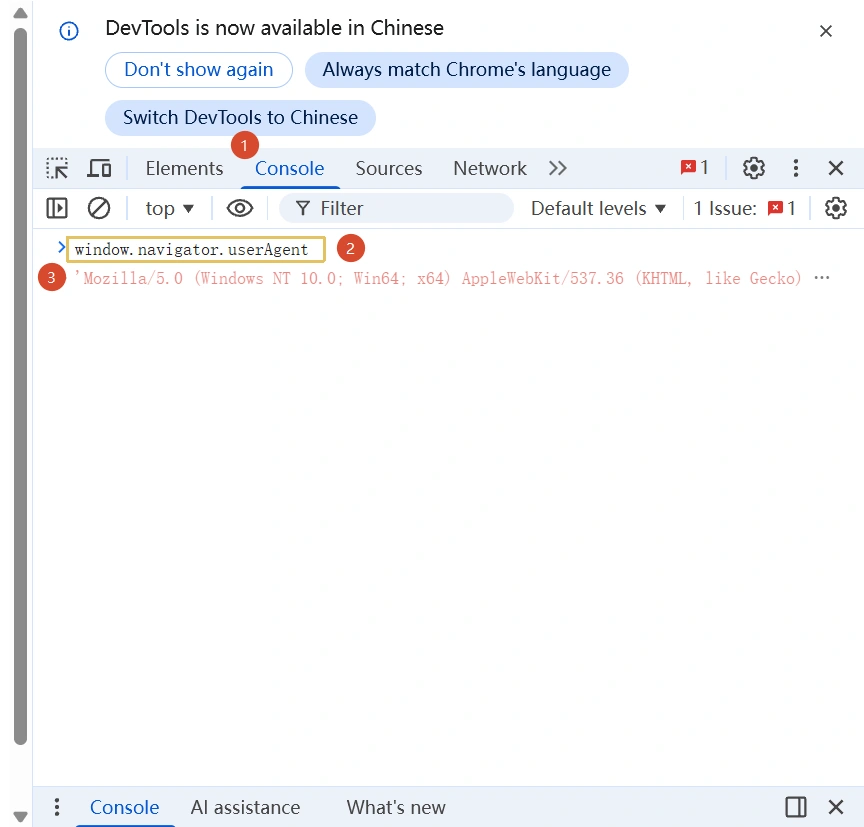
If you have a computer that is not connected to the Internet, and the browser cannot make requests to any website. But you want to know the UserAgent of that browser, what can you do? We will provide you with detailed step-by-step instructions.
Open browser: Launch your browser.
Open Developer Console: Press the F12 key on your keyboard.
Go to Console Tab: Click on the Console tab in the developer tools panel.
Enter Command: Type “window.navigator.userAgent” in the console.
View User-Agent: The browser will display its User-Agent string, showing details about the browser and system.
2.Tools for modifying User Agent
FlashID
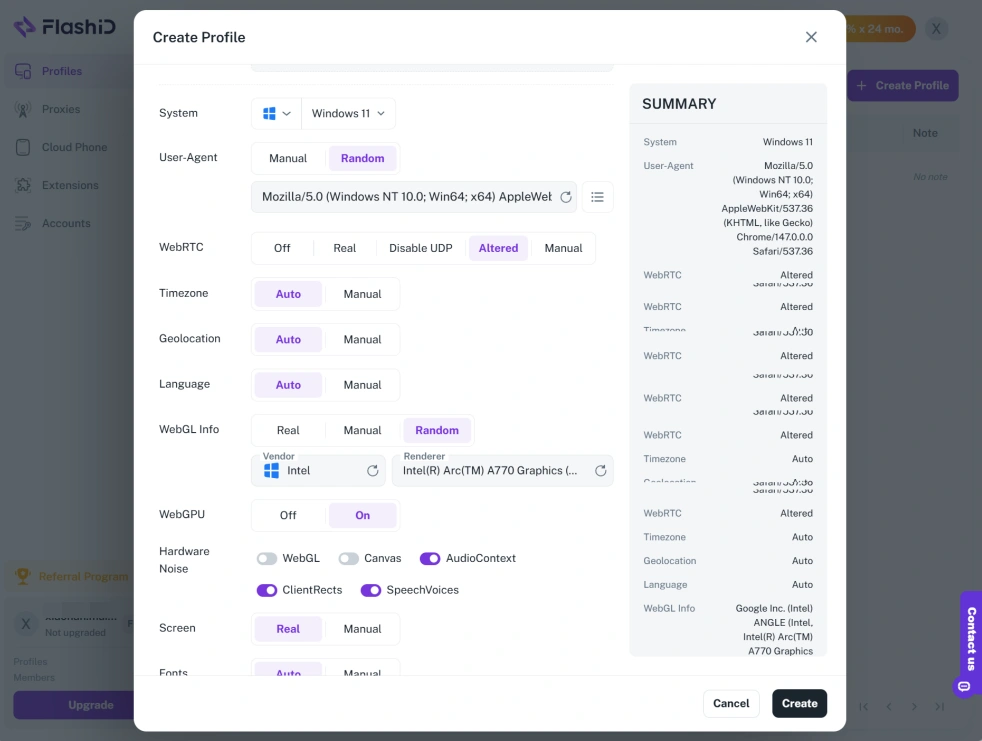
FlashID is more than just a simple User-Agent changer. When you modify the User-Agent within FlashID, it also synchronizes other fingerprint parameters to match the selected environment, including browser kernel version, WebGL information, canvas fingerprint, fonts, hardware parameters, and platform characteristics. This ensures that the browser fingerprint looks much more realistic.
Rather than merely changing a text string, FlashID simulates a complete browser environment similar to that of a real physical device. This capability is especially important for scenarios such as multi-account management, ad verification, automation, affiliate marketing, and other anti-detection workflows.
User-Agent Switcher
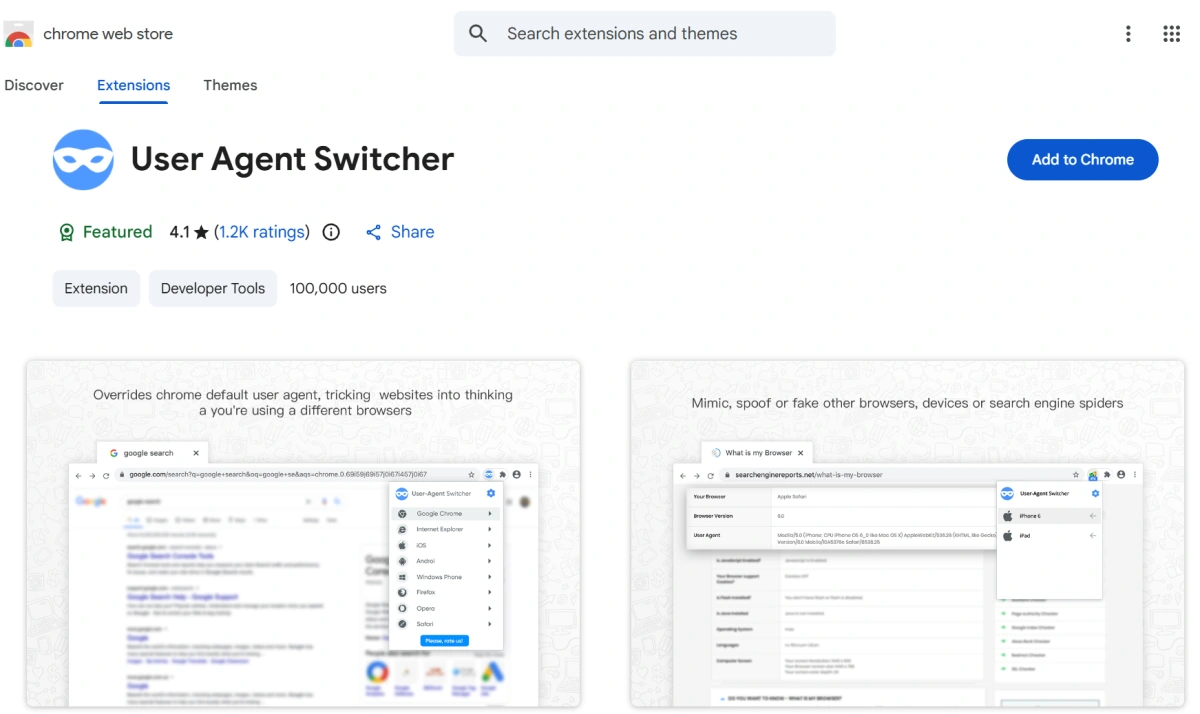
This popular browser extension allows users to quickly switch between preset User-Agent strings. It is easy to use, lightweight, and enables fast switching. However, it has some limitations: the presets are limited, it only modifies the User-Agent string itself, and it does not synchronize other browser fingerprint parameters.
FlashID vs Browser Extensions
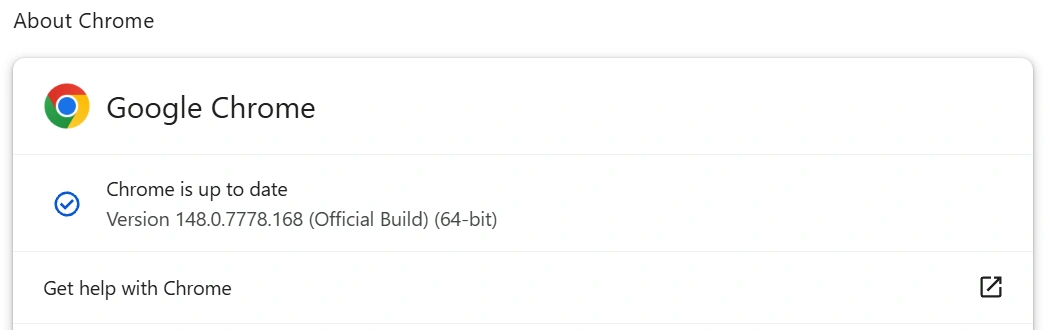
When using FlashID, even if the Chrome UA shows version 146 while the actual engine is 148, it’s hard to be detected. FlashID synchronizes other fingerprint parameters like WebGL, Canvas, fonts, and hardware info, making the browser appear realistic. Small UA-version differences are usually ignored by fingerprinting tools as long as the overall environment matches.
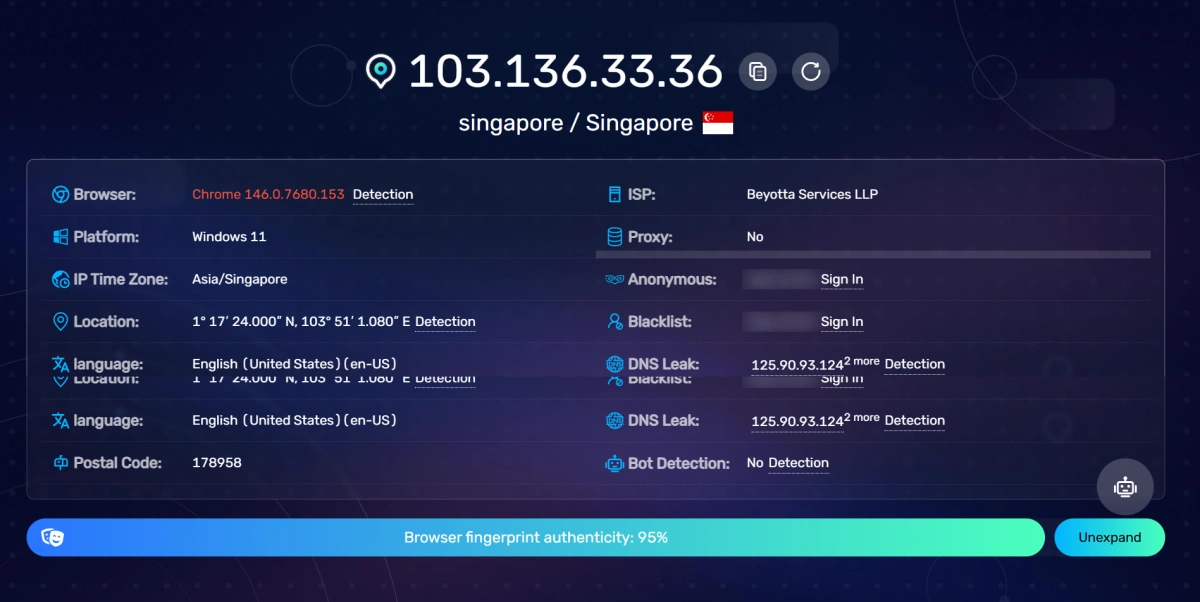
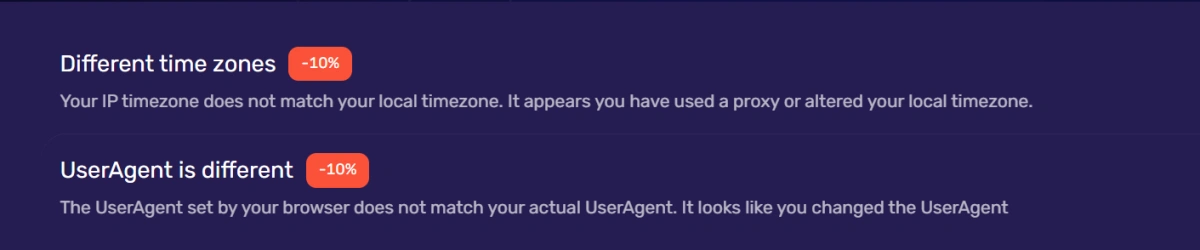
Even if the Chrome engine is 148 and you change the UA to 147 using a third-party extension, the plugin only changes the UA string and does not synchronize other fingerprint parameters. Modern fingerprinting tools check these details, so a small version difference alone won’t prevent detection.

Conclusion
User-Agent is one of the most important parts of a browser fingerprint. It helps websites identify browsers, optimize compatibility, analyze traffic, and detect suspicious behavior. Although changing UA is relatively easy, modern websites also check many other fingerprint parameters. Simple browser extensions only modify the visible UA string, while professional tools like FlashID synchronize the entire browser fingerprint environment for more realistic and secure simulation. Understanding how User-Agent works is essential for developers, marketers, automation users, and anyone managing multiple online identities.
If you’d like to stay updated with practical insights and industry trends, feel free to join our community.
FAQ:
1.What is a User-Agent and why is it important?
A User-Agent (UA) is a string sent by your browser to websites, identifying the browser, operating system, and device. It helps websites optimize layouts, analyze traffic, and detect suspicious activity.
2.Can I change my User-Agent to avoid detection?
Yes, but simply changing the UA string via a browser extension is usually not enough. Tools like FlashID also synchronize other fingerprint parameters for realistic simulation.
3.How do I check my current User-Agent?
You can view it using your browser’s developer console (F12 → Console → window.navigator.userAgent) or through fingerprint detection websites.
4.What are the risks of using a basic UA switcher?
Basic UA extensions only change the text string and don’t update other fingerprints. Modern websites may still detect your browser environment as inconsistent.
You May Also Like