If you typed “proxy server whoer” into a search box, you probably want two things at once: proof that your proxy actually hides your IP address, and a reason to trust it before you manage multiple online accounts. A proxy server sits between your device and the websites you visit. It takes your request, forwards it from a different IP address, and sends the response back. In short, it changes the IP that websites see.
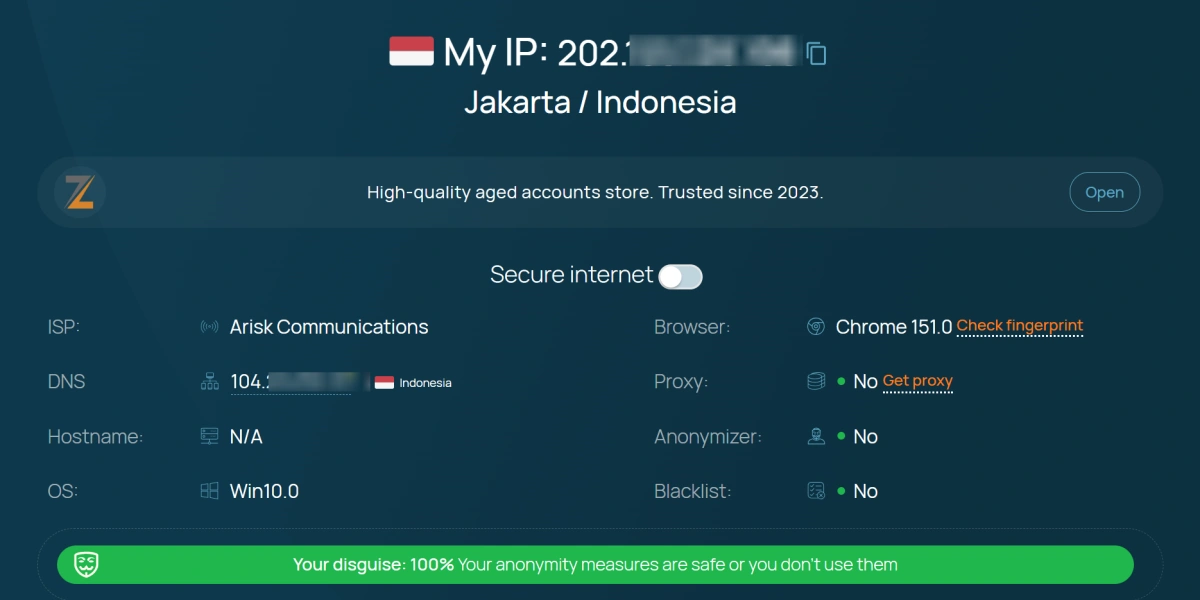
Whoer.net is one of the most popular IP-checking and proxy-testing sites. It shows your public IP, location, DNS status, and a few browser settings, which makes it a natural first stop right after you connect a proxy. But an IP check tells only part of the story — it does not reveal how a website will read your full device signature, especially when several accounts are involved.
Why Do Users Actually Search for Whoer?
The phrase “proxy server whoer” hides several different intentions. The most common ones are:
- “Is my proxy even working?” — New users connect a proxy, then open Whoer to confirm the displayed IP actually changed.
- “Did I leak my real IP?” — After setup, users re-check WebRTC, DNS, and IP leaks before they trust the connection.
- “Which proxy type should I buy?” — Shoppers compare HTTP, SOCKS5, residential, and datacenter options and use Whoer to validate the results.
- “Why did an account get flagged?” — Experienced users re-test to see whether the IP, not the fingerprint, was the weak point.
How a Proxy Server Routes Traffic
When you connect to a proxy, your browser or operating system sends traffic to the proxy server instead of the destination site. The proxy forwards the request from its own IP; the destination sees the proxy IP, not your home IP, and responses return through the same proxy.
This hides your IP well, but other request details can still identify you — request headers, timezone, language, screen resolution, and installed fonts. A proxy does not change those unless a separate tool masks them.
Why Whoer Is Popular for IP Checks
Whoer.net returns a quick, readable report: whether your IP looks like a datacenter or residential IP, your connection type, and whether the proxy is anonymous enough to strip certain headers. Many users treat it as their “proxy checker whoer” routine — switch the proxy, open the site, read the result.
The limit is that Whoer and similar tools show network-level data only. They may miss the fingerprint signals a social platform or an e-commerce site uses. For multi-account work, the real question is not just what IP do they see, but what device fingerprint do they see.
How to Check If Your Proxy Is Working (Whoer-Style Test)
Before you add more accounts, verify the proxy is live. The whole check takes a few minutes.
- Compare your public IP before and after. Note your real IP while disconnected (search “what is my IP” or use an IP checker). Enable the proxy and check again — the IP should be different. If it is the same, the proxy is not in use. If it is a browser extension, confirm it is active; if it is set at the system level, restart the browser. Some sites cache IP location, so wait a few minutes.
- Look for the three common leaks:
- WebRTC leaks — WebRTC can expose your local IP even with a proxy on. Test with an online WebRTC leak tool or disable WebRTC in your settings.
- DNS leaks — If DNS requests bypass the proxy, your ISP sees the domains you visit. A DNS leak test confirms the DNS server matches the proxy location.
- IP leaks from inactive connections — A misconfigured proxy can let some traffic go direct. After testing, confirm every detected IP belongs to the proxy.
One site showing a different IP is not proof of safety. Run all three checks and keep the results.
HTTP vs SOCKS Proxies: Which One Do You Need?
When you buy a proxy, you usually choose between HTTP and SOCKS. They work differently, and the choice shapes what you can do.
| Feature | HTTP Proxy | SOCKS5 Proxy |
|---|---|---|
| Layer | Application (HTTP) | Lower transport |
| Reads traffic | Yes (can filter/cache) | No (passes packets) |
| UDP support | Limited | Yes |
| Authentication | Often none / basic | Username + password |
| Best for | Browsing, web tools | Chat, scraping, non-HTTP apps |
| Header exposure | May reveal proxy use | Lower-level, less exposed |
HTTP proxies split into anonymous (may add a header saying you use a proxy) and elite (hide that header). For same-platform multi-account work, elite is the safer pick. SOCKS4 lacks auth and UDP; SOCKS5 adds auth and UDP and is the version most multi-account users choose. Many anti-detect browsers, including FlashID, let you enter SOCKS5 credentials per profile for a consistent IP.
Residential vs Datacenter Proxies
Proxy IPs come from different sources, and the source changes how “natural” you look.
| Feature | Residential Proxy | Datacenter Proxy |
|---|---|---|
| IP source | Real ISP-assigned homes | Cloud / server providers |
| Looks like | A normal household user | A hosting / VPN user |
| Stealth | Higher (less flagged) | Lower (easier to detect) |
| Stability | Varies (rotating or static) | Usually stable / static |
| Cost | Higher | Lower |
| Best for | Sensitive multi-account | Bulk, low-risk tasks |
Residential IPs tend to look more natural; static datacenter IPs stay fixed, which helps keep one account’s IP consistent. Free proxies are slow, overloaded, and often run by unknown parties — a poor foundation for account work.
Learn More about Choosing A Proxy
Why a Proxy Alone May Not Protect Your Accounts
You can pass every proxy test and still have sites link your accounts together. The cause is browser fingerprinting.
A fingerprint is the set of values your browser sends — user agent, screen size, installed fonts, timezone, language, Canvas rendering, WebGL data. Together they form a signature nearly as unique as an IP. Open three accounts in one browser and change only the proxy, and all three share one fingerprint. The platform may see three IPs but one device, which can trigger verification or bans. Not a guarantee — rules differ — but a real risk.
The Role of an Anti-Detect Browser
An anti-detect browser isolates each account in its own environment, with separate cookies, storage, fonts, user agent, and timezone. Paired with a proxy, the site sees a different IP and a different device. For heavy multi-account work, this layer is what turns a proxy into a full workflow.
FlashID Approach: Built-in Proxy Management and Profile Isolation
FlashID is an anti-detect browser that includes proxy purchasing and management directly in the product. The idea is simple: you should not have to jump between five tools for proxy buying, fingerprint creation, and account setup.
1.Buy and assign proxies inside the browser
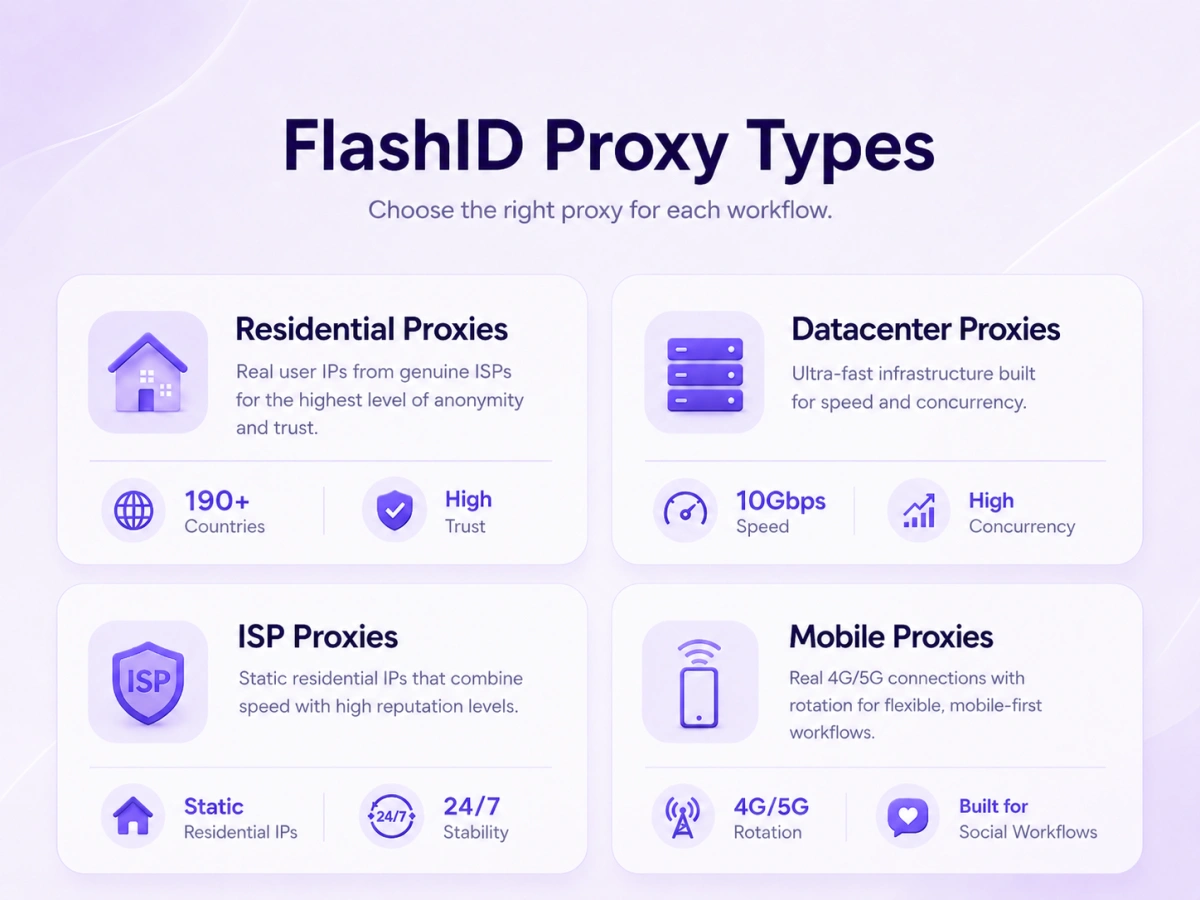
FlashID provides residential, datacenter, ISP, and mobile proxies with global coverage across 190+ countries and regions. You can purchase a proxy and assign it to a profile without leaving the browser. This removes the manual step of copying IP, port, and credentials into a separate field. The exact availability of countries and proxy types can change, so check the current docs before committing to a plan.
2.Match IP with a unique fingerprint
Each FlashID profile gets a unique browser fingerprint. When you bind that profile to a proxy, the IP and the fingerprint stay together. For example, you could open one profile for an e-commerce account in Germany with a German IP, and another profile for a separate account in the United States with a US IP. Each profile is a separate workspace.
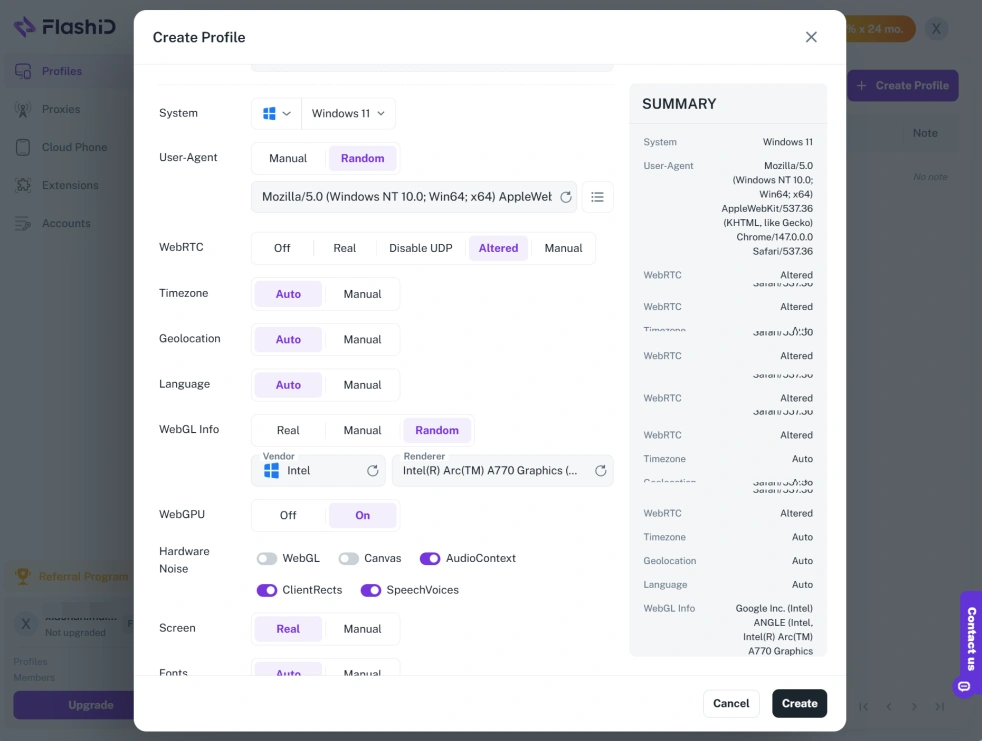
FlashID also lets you control cookie storage and other privacy settings per profile. That supports separation between accounts and can reduce the chance of accidental association. It does not guarantee that every website will accept every account; platforms update their detection systems all the time. Verify your results in your real workflow.
Practical Steps for Multi-Account Work
1.Get a reliable provider — choose residential or static datacenter IPs by your risk tolerance.
2.Configure the proxy in FlashID Antidetect Browser— create a profile, pick HTTP or SOCKS5, enter the details, or assign a proxy bought in-product.
3.Test before scaling — run the checks above in the production profile, confirm no WebRTC or DNS leaks, then create one account, watch how the platform reacts, and scale only once it is stable.
Conclusion
A proxy server changes the IP that sites see, and Whoer.net is a fast way to confirm it. But IP is only one signal. WebRTC and DNS leaks — and above all, browser fingerprints — decide whether multiple accounts stay separate. Pair a well-tested proxy with an anti-detect browser like FlashID for a setup that addresses both layers at once.
If you’d like to stay updated with practical insights and industry trends, feel free to join our community.
FAQ
1.Does whoer.net/webproxy hide my IP address?
Whoer web proxy routes your browser traffic through its server, so the destination often sees the proxy IP instead of your home IP. But it covers only traffic sent through that web page, not your whole browser or OS. Other connections may still use your real IP.
2.Why do free proxies sometimes leak my real IP?
Free proxies can leak for several reasons: misconfiguration that sends some requests direct, WebRTC exposing your local IP, providers logging and selling traffic, or DNS requests bypassing the proxy. Reduce risk with leak tests and a paid provider that states a clear logging policy. No proxy is 100% leak-proof.
3.Can I use SOCKS5 with an anti-detect browser?
Yes. Most anti-detect browsers support SOCKS5. When you create a profile, enter the SOCKS5 host, port, username, and password; that profile’s traffic then goes through the proxy. SOCKS5 suits tools that reject HTTP proxies or when you want a lower-level connection.
4.How do I check if my proxy is safe for multiple accounts?
Run a full check before connecting an account. First, confirm the public IP belongs to the proxy and stays consistent. Second, test WebRTC and DNS leaks. Third, compare the browser fingerprint before and after. If the IP changes but the fingerprint is identical across profiles, the risk remains. Fourth, use a separate profile per account with cookies and storage kept apart. Re-run the checks whenever you change proxy or browser settings.
You May Also Like