WebGL is a browser technology that lets websites render 2D and 3D graphics through your device’s GPU. But the same GPU-based rendering process can also reveal hardware, driver, and rendering details that websites may use to build a WebGL fingerprint and recognize your browser across sessions. Users can reduce WebGL tracking risks by disabling WebGL, using privacy-focused browser extensions, or using an anti-detect browser to spoof and isolate your browser fingerprint.
Quick Answer
- WebGL is a JavaScript API for rendering interactive graphics in the browser without plugins.WebGL fingerprinting happens when websites read GPU-related signals, rendering outputs, WebGL extensions, and pixel-level differences to identify a browser environment.
- WebGL fingerprints are used in advertising, fraud detection, multi-account risk control, device verification, and performance optimization.
- You can reduce WebGL tracking by disabling WebGL, using privacy extensions, or using an antidetect browser such as FlashID to manage WebGL parameters in a consistent browser profile.
- For business workflows, disabling WebGL is often too aggressive. A antidetect browser is usually more practical because it can control WebGL, Canvas, GPU, proxy, timezone, user agent, and profile persistence together.
What Is WebGL And What Is a WebGL Fingerprint
WebGL, short for Web Graphics Library, is a JavaScript API that allows compatible browsers to render high-performance 2D and 3D graphics through the HTML element. It works closely with **GPU **acceleration, which is why it is widely used in online games, interactive product demos, 3D maps, data visualization dashboards, virtual reality experiences, and browser-based design tools.
The privacy issue begins with the same strength that makes WebGL useful: it communicates with the graphics stack. When a website asks the browser for a WebGL context, the browser may expose information related to the graphics card, driver, rendering pipeline, shader behavior, texture support, anti-aliasing, and supported extensions. Different devices and browsers may render the same WebGL scene slightly differently. These small differences can be converted into a fingerprint.
A WebGL fingerprint is not just one field. It is usually a combination of several signals, including GPU vendor, renderer string, WebGL version, WebGL2 support, supported extensions, shader precision, drawing buffer attributes, texture limits, pixel output, and image hash.
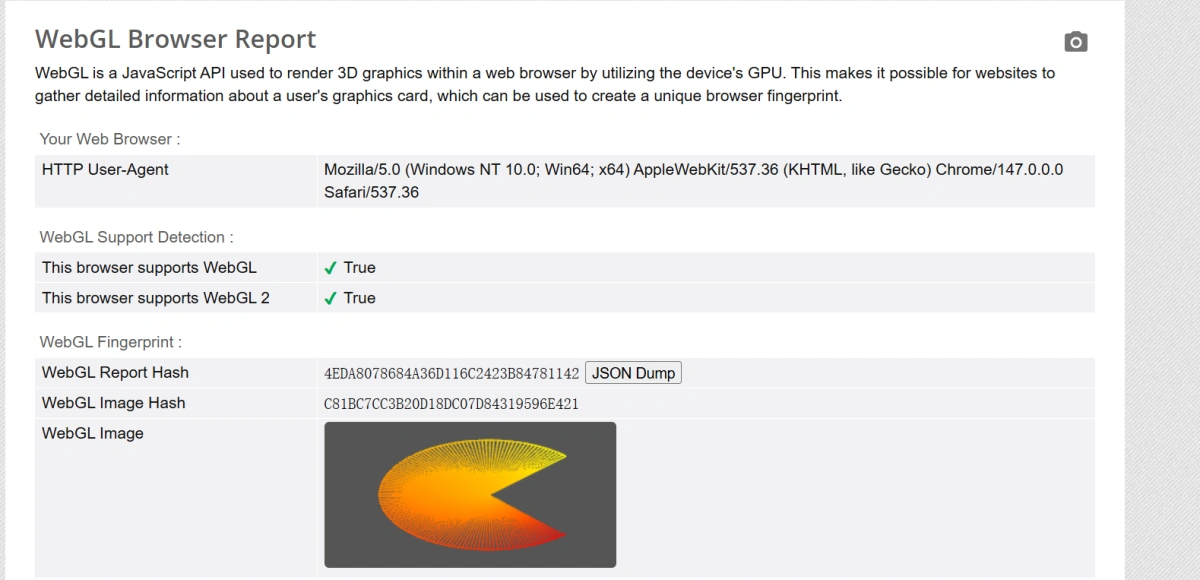
This is why WebGL is important in browser fingerprinting. Cookies can be deleted, IP addresses can change, and login sessions can expire. But GPU-related rendering patterns can remain relatively stable across sessions. A website does not need to know your real name to recognize that “this browser environment looks like the same device as before.”
Common Business Use Cases of WebGL Fingerprinting
WebGL fingerprinting is not only used by “tracking companies.” It has become part of modern risk scoring, personalization, advertising, and account security systems.
Cross-site tracking
If multiple websites or third-party scripts collect similar WebGL signals, they may recognize the same browser across different domains even after cookies are cleared. This makes WebGL fingerprinting valuable for long-term audience profiling and cross-site attribution.
Advertising and remarketing
Advertising platforms may use WebGL signals as part of a larger device fingerprint to recognize returning visitors, segment audiences, prevent duplicate attribution, and improve remarketing accuracy. A user may leave a website, clear cookies, and return from a different IP, but the WebGL fingerprint may still look familiar.
Fraud detection and multi-account association
E-commerce, fintech, ticketing, gaming, and social platforms often need to detect suspicious account clusters. If many accounts log in from different IP addresses but share identical or highly similar WebGL, Canvas, screen, timezone, and device signals, the platform may treat them as linked environments.
Account verification and access control
Some high-security systems may use device fingerprints as a secondary signal for login verification. A familiar WebGL profile can reduce friction, while a sudden mismatch between IP, device type, GPU, and browser profile may trigger extra checks.
User experience and performance tuning
WebGL data is not always used for tracking. It can also help websites adjust graphics quality, texture size, animation intensity, and rendering mode based on device capability. For example, a 3D design tool may deliver a lighter scene to a low-end integrated GPU and a more advanced scene to a high-performance GPU.
Business operations and environment quality control
For agencies, cross-border e-commerce teams, affiliate marketers, and social media teams, WebGL is part of operational risk. A profile that claims to be a macOS device but exposes an incompatible Windows GPU string may look abnormal. A profile using a U.S. proxy but exposing language, timezone, and GPU patterns that do not match the target market may also reduce trust.
Canvas Fingerprint vs WebGL Fingerprint: What Is the Difference?
Canvas and WebGL are related because both use browser drawing capabilities, but they are not the same.
Think of Canvas fingerprinting as asking your browser to draw a flat picture on paper. The website may draw text, shapes, colors, and lines, then measure the final pixels. Tiny differences in fonts, anti-aliasing, operating system rendering, browser engine, and graphics settings can create a unique 2D drawing result.
Now think of WebGL fingerprinting as asking your device to build and light a small 3D model. Instead of only checking a flat image, the website can observe GPU behavior, shader precision, texture handling, 3D rendering limits, extension support, and pixel output after a more complex rendering process.
In practical terms:
- Canvas fingerprinting focuses more on 2D rendering output, fonts, text smoothing, and pixel differences.
- WebGL fingerprinting focuses more on GPU-related data, WebGL vendor, renderer, shader behavior, extension lists, texture limits, and 3D rendering differences.
- Canvas is easier to understand, but WebGL can expose deeper hardware and driver-level clues.
- Modern detection systems often compare both. If Canvas says one thing and WebGL says another, the profile may look spoofed or unstable.
How Websites Collect a User’s WebGL Fingerprint
WebGL fingerprint collection usually happens silently in the background. A normal user may not see any pop-up, permission request, or visible 3D object. The process is typically built into JavaScript code.
Step 1: Create a hidden drawing area
First, the website creates a small drawing area inside the browser. This area is often invisible to the user and does not need to appear as an image, animation, or graphic on the page.
The website uses this hidden area to run WebGL rendering tests.
Step 2: Ask the browser to enable WebGL
Next, the website asks the browser to start a WebGL rendering environment. This allows the page to check whether WebGL is supported and whether the browser can perform GPU-based rendering.
Step 3: Read WebGL-related information
Once the WebGL environment is active, the website can start reading graphics-related information from the browser.
In some cases, the browser may also expose more detailed GPU-related values, which can reveal clues about the graphics card, graphics driver, or rendering backend.
Step 4: Render a test image or scene
After collecting basic WebGL information, the website may ask the browser to render a predefined image, shape, texture, gradient, or simple 3D scene.
Step 5: Analyze the rendering result
The website then checks the final rendering output. It may look at pixel-level differences, color values, texture behavior, shadow effects, anti-aliasing, and other small visual details.
Step 6: Generate a WebGL fingerprint hash
After collecting WebGL parameters and rendering results, the website converts the data into a compact fingerprint hash.
This hash works like a short ID for the browser’s WebGL behavior. The website does not need to store every raw detail. Instead, it can store a calculated result that represents the browser’s graphics environment.
Step 7: Compare WebGL with other browser signals
Most websites do not rely on WebGL alone. They usually compare it with other browser fingerprint signals.
If signals are consistent, the browser environment may look normal. But if WebGL says one thing while the user agent, operating system, proxy location, or screen size says something different, the environment may look suspicious.
Step 8: Store and recognize the browser later
Finally, the website may store the WebGL fingerprint as part of a larger device profile. When the same browser visits again, the website can compare the new fingerprint with the previous one.
If the WebGL hash and other browser signals are similar, the website may recognize the visitor as the same browser environment, even if cookies were deleted or the IP address changed.
What Are the Security and Privacy Risks of WebGL Fingerprinting?
WebGL fingerprinting creates several privacy and security risks.
First, it can happen silently without a permission prompt, so users may not realize their GPU and rendering details are being collected.
Second, it can track users beyond cookies; clearing cookies, using private mode, or changing IP addresses may not fully hide a returning browser.
Third, it may link multiple accounts if they share similar WebGL, Canvas, GPU, timezone, and proxy patterns.
Finally, stored fingerprint data can become another form of user profiling if shared or leaked. Unlike passwords or cookies, real GPU characteristics cannot be easily reset.
How to Prevent WebGL Fingerprint Leakage
There is no single perfect method for everyone. The right approach depends on whether you are a casual privacy user, a developer, a researcher, or a business team managing multiple accounts.
Method 1: Disable WebGL in the Browser
The most direct method is to disable WebGL. This reduces WebGL-based fingerprinting because websites cannot collect normal WebGL rendering data if WebGL is unavailable.
How to disable WebGL in Chrome
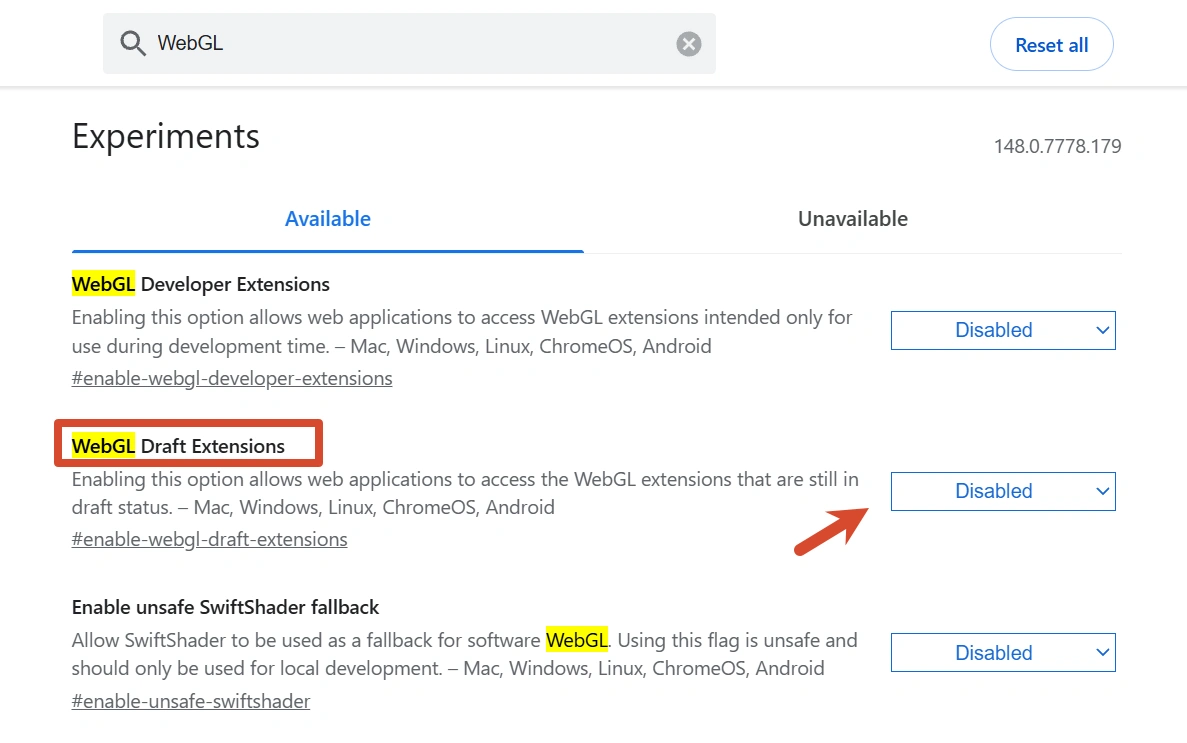
- Open Chrome, type chrome://flags/ in the address bar, and press Enter.
- Enter “WebGL” in the search bar.
- Find “WebGL Draft Extensions” and set it to “Disabled.”
- Restart the browser for the changes to take effect.
How to disable WebGL in Firefox
- Type about:config in the address bar.
- Accept the warning.
- Search for webgl.disabled.
- Toggle it to true.
- Restart the browser if needed.

Disabling WebGL is simple, but it is not always practical. Many websites use WebGL for maps, dashboards, online games, design tools, video effects, virtual experiences, and data visualization. Disabling it may break features, reduce performance, or make websites think your browser is abnormal. For business users, “WebGL unavailable” can sometimes be as suspicious as “WebGL exposed,” because most normal modern browsers support WebGL.
Method 2: Use Privacy Protection Extensions
Privacy extensions can reduce fingerprinting by blocking trackers, limiting scripts, or changing API outputs.
Common examples include:
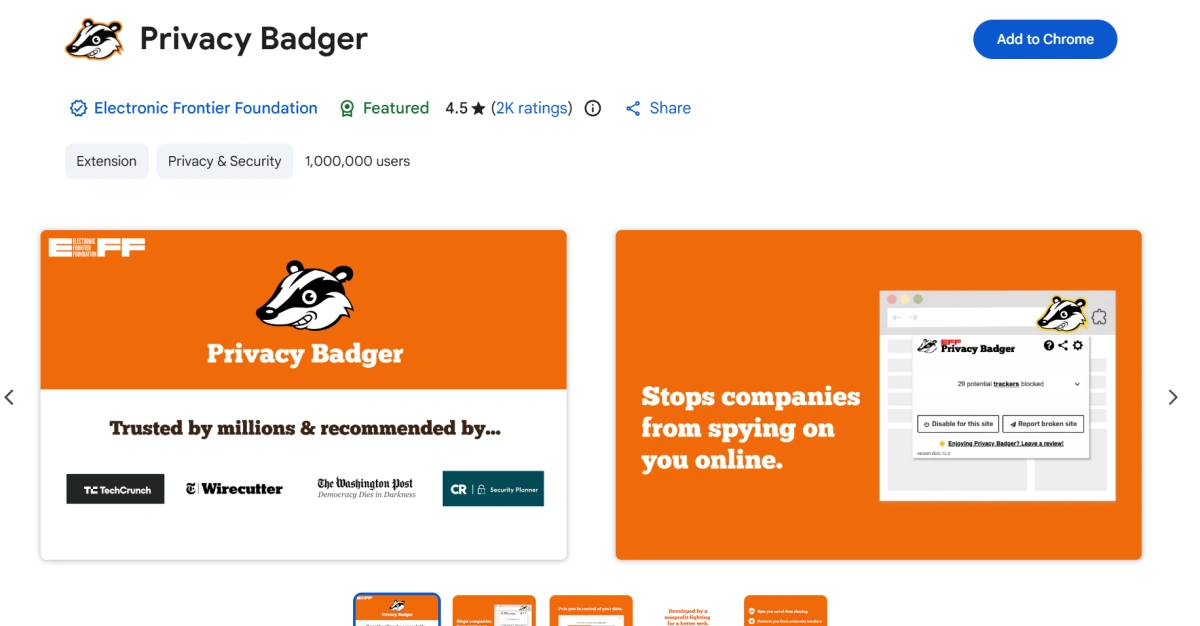
Privacy Badger:Developed by the Electronic Frontier Foundation, Privacy Badger automatically learns to block trackers based on behavior instead of relying only on manual block lists.
NoScript: A browser extension that blocks JavaScript and other active content by default, allowing it only from trusted sites.
CanvasBlocker:A Firefox extension that can block or fake fingerprint-friendly JavaScript API outputs, including APIs used for fingerprinting. Its official page warns users to avoid stacking multiple tools that protect the same API.
Extensions are useful for personal privacy, but they also have limits. First, aggressive blocking can break websites. Second, the extension setup itself can become part of your fingerprint. Third, some extensions need broad permissions to function. Fourth, extensions often work at the script-blocking or API-hooking layer, but they may not provide a complete, consistent identity across WebGL, Canvas, WebRTC, User-Agent, timezone, proxy, screen, language, and device memory.
For casual browsing, extensions can help. For multi-account business operations, they are usually not enough.
Method 3: Use a Antidetect Browser
An antidetect browser, does not simply block WebGL. Its goal is to create isolated, consistent, and realistic browser profiles.
FlashID Antidetect Browser is designed to manage browser fingerprint signals in a complete profile. As shown in the Create Profile panel, users can configure or review parameters such as geolocation, language, WebGL Info, WebGPU, hardware noise, screen, fonts, WebRTC, timezone, system, and User-Agent.
Customize WebGL metadata: Users can choose Real, Manual, or Random modes for WebGL Info. In Manual mode, they can adjust key values such as Vendor and Renderer, helping mask the device’s real graphics information.
Control hardware noise: FlashID also supports noise settings for WebGL, Canvas, AudioContext, ClientRects, and SpeechVoices, helping each browser profile maintain a more controlled and less easily linkable fingerprint identity.
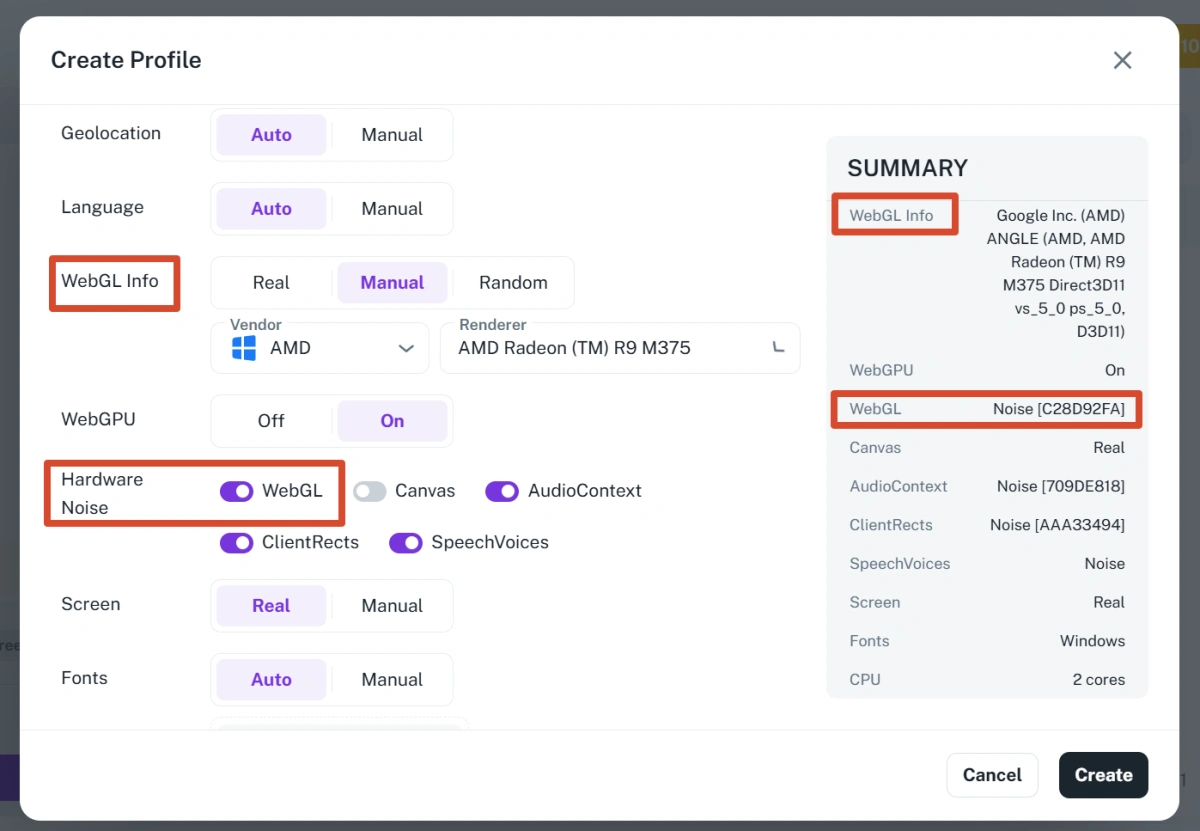
To better understand how WebGL protection works, let’s compare three browser profiles created in FlashID. In this test, all profile settings remain the same, including system, browser type, language, screen, and other fingerprint parameters. The only variables changed are WebGL Info and WebGL hardware noise.
After creating each profile, we opened the BrowserLeaks WebGL test page and compared two key results: WebGL Report Hash and WebGL Image Hash. This comparison shows an important difference: changing WebGL metadata can affect the report hash, while enabling WebGL noise can affect the actual rendering image hash.
Profile 1: WebGL Info is set to Real, WebGL hardware noise is disabled, and all other profile parameters remain unchanged.
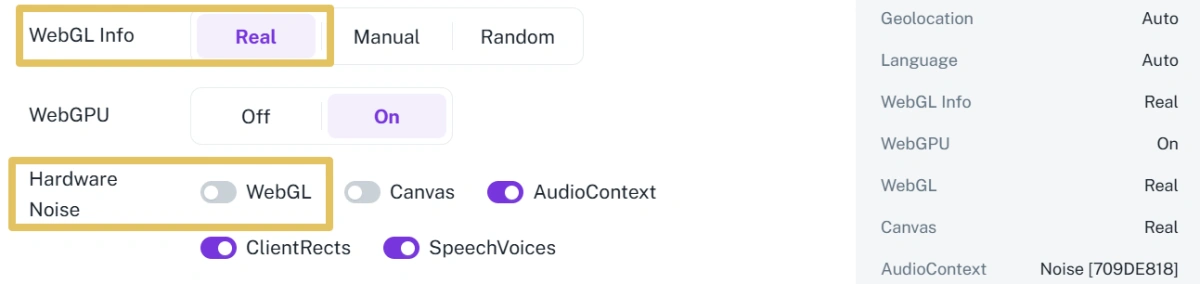
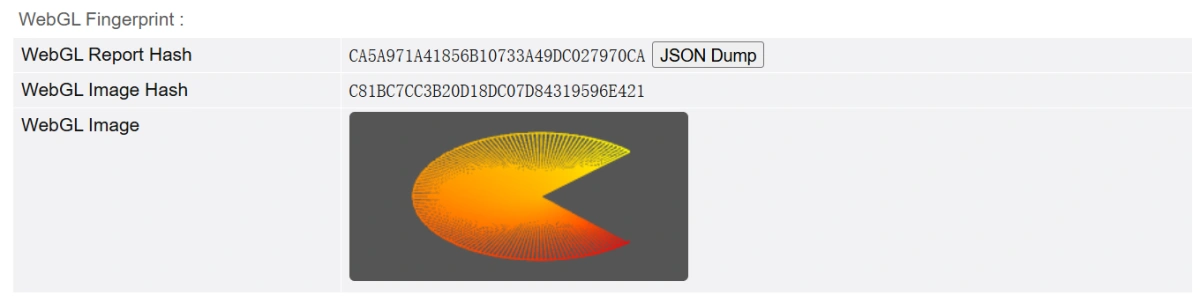
Profile 2: WebGL Info is set to Manual with a custom Vendor and Renderer, WebGL hardware noise is disabled, and all other profile parameters remain unchanged.
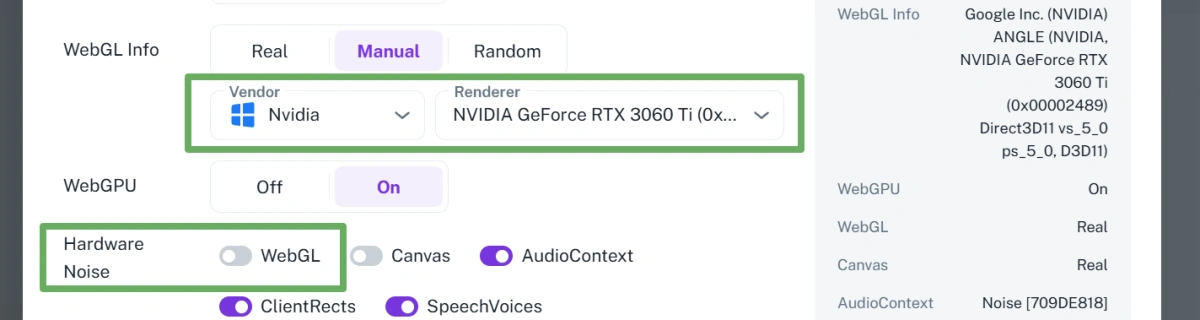
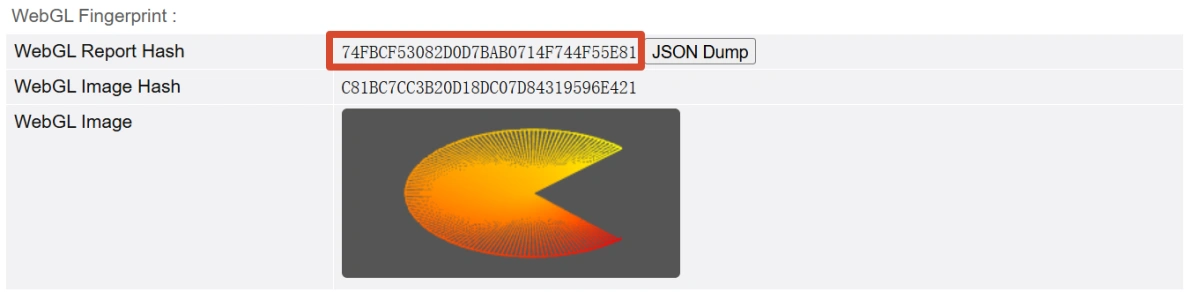
In profile 2, manually setting the Vendor and Renderer changed the WebGL Report Hash, which means websites now see the customized WebGL metadata instead of the original real values. However, the WebGL Image Hash stayed the same as profile 1, showing that the actual rendering output did not change. In other words, this setup only modifies the “reported information layer,” not the “rendering output layer,” so it may bypass simple Vendor/Renderer checks but can still be linked through the WebGL Image Hash.
Profile 3: WebGL Info is set to Manual with the same Vendor and Renderer as profile 2, WebGL hardware noise is enabled, and all other profile parameters remain unchanged.
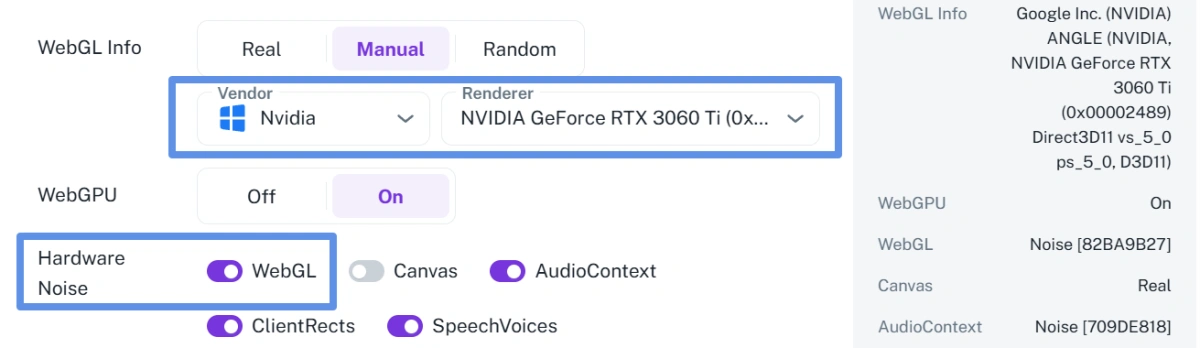
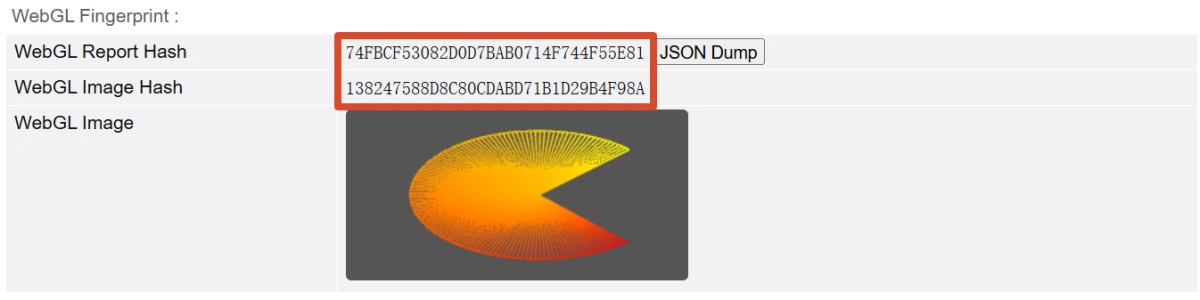
In profile 3, WebGL Info remains in Manual mode with the same Vendor and Renderer as profile 2, so the WebGL Report Hash stays the same. However, after enabling WebGL hardware noise, the WebGL Image Hash changes. This shows that WebGL noise does not modify metadata like Vendor or Renderer, but changes the actual rendering output. Compared with profile 2, this setup provides stronger protection because it masks both the reported WebGL metadata and the real WebGL image fingerprint.
Conclusion
WebGL is useful because it gives websites powerful GPU-based graphics. WebGL fingerprinting is risky because the same rendering path can reveal device-level signals that stay stable across sessions. Disabling WebGL and using privacy extensions can reduce exposure, but business users usually need consistency, not just blocking. A fingerprint browser like FlashID helps manage WebGL as part of a complete, realistic browser identity.
If you’d like to stay updated with practical insights and industry trends, feel free to join our community.
FAQ
1.Is WebGL fingerprinting the same as IP tracking?
No. IP tracking identifies your network address, while WebGL fingerprinting identifies browser and GPU-related characteristics. Even if your IP changes, WebGL may still help a website recognize a similar browser environment.
2.Does incognito mode stop WebGL fingerprinting?
Not completely. Incognito mode mainly limits local storage, cookies, and browsing history after the session ends. It does not automatically remove WebGL vendor, renderer, shader behavior, or pixel output signals.
3.Should I disable WebGL for privacy?
You can disable WebGL if privacy is your only priority and you do not need WebGL-based websites. However, many modern websites rely on WebGL for maps, design tools, games, dashboards, and visual effects. Disabling WebGL may also make your browser look unusual.
4.What should I check in a WebGL browser report?
Check WebGL support, WebGL2 support, vendor, renderer, unmasked vendor, unmasked renderer, supported extensions, image hash, and report hash. Also check whether these values match your operating system, user agent, proxy location, and device type.
5.Can a VPN prevent WebGL fingerprinting?
No. A VPN changes your network route and visible IP address, but it does not automatically change GPU rendering behavior. If your IP says one location but your browser fingerprint looks inconsistent, the environment may still be suspicious.
6.How does Antidetect Browser help with WebGL fingerprint protection?
Antidetect browser(such as FlashID) can manage WebGL as part of a complete browser profile. Instead of only disabling WebGL, it can help control WebGL vendor, renderer, extensions, pixel output, Canvas/GPU consistency, proxy matching, and profile persistence, making each profile more stable and realistic for legitimate multi-account operations.
You May Also Like