WebRTC is a browser technology that enables real-time voice, video, and data communication without extra plugins. However, if it is not properly controlled, WebRTC can expose your real public IP address, local network IP, or proxy mismatch. To prevent WebRTC leaks, you need to test your browser, control WebRTC behavior, and keep your IP, proxy, and browser fingerprint consistent.
Quick Answer
- WebRTC allows browsers to make peer-to-peer connections for video calls, voice chats, file sharing, screen sharing, and live collaboration.
- A WebRTC leak happens when a website uses WebRTC to discover your real IP address even when you are connected to a VPN or proxy. WebRTC leaks are risky because they can reveal your location, ISP, network structure, and hidden identity signals.
- Proxies and VPNs do not always stop WebRTC leaks because WebRTC may use ICE, STUN, TURN, and UDP-based connection discovery outside normal web request paths.
- Common WebRTC leak shield methods include disabling WebRTC, using extensions, applying firewall rules, and using a fingerprint browser such as FlashID.
- For multi-account operations, WebRTC protection must be handled per browser profile, not just at the device level.
What Is WebRTC? How It Works and What a WebRTC Leak Means
WebRTC, short for Web Real-Time Communication, is an open-source browser technology that enables real-time voice, video, and data communication directly inside a web browser. It is widely used for video calls, online meetings, live chat, screen sharing, remote support, peer-to-peer file transfer, and collaborative tools. Its biggest advantage is convenience: users can join a call or share data without installing extra plugins or desktop software.
To build a direct connection, WebRTC needs to discover the best network route between users. It does this through ICE, a process that collects possible connection paths called ICE candidates. During this process, the browser may use STUN servers to identify its public-facing IP address, TURN servers to relay traffic when direct connection fails, and local network data such as private LAN IP addresses.
This design makes real-time communication fast and reliable, but it can also create a privacy risk. A WebRTC leak happens when a website uses WebRTC to obtain IP-related information that the user expected to hide. This may include the real public IP address, a local private IP address, or a mismatch between the proxy IP shown in normal web traffic and the IP exposed through WebRTC.
Why You Should Fix WebRTC Leaks Immediately
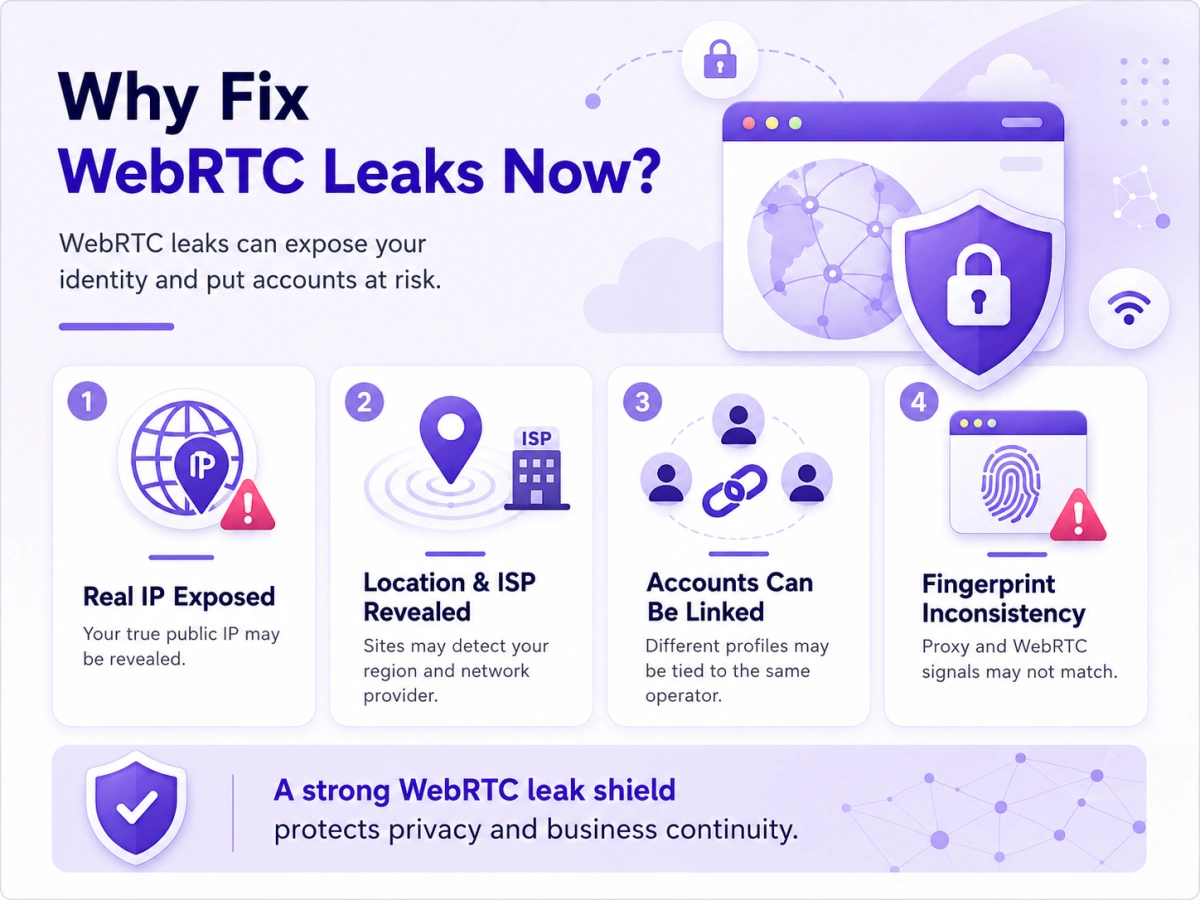
A WebRTC leak is not just a small technical issue. For privacy-focused users, marketers, e-commerce sellers, affiliate teams, scraping teams, and multi-account operators, it can become a direct threat to identity separation and business continuity.
1.Your real IP address may be exposed
Most users use a VPN or proxy because they want websites to see a different IP address. If WebRTC reveals the real public IP, that protection becomes incomplete. A website may still learn the original network even though normal HTTP or HTTPS requests are going through a proxy.
2.Your location and ISP may be identified
A public IP address can often be used to estimate country, region, city, ISP, data center type, and network type. For users who rely on location consistency, this is a major problem. If your browser profile claims to be in one country but WebRTC suggests another, the account may become suspicious.
3.Multiple accounts may be linked together
For multi-account operations, isolation is everything. Each account should have its own cookies, cache, local storage, proxy, browser fingerprint, timezone, language, and network identity. If several profiles accidentally leak the same real IP through WebRTC, platforms may connect those accounts to the same operator.
4.Browser fingerprint consistency may be broken
Modern platforms do not rely on one signal only. They compare IP address, WebRTC behavior, DNS, timezone, language, screen size, Canvas, WebGL, fonts, hardware signals, media devices, cookies, behavior, and login history.
A WebRTC leak can create an obvious inconsistency. For example, the proxy IP may be located in Germany, the timezone may be set to Berlin, but WebRTC may reveal a local ISP IP from another country. This mismatch can be more damaging than a simple IP leak because it shows that the environment may be artificially configured.
How to Detect a WebRTC Leak
Testing for WebRTC leaks should be part of your normal privacy and account security workflow. Do not rely only on a standard IP checker. A normal IP checker tells you what IP address is used for web requests, but it does not always show what WebRTC can reveal.
Step 1: Connect to your VPN, proxy, or fingerprint browser profile
Before testing, activate the environment you actually plan to use. If you use a proxy, make sure it is assigned to the browser profile. If you use a fingerprint browser, open the exact profile you want to test.
Step 2: Check your normal visible IP address
Visit a standard IP checking page and write down the IP address, country, region, and ISP shown there. This is your expected visible IP. In a properly configured environment, this should be your VPN or proxy IP, not your real ISP IP.
Step 3: Run a WebRTC leak test
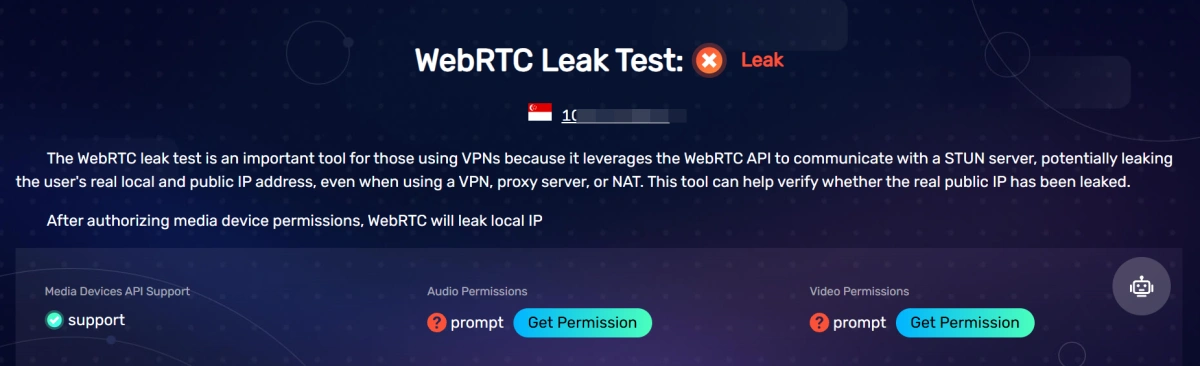
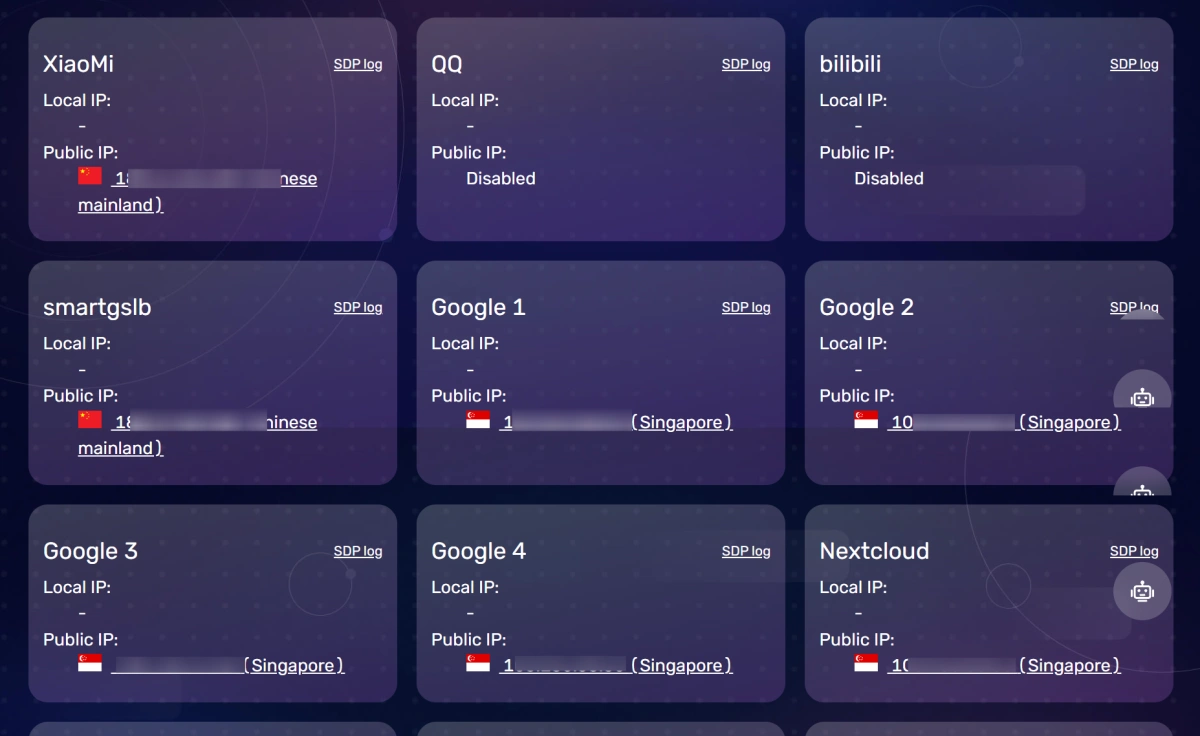
Open a WebRTC leak testing tool. The test should display WebRTC-related IP information, including public IP and possibly local IP.
Step 4: Compare the results
Compare the normal IP result with the WebRTC result.
You are likely safe if:
- The WebRTC public IP matches your proxy or VPN IP.
- No real ISP IP is shown.
- Local IP exposure is blocked, masked, or not meaningful.
- The profile’s IP, timezone, language, and fingerprint are consistent.
You may have a leak if:
- The WebRTC result shows your real public IP.
- The WebRTC result shows an IPv6 address from your ISP.
- The WebRTC result shows a different country from your
- proxy.
- The normal IP and WebRTC IP do not match.
- Multiple browser profiles reveal the same WebRTC IP.
WebRTC Leak Shield: How to Prevent WebRTC Leaks
There is no single perfect method for every user. The best WebRTC leak shield depends on your browser, operating system, account risk, need for video calls, and business workflow. Below are the most common methods.
Disable WebRTC
The most direct way to prevent WebRTC leaks is to disable WebRTC. If WebRTC cannot run, websites cannot use it to collect ICE candidates.
How to disable WebRTC in Firefox
Firefox gives users more direct control than many Chromium-based browsers.
- Open Firefox.
- Type about:config in the address bar.
- Search for media.peerconnection.enabled.
- Set it to false.
- Restart Firefox and run a WebRTC leak test again.

Disabling WebRTC can break useful website features such as Google Meet and other browser-based meeting tools, web video calls and some verification or trust workflows
This is why full WebRTC disabling is not always ideal. It is strong for privacy, but it may reduce functionality and make the browser environment look less natural on platforms that expect WebRTC support.
Use WebRTC blocking extensions
Browser extensions are another common solution. They can block or limit WebRTC IP exposure without requiring deep technical configuration.
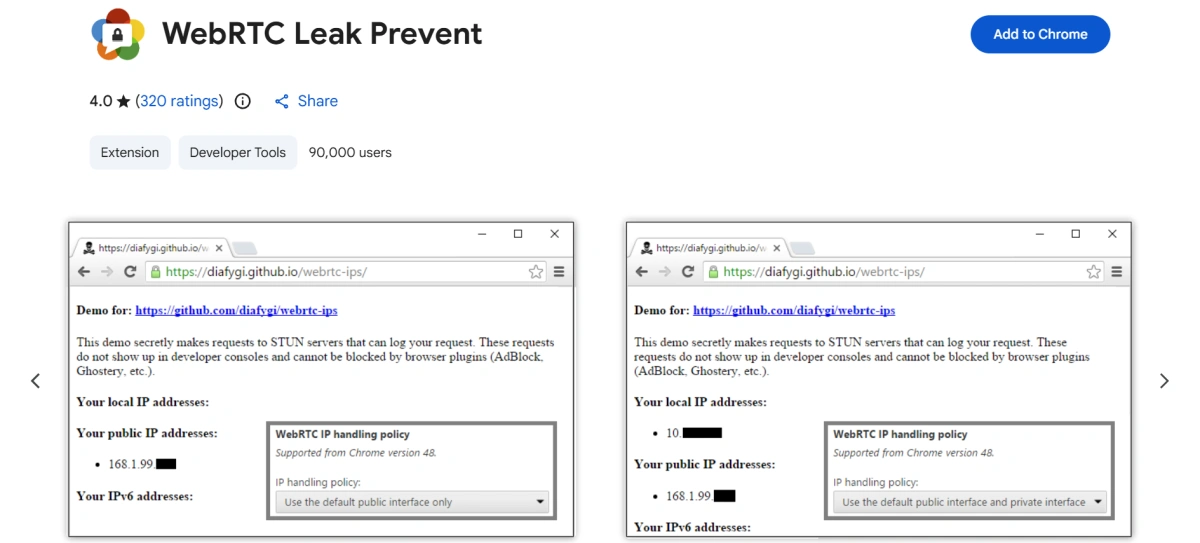
Extensions are easy to install and can be helpful for individual users, especially when the browser does not offer a direct WebRTC setting. However, they are not a perfect solution. They may stop working after browser updates, fail to protect every profile, conflict with other extensions, request broad permissions, leave detectable traces, and make it harder to maintain consistent fingerprints across teams or large numbers of accounts.
For casual privacy protection, extensions may be enough. For high-value business accounts or multi-account operations, they are usually only a partial solution.
Apply system-level firewall rules
Advanced users can control WebRTC risk at the operating system or network level. This may involve blocking or routing certain UDP traffic, restricting STUN server access, disabling IPv6, or forcing traffic through a secure network tunnel.
- Blocking outbound UDP traffic except through approved routes.
- Restricting access to known STUN servers.
- Forcing all traffic through a VPN firewall kill switch.
- Disabling IPv6 if your VPN or proxy does not handle it safely.
- Using Windows Defender Firewall, macOS pf rules, Linux iptables, or nftables.
However, firewall-level protection is not beginner-friendly. If configured too aggressively, it can break DNS, video calls, voice applications, games, streaming tools, remote work software, or internal business systems. It also does not solve browser fingerprint inconsistency by itself.
Use a antidetect browser
A antidetect browser is often the most practical WebRTC leak shield for business users, especially those managing multiple accounts.
FlashID provides a more systematic solution by controlling WebRTC behavior at the browser profile level and keeping it consistent with the proxy, fingerprint, and account environment.
To meet different privacy and business needs, FlashID offers four flexible WebRTC modes: Off, Real, Auto, and Manual. You can choose the right mode based on your actual workflow,
1.Off Mode
Off Mode turns off WebRTC in the current FlashID profile, so websites cannot collect IP information through WebRTC. Use it for high-privacy browsing, automation, or multi-account tasks where video calls and real-time communication are not needed.

2.Real Mode
With Real Mode, WebRTC uses the real network information from your current device. This mode is better for low-risk browsing, testing, or cases where you intentionally want the website to see your actual local network environment.

3.Auto Mode
For most users, Auto Mode is the safest and easiest choice because FlashID automatically keeps WebRTC behavior aligned with your proxy and browser profile settings. It works well for e-commerce sellers, social media managers, affiliate marketers, ad teams, and other multi-account users.
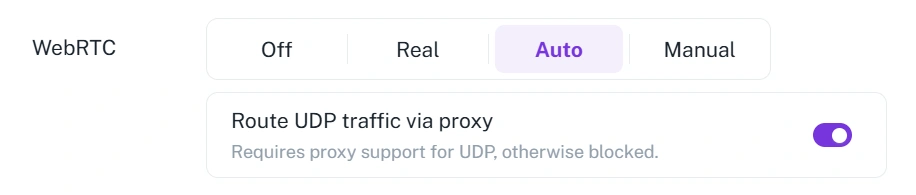
4.Manual Mode
Manual Mode gives you direct control over the IP address exposed through WebRTC. It is designed for advanced users who need precise IP configuration and understand how proxy, fingerprint, and environment consistency affect account safety.

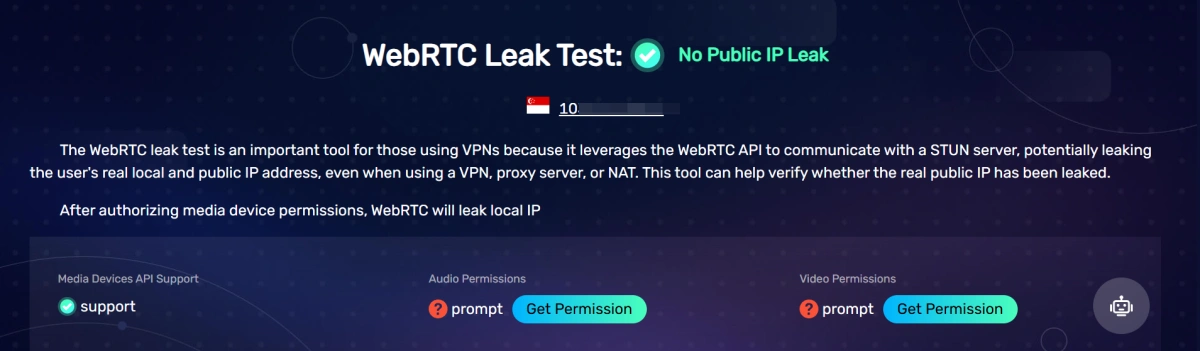
The image above shows that after configuring the browser environment in FlashID and opening BrowserScan, WebRTC is displayed as not leaking.
Why WebRTC Leak Protection Matters for Privacy and Business Continuity
WebRTC leak protection is not only about hiding your IP address. It helps keep your digital identity stable, consistent, and separated from other accounts or profiles.
- For personal privacy: A WebRTC leak may reveal your real connection source, ISP, or approximate location, weakening the protection of your VPN or proxy and making tracking easier.
- For multi-account users: If different browser profiles expose the same real IP through WebRTC, platforms may link those accounts together, even if each profile uses a different proxy.
- For e-commerce and social media teams: WebRTC leaks can damage account trust, trigger verification, or increase the risk of account restrictions when stores, brand accounts, or client accounts are supposed to stay separate.
- For affiliate marketers, ad teams, and scraping users: A mismatch between proxy IP and WebRTC IP may look suspicious to anti-fraud or anti-bot systems, leading to risk checks, login challenges, or traffic limitations.
A strong WebRTC leak shield protects privacy, reduces account linking, and helps keep daily business operations stable.
Conclusion
WebRTC is useful, but unmanaged WebRTC can expose your real IP address, local network data, or proxy inconsistencies. The safest approach is to test your browser, understand how WebRTC behaves, and choose the right WebRTC leak shield for your workflow. For multi-account users, FlashID provides a more complete solution by combining WebRTC control, proxy integration, fingerprint protection, and isolated profiles.
If you’d like to stay updated with practical insights and industry trends, feel free to join our community.
FAQ
1.Can WebRTC leak my real IP even when I use a VPN?
Yes. Some VPNs do not block browser-based WebRTC requests by default. If WebRTC discovers your real public IP or IPv6 address, a website may see it even though normal web traffic appears to use the VPN IP.
2.Is a local IP address leak dangerous?
A local IP leak is usually less dangerous than a public IP leak, but it still matters. Local IP information can reveal part of your network structure and may become one more signal in your browser fingerprint.
3.Does disabling camera and microphone permissions stop WebRTC leaks?
Not necessarily. Camera and microphone permissions control media access, but WebRTC IP discovery can still happen through connection candidate gathering. You need to test WebRTC directly instead of assuming media permission settings are enough.
4.What is the best way to prevent WebRTC leaks in Chrome?
Chrome does not provide a simple native one-click WebRTC disable switch for regular users. The practical options are using WebRTC control extensions, applying managed policies, using strict network rules, or using a fingerprint browser that controls WebRTC per profile.
5.Why is a fingerprint browser better for multi-account users?
A fingerprint browser protects more than WebRTC. It helps separate cookies, cache, local storage, proxy IPs, fingerprints, and account environments. This is important because platforms look for consistency across many signals, not just one IP address.
6.How often should I run a WebRTC leak test?
Run a test whenever you create a new profile, change proxies, update your browser, install extensions, switch VPNs, or move to another network. For important business accounts, testing should be part of the normal setup checklist.
You May Also Like